
If you own a Monsgeek M1W keyboard, you likely appreciate its customizable features, including the switch mode, which allows you to toggle between different profiles, adjust backlighting, and fine-tune your experience. But what happens when this mode stops working? Whether you're unable to switch between profiles or the keyboard is unresponsive to your key presses, a malfunctioning switch mode can be frustrating. In this article, we'll explore the common causes behind this issue and provide practical solutions to get your Monsgeek M1W working properly again.
Step 1: Check for Software Conflicts
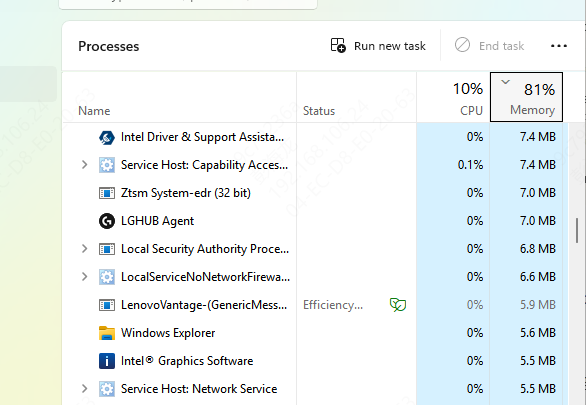
Close third-party key mapping tools: If you're using software like AutoHotKey or other key-mapping tools, close them temporarily to see if the issue is resolved
Reset key assignments: Some software might inadvertently reassign keys. Open the Monsgeek configuration tool and check if the switch mode key has been reassigned. If it has, reset it to the default setting
Step 2: Update Firmware and Drivers
Check for firmware updates
Go to the Monsgeek official website and check if there's a firmware update for your M1W keyboard Firmware updates can resolve bugs and improve performance

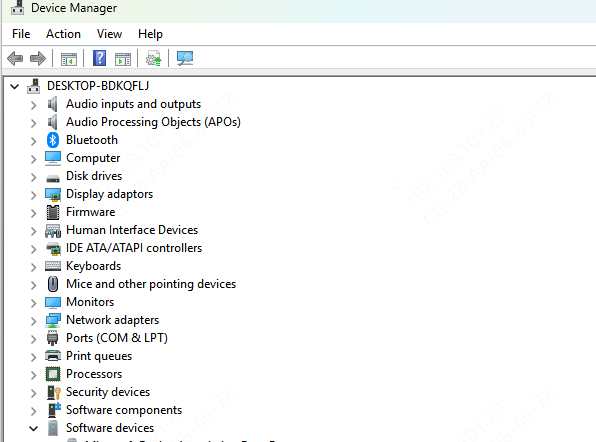
Update drivers through Device Manager
Ensure your keyboard drivers are up to date
You can update drivers through Device Manager in Windows or download the latest versions from the Monsgeek website
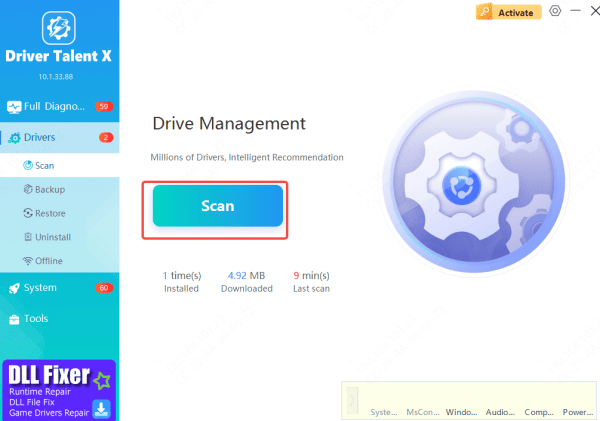
Update drivers through Driver Talent X
Also, if you prefer an automated solution, Driver Talent X is a better choice
With on click, it will automatically update your keyboard driver
Step 3: Address Power/Battery Issues (for Wireless Models)
Check the battery: For wireless models, ensure your keyboard is fully charged. Low battery can affect the functionality of your keyboard's switches
Charge the keyboard: If your M1W is wireless, plug it into a power source using the provided cable and charge it completely before testing again
Step 4: Key Re-mapping or Customization Software
Re-map keys: If the issue is with a specific key mapping, use the Monsgeek configuration software to reassign the switch mode key to a different button or key combination
Fix conflicting key assignments: If you've customized keys or use third-party software for macros, ensure that the key associated with switch mode hasn't been reassigned or overridden
.png "check-software")
Common Reasons Why Switch Mode Stops Working
Software Conflicts
Software conflicts are one of the leading causes of issues with switch mode
If you're using third-party key remapping tools or other customization software alongside Monsgeek's configuration utility, there's a chance that these programs could interfere with the keyboard's switch mode functionality
Outdated Firmware or Drivers
Outdated firmware or drivers can result in compatibility issues, especially when using newer versions of Windows or other software
If your keyboard's firmware or drivers are outdated, the switch mode might not work correctly, causing it to become unresponsive
Hardware Failures
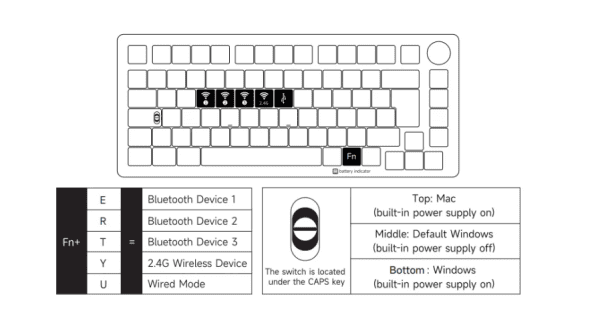
If the switch mode still doesn't work after troubleshooting software and firmware issues, there could be an underlying hardware problem
Malfunctioning switches, loose connections, or even internal component damage could be preventing the switch mode from functioning properly
Battery or Power Issues (for Wireless Models)
If you're using the wireless version of the Monsgeek M1W, low battery or power-related problems might be preventing the switch mode from working
Insufficient power can lead to delayed or unresponsive inputs
Conclusion
Having your Monsgeek M1W switch mode stop working can be frustrating, but with the troubleshooting steps outlined in this guide, you can quickly diagnose and resolve the issue. Whether it's a software conflict, outdated firmware, or a hardware malfunction, the solutions provided should help you restore the functionality of your keyboard's switch mode. Regular updates and proper care can also help prevent similar issues from cropping up in the future, keeping your Monsgeek M1W keyboard running smoothly.









