
A flickering Lenovo monitor can be distracting, uncomfortable for your eyes, and disruptive to work, gaming, or everyday computer use. The screen may flash intermittently, flicker when scrolling, blink during startup, or show unstable brightness. This issue is fairly common and is usually caused by driver problems, incorrect refresh rate settings, loose cables, power issues, or hardware faults. This guide walks you through all proven solutions step by step to help you diagnose and fix Lenovo monitor flickering issues.
Step 1: Check Cables and Physical Connections
Loose or faulty cables are one of the most common causes of screen flickering
Turn off your computer and monitor
Unplug and firmly reconnect the HDMI, DisplayPort, DVI, or VGA cable
Inspect the cable for visible damage or bent pins
Try a different cable if possible
Plug the monitor directly into the PC instead of a docking station or adapter
If the flickering stops after changing cables, the original cable was likely defective
.png "check-cable")
Step 2: Test the Monitor on Another Device
To rule out hardware failure, connect your Lenovo monitor to another computer or laptop
If the monitor flickers on multiple devices, the monitor itself may be faulty
If it works normally on another system, the issue is likely related to your PC's settings or drivers
This step helps narrow down the root cause quickly
.png "connect-other-monitor")
Step 3: Adjust Refresh Rate and Resolution
An incorrect refresh rate can cause noticeable flickering, especially on external monitors
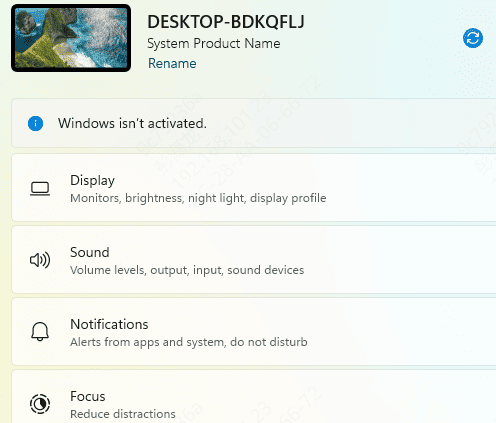
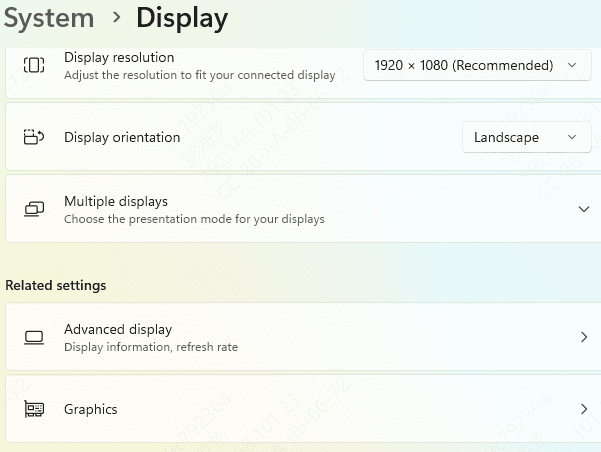
Right-click on the desktop → Display settings
Scroll down and click Advanced display
Select your Lenovo monitor
Under Refresh rate, choose the recommended value (usually 60Hz, 75Hz, or higher depending on the monitor)
Apply the changes
Also ensure the screen resolution matches the monitor's native resolution
Step 4: Update Graphics Drivers
Outdated or corrupted graphics drivers are a major cause of flickering displays.
Install Driver Talent X
Download Driver Talent X, open the setup file once the download is complete, and follow the on-screen instructions to finish installation.
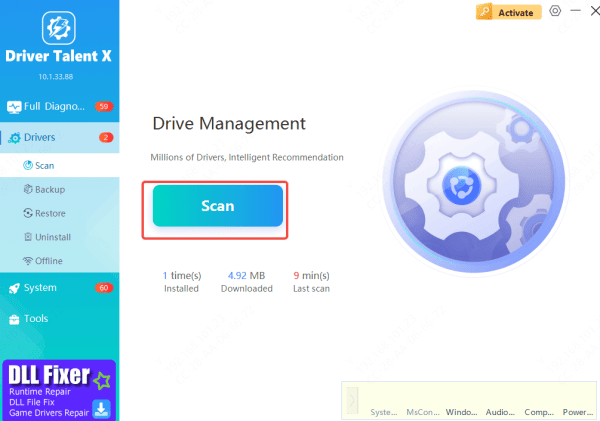
Scan for Driver Issues
Launch the program and navigate to the Drivers section, then click Scan
The tool will check your system for outdated, missing, or corrupted drivers related to graphics, display adapters, and system components that affect monitor stability
Apply Driver Updates
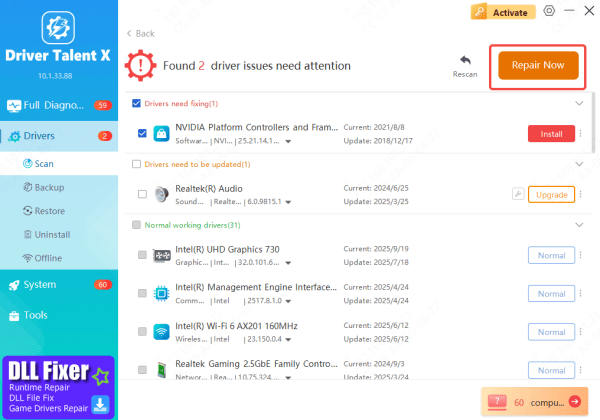
After the scan, review the list of drivers that need attention
Select the recommended display- and graphics-related drivers, then click Update or Repair Now to install the correct versions for your Lenovo system
Restart Your PC
Once the updates are installed, restart your computer to ensure the new drivers load properly
This often resolves flickering issues caused by driver conflicts or outdated software
Step 5: Disable Hardware Acceleration (If Flickering Happens in Apps)
If the screen flickers mainly in browsers or apps like Chrome, Edge, or Office, hardware acceleration may be the issue.
Open the affected app
Go to Settings
Find System or Advanced
Turn off Hardware acceleration
Restart the app
Step 6: Check Power Supply and Electrical Interference
Power fluctuations can cause screen instability
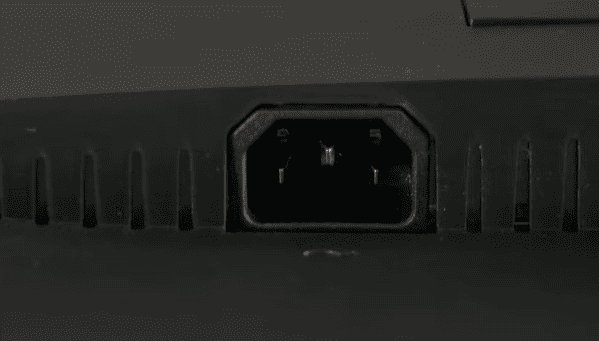
Plug the monitor directly into a wall outlet
Avoid using power strips or shared sockets
Keep power cables away from other electronic devices
Try a different power cable if available
Step 7: Update Windows
Keeping your system up to date can fix compatibility issues
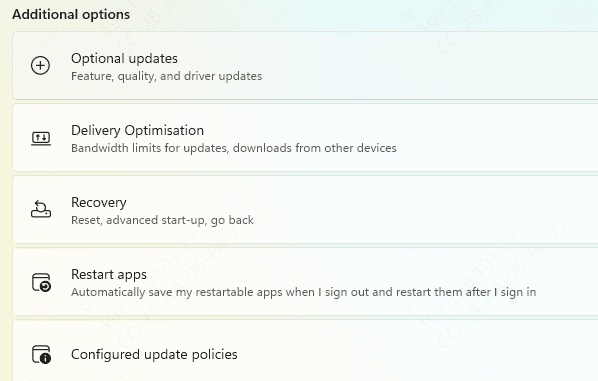
Go to Settings → Windows Update
Install all pending updates
Check Lenovo's support website for monitor firmware updates (if available)
Firmware updates can improve display stability and compatibility
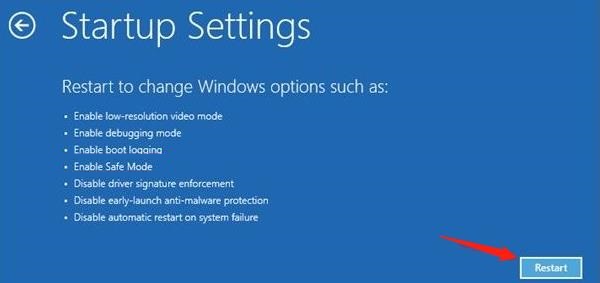
Step 8: Boot into Safe Mode to Test
Safe Mode runs Windows with minimal drivers
If the monitor does not flicker in Safe Mode, the issue is likely driver-related
If flickering continues, hardware issues are more likely
This test helps identify whether software or hardware is responsible
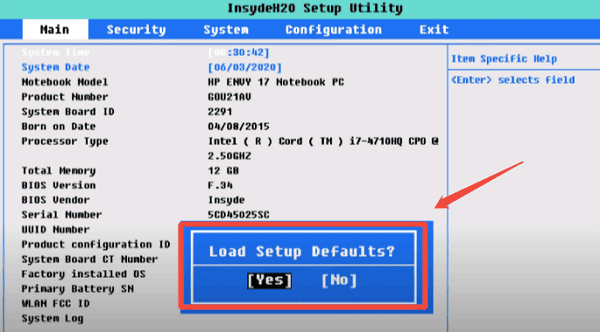
Step 9: Reset Display Settings or BIOS (Advanced)
If the problem persists:
Reset display settings to default
Update or reset BIOS (only if you are experienced and follow Lenovo's instructions carefully)
Incorrect BIOS settings can sometimes affect GPU behavior
Common Causes of Lenovo Monitor Flickering
Outdated or corrupted graphics drivers
Incorrect refresh rate or resolution settings
Loose, damaged, or incompatible display cables
Power supply instability
Windows display configuration errors
Monitor firmware issues
Hardware failure (monitor or GPU)
Conclusion
Lenovo monitor flickering is usually caused by driver issues, incorrect display settings, or cable problems—and most cases can be fixed without replacing hardware. Start with simple checks like cables and refresh rates, then move on to driver updates and system settings. If flickering continues across devices, the monitor itself may need repair or replacement. Following this guide step by step will help you restore a stable, flicker-free display and protect your eyes and productivity.









