
Wi-Fi disconnections can be incredibly frustrating, especially when you need a stable connection for work, gaming, or entertainment. Whether you're dealing with frequent drops in signal, slow speeds, or intermittent connectivity, the good news is that most Wi-Fi issues can be resolved with a few simple troubleshooting steps. This guide will walk you through the common causes of Wi-Fi disconnections and offer practical solutions to fix the issue.
Basic Troubleshooting Steps
Restart Your Router and Modem
Sometimes, the simplest solution is the most effective. Power cycle your router and modem by unplugging them for about 30 seconds, then plugging them back in
This can resolve temporary connection glitches and refresh the network
Check for Outages
Before diving into technical fixes, it's a good idea to confirm if there's a network outage in your area
You can contact your Internet Service Provider (ISP) or check their website for any service disruptions.
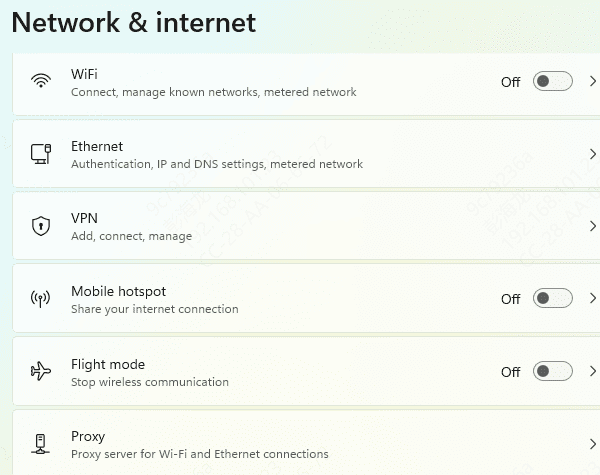
Ensure Wi-Fi is Enabled
Ensure that your device's Wi-Fi is turned on. Sometimes, the issue could simply be that Wi-Fi is disabled on your device or in airplane mode
Update/Reinstall Network Drivers for Stability
A faulty or outdated network driver is one of the most common reasons behind Wi-Fi disconnections. Updating or reinstalling your network drivers is often the first and most effective step to solving these issues. Thankfully, Driver Talent X makes this process quick, easy, and safe by automatically detecting and installing the correct network drivers for your system.
Step 1: Download and Install Driver Talent X
Click the Download button to download the software package from the official site
Install Driver Talent X on your laptop by following the on-screen instructions
Step 2: Scan Your System
Open Driver Talent X
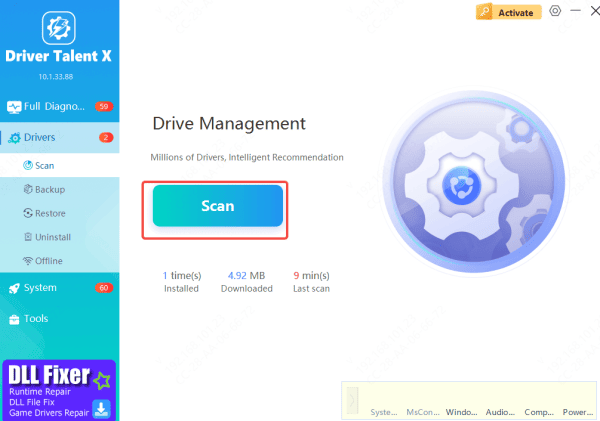
Go to the Drivers section and select Scan
Click Scan to allow the software to perform a comprehensive scan of your system
Driver Talent X will automatically identify any outdated or missing drivers, particularly your Wi-Fi adapter and related chipset drivers, which can greatly affect your system's stability
Step 3: One-Click Update
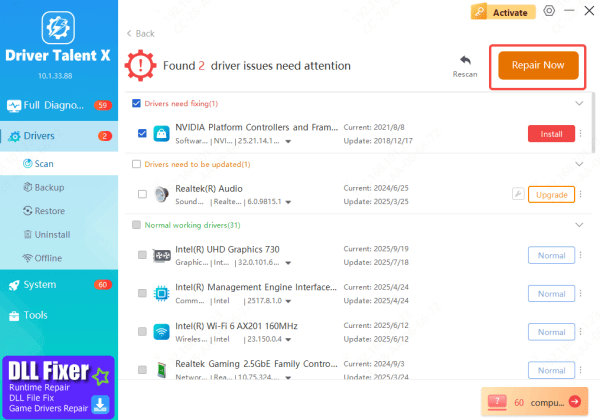
Once the scan is complete, Driver Talent X will show a list of drivers that need attention
Locate the Wi-Fi Driver in the list, or simply click the Repair Now button
The software will automatically download and install the latest, verified version of the driver that's compatible with your Wi-Fi hardware
Step 4: Restart Your Laptop
After the driver installation finishes, it's important to restart your laptop
This ensures the new drivers are fully integrated into your system and that the Wi-Fi adapter is operating with the latest updates
Flush DNS and Reset IP & Winsock Stack
Open Command Prompt as Administrator
Click the Start button, type cmd, right-click Command Prompt, and select Run as administrator
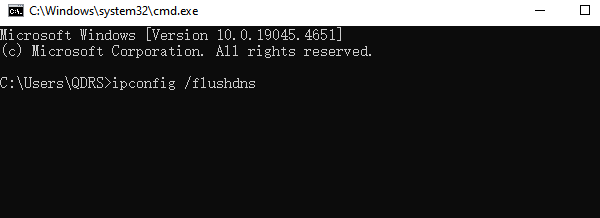
Run the following commands one by one (press Enter after each):textipconfig /flushdns
netsh int ip reset
netsh winsock reset
Restart your computer
Reboot your PC to apply the changes. This usually takes effect immediately after restart.
Full Network Reset
This option completely removes and reinstalls all network adapters and resets Windows networking components to their default state—ideal when other fixes fail.
Open Settings
Press Windows key + I to launch the Settings app.
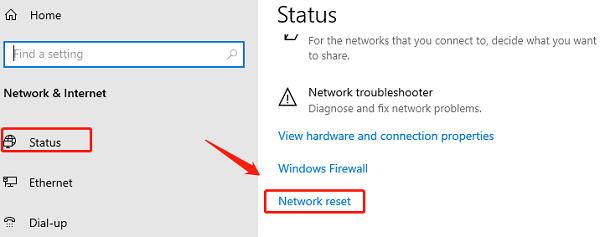
Go to Network Reset
Navigate to Network & Internet → scroll down and click Network reset.
Start the reset
Click Reset now → confirm if prompted. Your PC will restart automatically
Reconnect to WiFi
After reboot, you'll need to reconnect to your network and re-enter the WiFi password
Conclusion
Wi-Fi disconnections can be frustrating, but with the right troubleshooting steps, most issues can be resolved. Start with the basics like restarting your router and checking for interference, then move on to more advanced steps like updating drivers or changing DNS settings. If the problem persists, update driver via Driver Talen X.









