
Sennheiser headphones are known for their excellent sound quality and comfort, but sometimes users experience sound cutting out or intermittent audio. This issue can be particularly frustrating, whether you're gaming, listening to music, or taking calls. Fortunately, this problem is often fixable with a few troubleshooting steps. In this guide, we'll help you diagnose and fix the issue of Sennheiser headphones sound cutting out, so you can enjoy uninterrupted audio again.
Check the Audio Source
Before diving into more complex solutions, it's a good idea to check if the problem lies with the audio source.
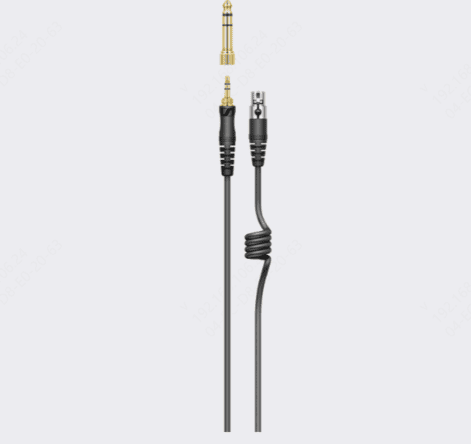
Ensure Proper Connection: Whether you're using Bluetooth, a 3.5mm jack, or USB, make sure your headphones are securely connected to the audio source
Test on Different Devices: If your headphones are wireless, try pairing them with a different device (another smartphone, tablet, or computer) to check if the issue is device-specific. For wired headphones, try plugging them into another audio source to see if the issue persists
Verify Bluetooth or Wired Connections
For Wireless Headphones
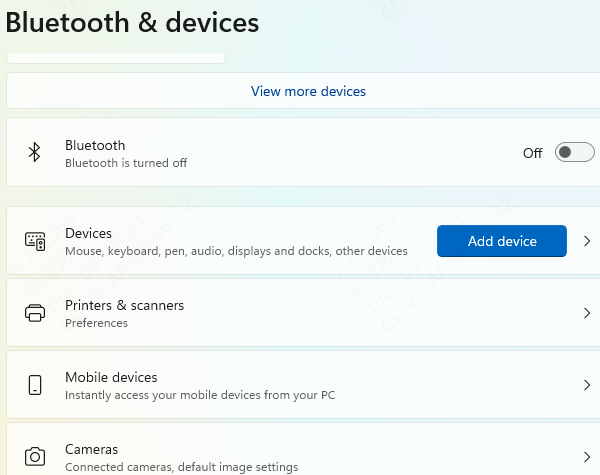
Make sure Bluetooth is enabled on both your headphones and the device you're using
Unpair and repair the headphones to establish a fresh connection
For Wired Headphones
Check the 3.5mm jack or USB cable for any physical damage
Ensure the cable is fully plugged in. A loose connection can cause sound issues
Try a different audio jack or port to rule out a faulty connection
Inspect Battery and Power
Battery Level: Ensure your headphones have enough battery power. Low battery can cause intermittent audio issues. Try charging the headphones and see if the sound cuts out once they are fully charged
Charging Port: Check the charging port for any dirt, debris, or signs of wear. A dirty or damaged charging port can interfere with charging and performance
Power Cycle the Headphones: Turn your headphones off, wait a few seconds, and then power them on again to reset the connection
Check Audio Settings
Sometimes, audio settings on your device may affect the headphone performance.
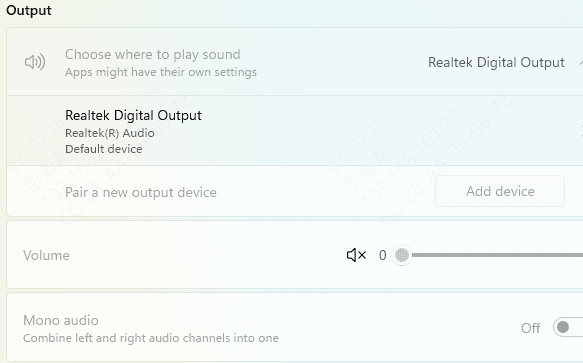
Volume Settings: Check the volume levels on both your headphones and the device you're using. Make sure the device volume isn't muted or too low
Audio Balance: Check the audio balance settings on your device to ensure it's not skewed to one side.
Device Output Settings: Go to the audio settings and ensure that the correct audio output device (your Sennheiser headphones) is selected
Update Drivers and Firmware
Outdated drivers or firmware can cause compatibility issues, including sound cutting out.
Method 1: Update Drivers via Device Manager
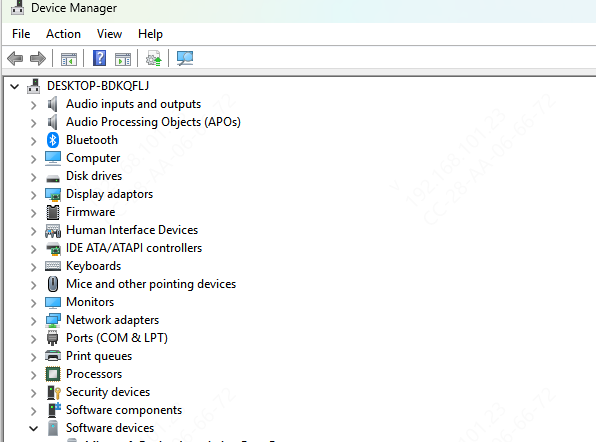
Open Device Manager (Press Windows + X, then select Device Manager)
Locate your Sennheiser headphones under "Audio inputs and outputs"
Right-click on the headphones and select Update Driver. Choose Search automatically for updated driver software to let Windows check for the latest updates
If the drivers are already up-to-date, try uninstalling and reinstalling them to resolve any potential corrupt files
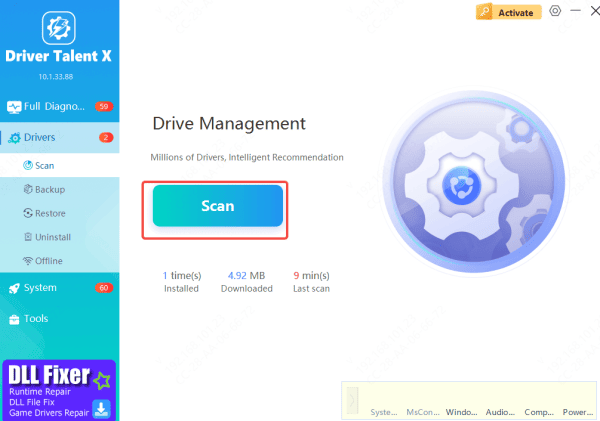
Method 2: Update Drivers with Driver Talent X
Download and install Driver Talent X from the official website
Once installed, open the software and navigate to the Drivers → Scan section
The application will scan your system for any outdated or missing drivers, including those for your Sennheiser headphones
Click Repair Now to automatically fix any driver issues detected
Restart your computer to ensure the updates take effect
Test Audio Cables and Headphone Jack
For wired headphones, the problem may lie with the cable or the jack
Loose or Damaged Connections: Ensure the headphone cable is securely plugged into the device. A loose connection can easily cause audio dropouts
Try a New Cable: If your headphones have a removable cable, try using a different one to see if the issue persists. A damaged cable can cause intermittent sound
Conclusion
By following the troubleshooting steps outlined above, most Sennheiser headphones sound cutting out issues can be resolved without much hassle. Start with the basics, such as checking the connection and battery, then move on to more advanced steps like updating drivers and performing a reset. If all else fails, don't hesitate to contact Sennheiser support for assistance. With the right approach, you'll be back to enjoying your headphones in no time.









