
Audio drivers are crucial for ensuring that your device produces high-quality sound. Without the right drivers, you may experience issues like no sound, distorted audio, or poor performance. Regularly updating your Dell audio driver is important not only for optimal sound but also for fixing bugs, improving compatibility, and ensuring your system runs smoothly. In this article, we'll show you how to update your Dell audio driver and enhance your sound experience.
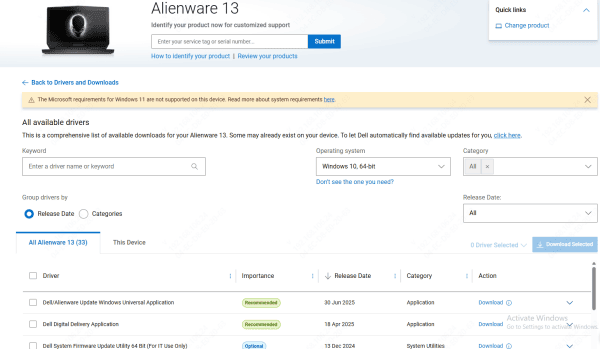
Method 1: Downloading the Latest Drivers from Dell's Official Website
If you prefer manual control, you can download the latest audio driver directly from Dell's support website:
Visit the Dell Support Website
Enter your Dell product's Service Tag or select your device model
Navigate to the Drivers & Downloads section
Look for the audio driver under Audio or Sound
Download the driver that matches your operating system (e.g., Windows 10 or 11)
Once downloaded, run the installer and follow the on-screen instructions
Method 2: Update Drivers with Driver Talent X (Recommended Fix)
Outdated, missing, or corrupted audio drivers are one of the most common reasons Dell laptops and desktops experience sound issues on Windows. Driver Talent X helps automatically detect faulty system drivers and installs the correct Dell-compatible audio drivers, ensuring optimal sound performance.
Download and Install Driver Talent X
Download the tool: Visit the official Driver Talent website and click the Download button
Run the installer: Open the downloaded file and follow the on-screen instructions to install the application
Launch the app: After installation, open Driver Talent X on your Dell device
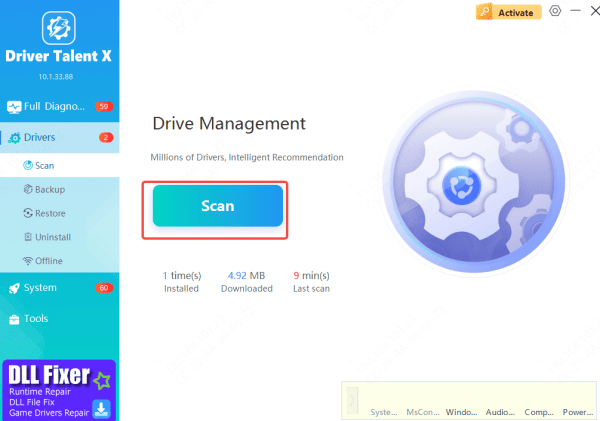
Run a Full Driver Scan
Open Driver Talent X: Once the tool is launched, go to the Drivers section in the app
Perform a scan: Click Scan to begin the driver detection process. Driver Talent X will check your Dell system for: Audio drivers (Realtek, IDT, or Conexant audio drivers) or USB audio drivers
Apply Driver Fixes
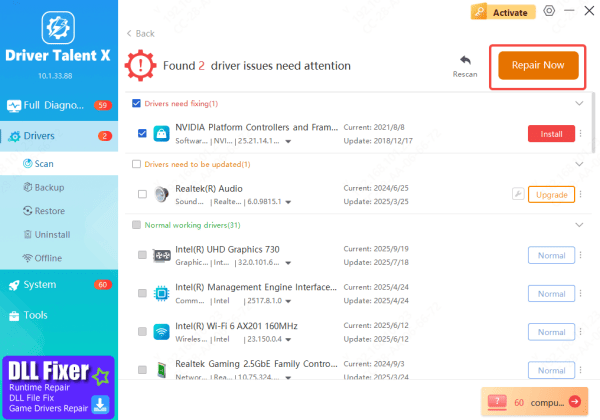
Select Repair Now/Update: After the scan, click Repair Now or Update to allow Driver Talent X to automatically fix your audio drivers
Install the correct drivers: The tool will install the proper Dell audio drivers that match your system model and configuration
Restart Your Dell Device
Reboot the system: Once the driver installation is complete, restart your Dell laptop or desktop to apply the changes
By using Driver Talent X, you can quickly and efficiently fix audio driver problems on your Dell device and enjoy improved sound quality without the hassle of manual updates
Method 3: Updating via Device Manager
You can also update your Dell audio driver manually through Device Manager:
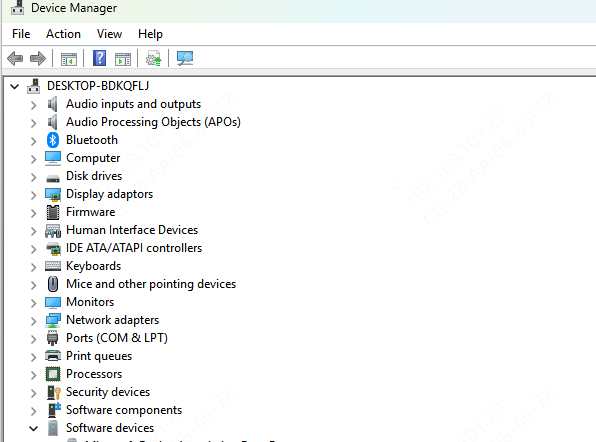
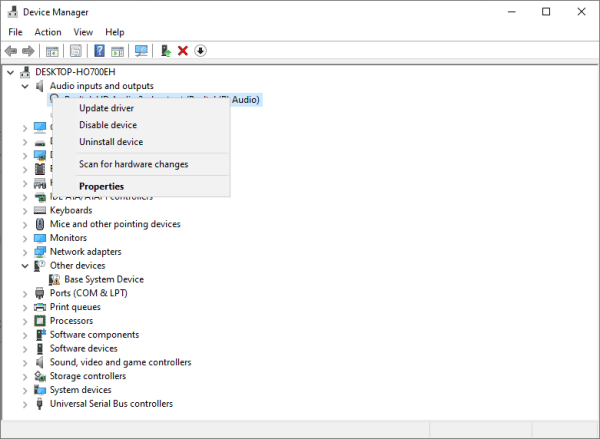
Right-click the Start button and select Device Manager
Expand the Sound, video and game controllers section
Right-click your audio device (usually listed as "Realtek High Definition Audio" or similar)
Select Update driver
Choose Search automatically for updated driver software. Windows will search for the latest drivers online
If a new driver is found, follow the on-screen instructions to install it
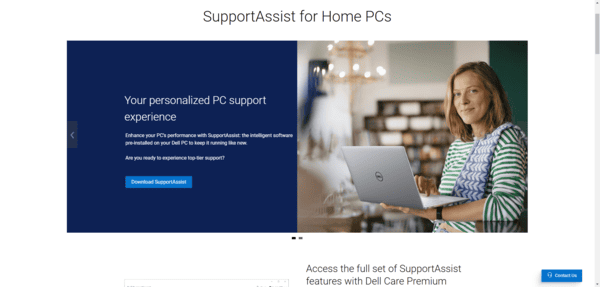
Method 4: Using Dell SupportAssist
Dell's SupportAssist is an automated tool that scans your system for outdated drivers and updates them for you. Here's how to use it:
Download and install Dell SupportAssist from the Dell website if you haven't already
Open SupportAssist and select the "Get Drivers & Downloads" option
The tool will automatically scan your system for outdated drivers
Click "Install" next to the audio driver update to begin the installation process
Follow the on-screen instructions to complete the update
Troubleshooting Common Issues After Updating the Driver
Sometimes, things don't go as planned after updating a driver. Here's how to solve common post-update issues:
No Sound After Driver Update
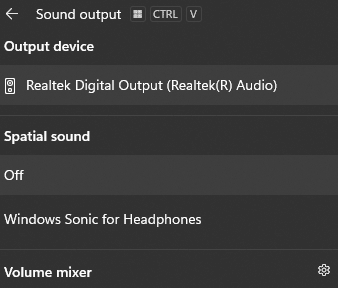
Check the volume settings and ensure the correct output device is selected (e.g., speakers, headphones)
Restart your computer to ensure the driver changes take effect
Rollback the driver: If the issue persists, go back to the previous driver version by opening Device Manager, right-clicking your audio device, and selecting Properties → Driver → Roll Back Driver
Audio Distortions or Lag
Try adjusting the audio settings in Sound Control Panel or check the audio enhancement settings
If you're using external speakers, check the connection and cables
Check if your system is using high-definition audio settings for better sound quality
Driver Conflicts
Uninstall any conflicting audio drivers from Device Manager
Reinstall the latest Dell audio driver, ensuring no other audio drivers are causing issues
Driver Not Supporting Windows Version
Ensure you've downloaded the driver that matches your Windows version (e.g., Windows 10 vs. Windows 11)
If the driver doesn't support your OS, try using a previous version or contact Dell support for an alternative driver
Conclusion
Updating your Dell audio driver is a quick and effective way to improve sound performance and solve common audio problems. Whether you use Dell SupportAssist, Device Manager, or manually download the drivers from the Dell website, the process is straightforward and can have a significant impact on your audio experience. Don't forget to maintain your system by keeping drivers up-to-date and checking for system updates regularly.









