
When it comes to maintaining a stable and high-speed internet connection, your Dell network adapter plays a key role. A network adapter driver ensures that your operating system can communicate with your hardware, such as Wi-Fi cards or Ethernet adapters. Keeping these drivers up to date is essential for ensuring optimal network performance. If you're experiencing issues like slow speeds, frequent disconnections, or other connectivity problems, outdated network adapter drivers may be the culprit. This guide will walk you through why updating your Dell network adapter driver is important, how to do it, and the best practices to keep your network running smoothly.
Option 1: Use Driver Talent X
For a quick and reliable fix, Driver Talent X is the perfect tool to automatically detect and update your Lenovo wireless network drivers. It ensures that the correct and most compatible driver versions are installed, preventing issues like incorrect driver installation and compatibility errors.
Steps to Update Your Lenovo Wireless Network Driver with Driver Talent X:
Download and Install Driver Talent X
Visit the official Driver Talent X website and download the software
Follow the on-screen instructions to install it on your Lenovo laptop
Run the Software and Scan
Open Driver Talent X, then go to the Drivers section and click on Scan
The software will automatically detect outdated or missing drivers on your system, including your wireless network adapter
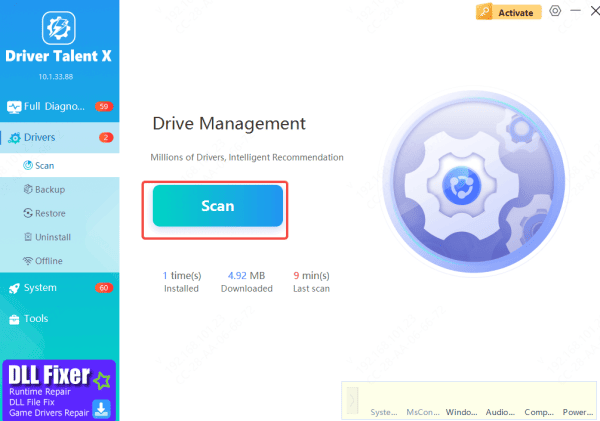
Update or Repair Wireless Drivers
Once the scan is complete, Driver Talent X will show you the wireless network driver(s) that need attention
Click Repair Now or Update to install the latest version of your wireless driver
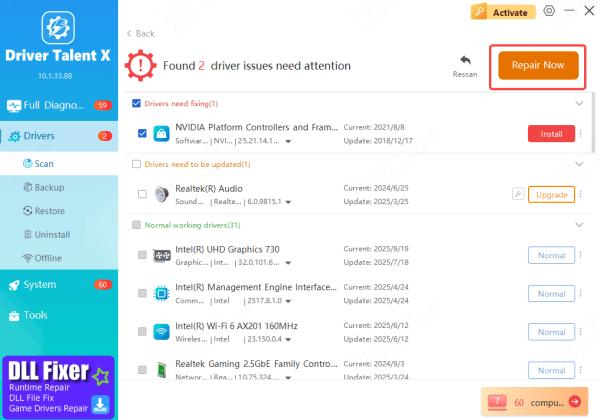
Restart Your Laptop
After the update, restart your laptop to ensure the new drivers are applied and functioning correctly
By using Driver Talent X, you can avoid the hassle of manual driver searches and installation errors. This tool takes care of compatibility issues and ensures your network driver is up-to-date for better connectivity and performance
Option 2: Manual Update via Dell's Website
If you prefer to manually update your drivers, you can download the latest network adapter drivers directly from the Dell Support website.
Steps to Manually Update Dell Network Adapter Driver:
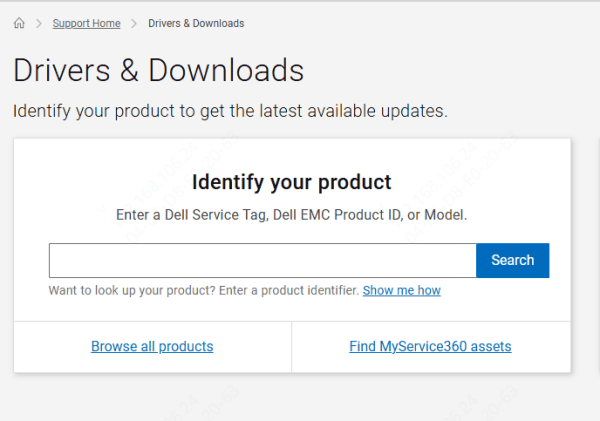
Go to Dell Support (support.dell.com)
Enter your Dell Service Tag or select your laptop/PC model
Navigate to the "Drivers & Downloads" section
Locate the network adapter driver specific to your operating system (Windows 10, 11, etc.)
Download the driver and follow the installation instructions
Once installed, restart your computer to complete the update
Option 3: Using Dell SupportAssist
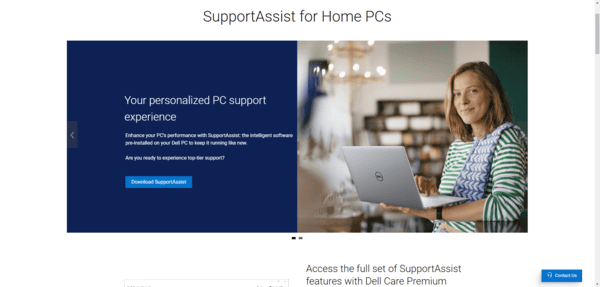
Dell SupportAssist is a handy tool designed to automatically detect and install the latest drivers for your Dell device.
Steps to Update via SupportAssist:
Download and install Dell SupportAssist from Dell's official website
Open the program and let it perform a system scan to identify any outdated drivers
Once the scan is complete, follow the prompts to update your network adapter driver automatically
Option 4: Using Device Manager in Windows
Windows Device Manager also provides an easy way to update drivers.
How to Update via Device Manager:
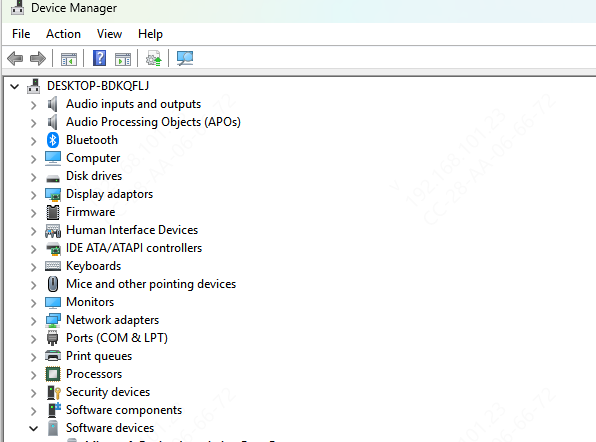
Open Device Manager (Press Windows + X and select Device Manager)
Expand the Network Adapters section
Right-click on your network adapter and choose Update driver
Select Search automatically for updated driver software
If a newer driver is found, follow the on-screen instructions to install it
Restart your computer after the update
How to Reinstall Dell Network Adapter Drivers
If updating doesn't solve your connectivity problems, you may need to reinstall your network adapter driver.
Steps to Reinstall:
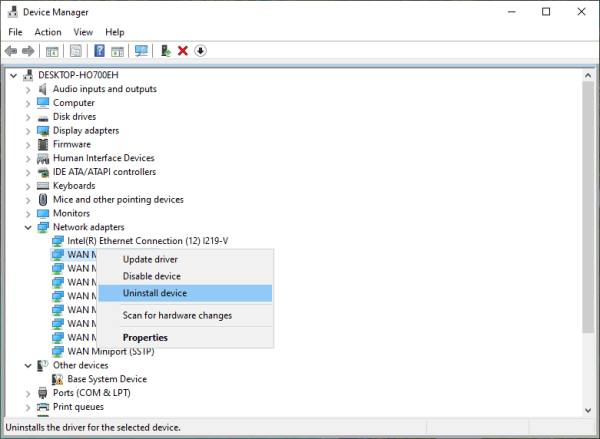
Open Device Manager and expand the Network Adapters section
Right-click on your network adapter and choose Uninstall device
Restart your computer to allow Windows to automatically reinstall the driver
Alternatively, you can manually download and install the latest driver from Dell's support site
Conclusion
By following the methods outlined in this guide, you can easily keep your network adapter driver up to date, troubleshoot common issues, and follow best practices for optimal connectivity. Whether you're using Dell SupportAssist, Device Manager, or Driver Talent X, ensuring your network adapter is running the latest driver is key to a smoother, faster internet experience.









