If you're facing a "No Signal Detected" issue with your ZOWIE monitor, it can be frustrating, especially when you're in the middle of gaming or work. The good news is that this problem is often fixable through a series of simple troubleshooting steps. Here's a comprehensive guide to help you resolve the "No Signal" error and get your ZOWIE monitor back to working condition.
Check the Physical Connections
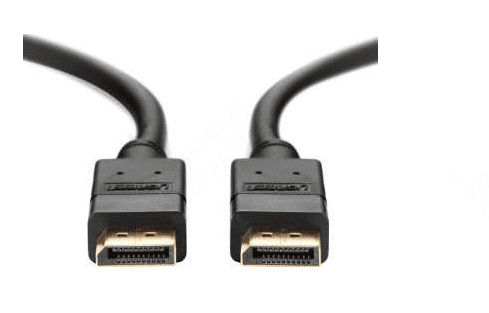
Verify Cable Connections
First, ensure that your video cable (HDMI, DisplayPort, or VGA) is securely connected between your monitor and your PC
Sometimes a loose connection can be the reason for the "No Signal Detected" message
Try disconnecting and reconnecting both ends of the cable to make sure they're properly seated
Test with Another Cable
If you have a spare cable, try swapping it out to check if the issue lies with a faulty cable
Check the Power Cable
Make sure the monitor's power cable is plugged in and the monitor is receiving power
Look for a power indicator light on the monitor; if it's not lit, try connecting it to a different power source
Check Input Source Settings
Monitor Input Selection
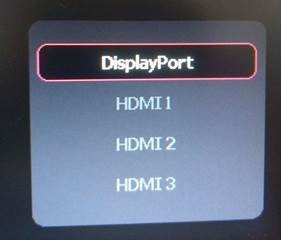
ZOWIE monitors typically have multiple input sources (e.g., HDMI, DisplayPort, VGA)
If you have more than one device connected, ensure that your monitor is set to the correct input source
Press the "Input" or "Source" button on the monitor to cycle through the different options
Use the On-Screen Menu
Use the on-screen menu of the monitor to ensure that the correct input source is selected
If necessary, navigate through the monitor settings to adjust this
Restart Your Computer and Monitor
Power Cycle the Monitor
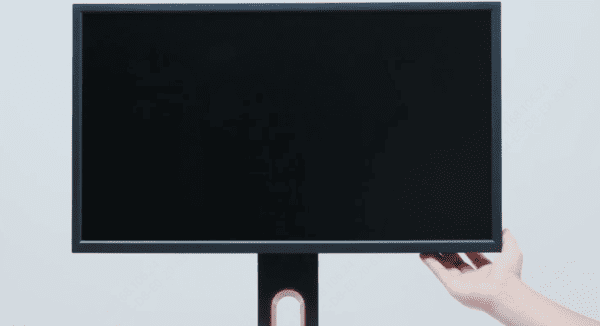
Turn off your ZOWIE monitor and unplug the power cable for about 30 seconds to reset the internal components
Plug it back in and power it up again
Reboot Your Computer
A simple restart of your PC can sometimes resolve connection issues with peripherals
Restart your computer to see if that resolves the issue
Check for Firmware Updates
Some ZOWIE monitors offer firmware updates that can improve functionality and fix bugs
Check the ZOWIE website for any available updates and follow the instructions for installation
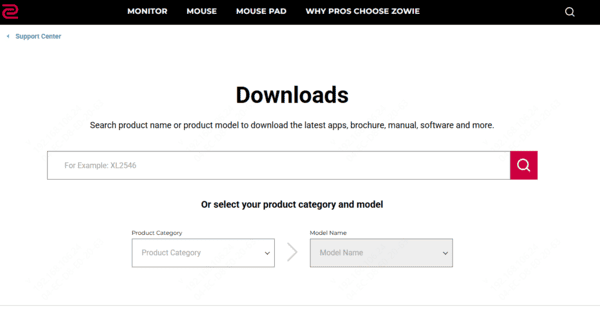
Check for Driver Updates
One of the best ways to ensure your system is optimized and all drivers are functioning properly is by using Driver Talent X. It automatically scans and installs the latest, most compatible drivers for your hardware, saving you the hassle of manually searching and installing updates.
Download and Install Driver Talent X
Click the download link to get the software and follow the installation prompts to set it up
Scan for Outdated Drivers
Open Driver Talent X and go to the "Drivers" section
Click Scan to let the software automatically identify any outdated or missing drivers on your system
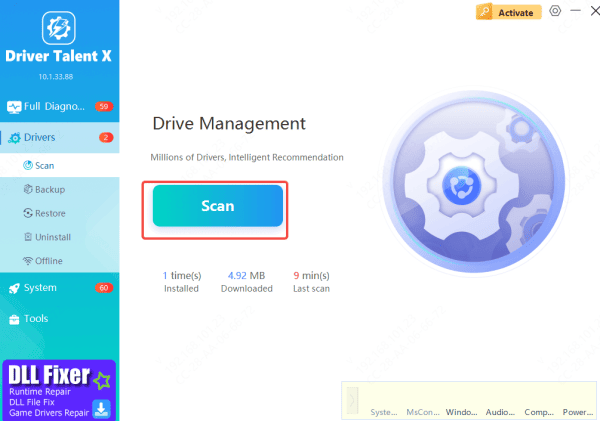
Update Display Drivers
Once the scan completes, Driver Talent X will list the drivers that need updating. Select the Display or Graphics driver from the list
Click Repair Now to automatically download and install the latest driver version
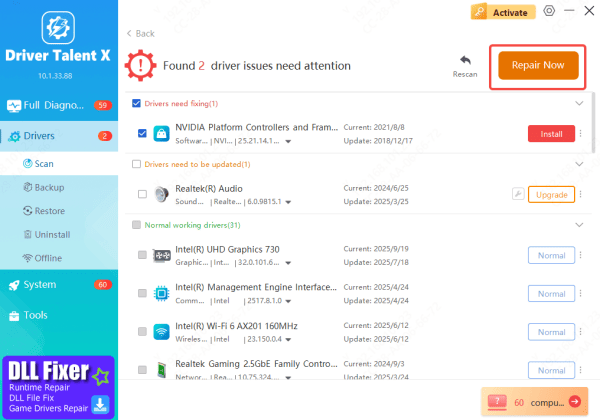
Restart Your Computer
After installation, restart your computer to apply the changes and ensure optimal performance
By keeping your display drivers up-to-date, you can prevent future issues like the "no signal detected" error from arising. Additionally, it ensures that your ZOWIE monitor works seamlessly with the latest features and compatibility improvements.
Test with Different Display Resolution or Refresh Rate
Adjust Display Settings
If your monitor is receiving a signal but still displaying incorrectly, try adjusting the resolution or refresh rate through your computer's display settings
Check for Compatibility
Ensure that the resolution and refresh rate settings from your PC match the capabilities of your ZOWIE monitor
Some older monitors may not support very high resolutions or refresh rates
Check for Hardware Failure
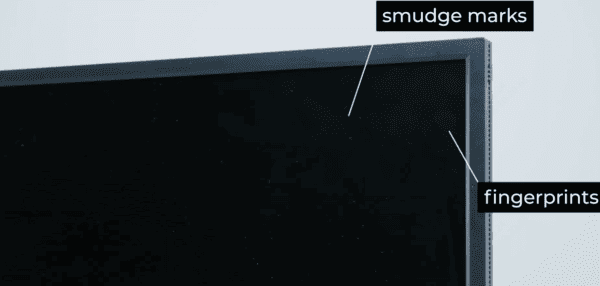
Inspect the monitor for any visible signs of physical damage, such as cracks, flickering, or broken components
If your monitor is damaged, it may require repairs
Conclusion
By following these troubleshooting steps, you should be able to resolve the "No Signal Detected" issue with your ZOWIE monitor. Most problems stem from simple connection or configuration issues, but if the problem persists, further investigation into hardware failure may be needed. Stay patient, and you'll likely find a solution to get your ZOWIE monitor back to its best performance.









