
A Windows 10 update can improve system security and performance, but it can also cause unexpected issues. One of the most common problems users report is a laptop keyboard that suddenly stops working after an update.
This issue is usually related to driver conflicts, corrupted system files, incorrect settings, or power management changes introduced by the update. The most effective and recommended fix, updating keyboard-related drivers with Driver Talent X, is placed at the front to help you resolve the problem quickly.
Update System Drivers Using Driver Talent X
After a Windows update, existing keyboard, chipset, or HID drivers may become outdated or incompatible. Updating all related drivers at once is the fastest and safest solution.
Download and Install:
Click the "Download" button to download the software package.
Follow the on-screen instructions to complete installation.
Perform a Full System Scan:
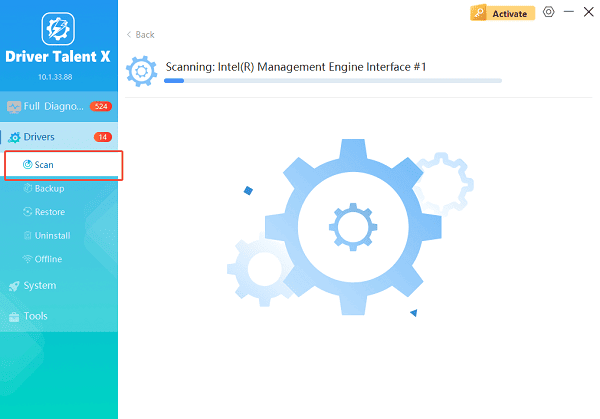
Open the software from your desktop or Start menu, go to "Drivers" > "Scan", click "Scan".
The program will analyze all drivers, including the keyboard driver, chipset driver, and HID-related components.
Update All Drivers:
After the scan is complete, the software will display a list of all drivers that need attention. Select "Repair Now" button to automatically download and install the recommended drivers.
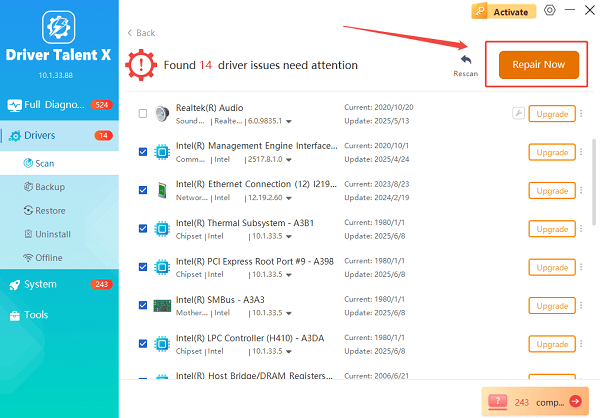
Driver Talent X will reliably download the correct, latest certified driver for your pc, and execute a completely clean installation automatically.
Restart your laptop:
Restart your laptop after the update process finishes to apply changes.
This method avoids manual driver mismatches and ensures your keyboard works properly with the latest Windows update.
Restart Windows Explorer
Sometimes the keyboard stops responding due to a temporary system glitch.
Steps:
Press Ctrl + Alt + Delete.
Open Task Manager.
Find "Windows Explorer" in the list, right-click it and select "Restart".
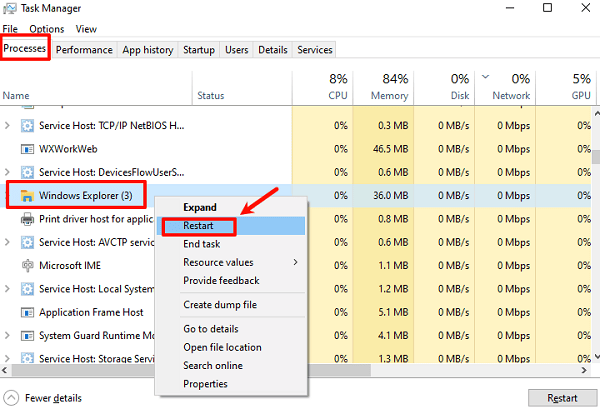
Test the keyboard after the screen refreshes.
Disable Filter Keys in Windows Settings
Windows updates may enable accessibility features such as Filter Keys, which can prevent normal typing.
Steps:
Press Windows + I to open Settings.
Go to Ease of Access.
Select Keyboard from the left panel.
Turn off "Filter Keys".
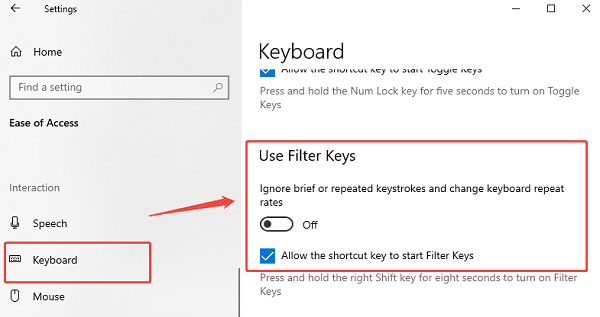
Close Settings and test the keyboard again.
Reinstall the Keyboard Driver Manually
If the keyboard driver is corrupted, reinstalling it can help.
Steps:
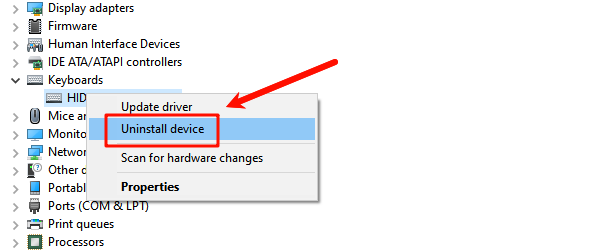
Right-click the Start menu and select Device Manager.
Expand the "Keyboards" category, right-click your keyboard device and select "Uninstall device".
Restart your laptop.
Windows will automatically reinstall the keyboard driver on boot.
If Windows installs a generic driver that does not work properly, return to Driver Talent X to install the correct one.
Run Windows Keyboard Troubleshooter
Windows includes a built-in troubleshooter that can detect and fix common input issues.
Steps:
Open Settings.
Go to Update & Security.
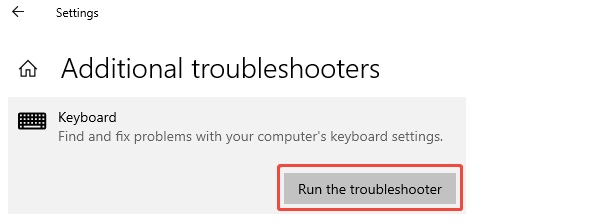
Select "Troubleshoot", click "Additional troubleshooters".
Run the Keyboard troubleshooter and follow the on-screen instructions.
Check Power Management Settings for HID Devices
Windows updates sometimes change power settings that disable input devices to save energy.
Steps:
Open Device Manager.
Expand "Human Interface Devices", right-click each HID Keyboard Device and select "Properties".
Go to the "Power Management" tab, uncheck "Allow the computer to turn off this device to save power".
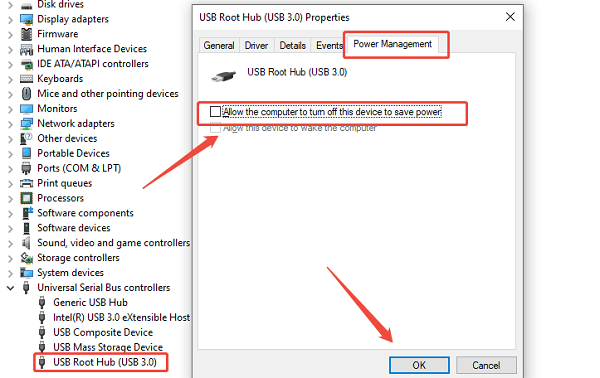
Click "OK" and restart your laptop.
Roll Back the Recent Windows Update
If the keyboard stopped working immediately after a specific update, rolling it back can restore functionality.
Steps:
Open Settings.
Go to Update & Security.
Click View update history.
Select "Uninstall updates".
Choose the most recent Windows update and uninstall it.
Restart your laptop.
Check for BIOS or Chipset Issues
In some cases, Windows updates require newer chipset or BIOS support to maintain keyboard functionality.
Recommended Actions:
Update chipset drivers using Driver Talent X.
Visit your laptop manufacturer's website to check for a BIOS update compatible with the latest Windows 10 version.
Follow manufacturer instructions carefully when updating BIOS.
Final Thoughts
A Windows 10 update can disrupt keyboard functionality due to driver incompatibility, system setting changes, or power management conflicts. The most reliable solution is updating all relevant drivers using Driver Talent X, as it addresses the root cause quickly and safely. If that does not fully resolve the issue, applying the additional fixes above will help restore normal keyboard operation and prevent future problems after updates.
See also:
How to Update Graphics Driver Intel on Windows PC
HP Drivers Download – Official and Safe Methods for Windows









