
If your Blue Yeti microphone driver has disappeared on Windows 11, you may find that the microphone no longer appears in Device Manager, Sound Settings, or recording apps like Zoom, Discord, OBS, or Teams. This issue is fairly common after Windows updates, system upgrades, USB driver conflicts, or power-related changes. The good news is that Blue Yeti microphones are usually easy to restore once you identify the cause. This guide walks you through all effective solutions, from basic checks to advanced driver fixes, to help you get your Blue Yeti working again on Windows 11.
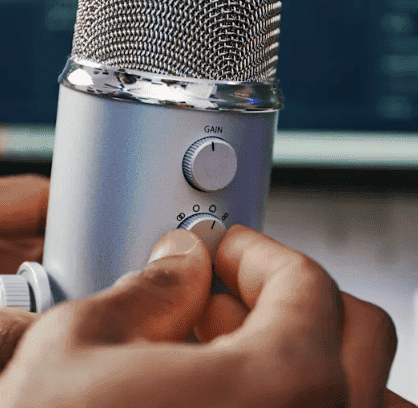
Step 1: Check Physical Connections First
Start with the basics to rule out hardware issues.
Unplug the Blue Yeti microphone
Try a different USB port (avoid USB hubs if possible)
Use another USB cable if available
Plug the microphone directly into your PC
Restart your computer and reconnect the mic
If the microphone light does not turn on, the issue may be hardware-related. If it powers on but is not detected, continue below.
Step 2: Check Windows Sound Settings
Sometimes the microphone is detected but disabled.
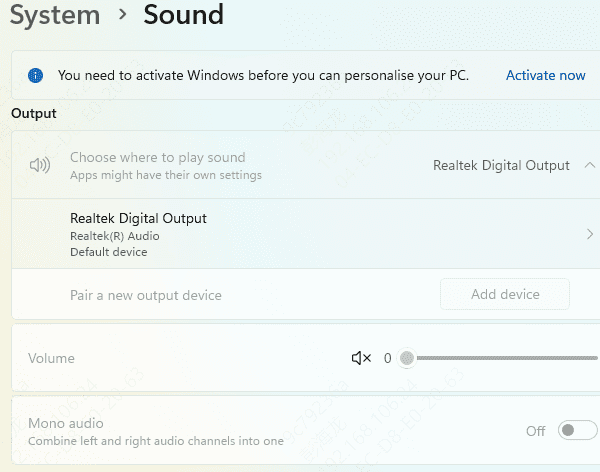
Press Win + I → System → Sound
Scroll to Input
Check if Blue Yeti appears in the list
If visible, select it as the default input device
Click Device properties and make sure it's enabled
If Blue Yeti does not appear, proceed to Device Manager.
Step 3: Look for the Blue Yeti in Device Manager
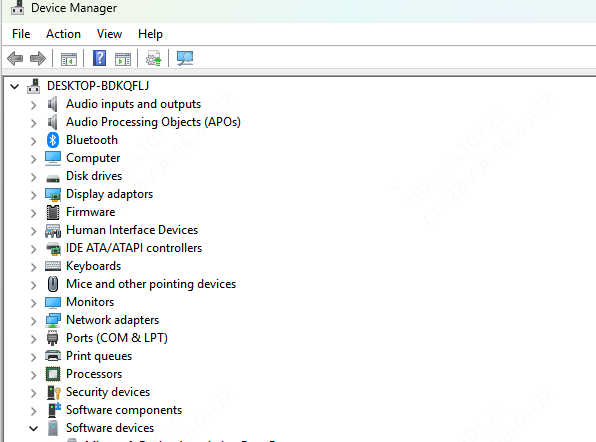
Right-click Start → Device Manager
Expand:
Audio inputs and outputs
Sound, video and game controllers
Universal Serial Bus controllers
Look for: Blue Yeti, USB Audio Device, or Unknown Device (with a yellow warning icon)
If you see a warning icon, it indicates a driver issue.
Step 4: Update USB and Audio Drivers
If your Blue Yeti microphone driver is missing or has disappeared on Windows 11, it can disrupt your audio experience, especially if you rely on it for work, gaming, or content creation. The issue can be fixed by using Driver Talent X can simplify the process of updating the right drivers.
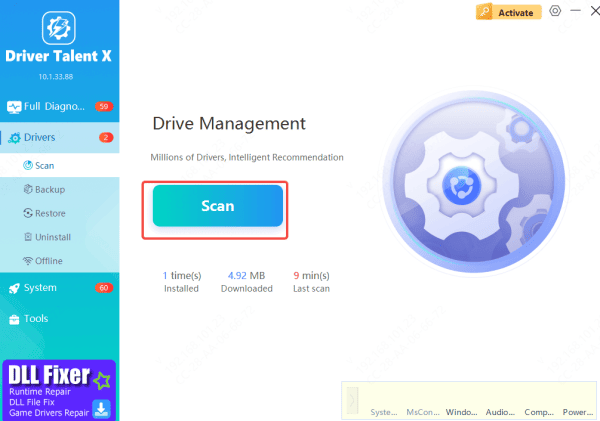
Download and Install Driver Talent X
Launch the Program and Scan for Issues
Update the Driver
Restart Your Laptop
By using Driver Talent X, you save time and avoid the hassle of manually searching for the correct drivers, ensuring your Blue Yeti microphone works seamlessly with Windows 11.
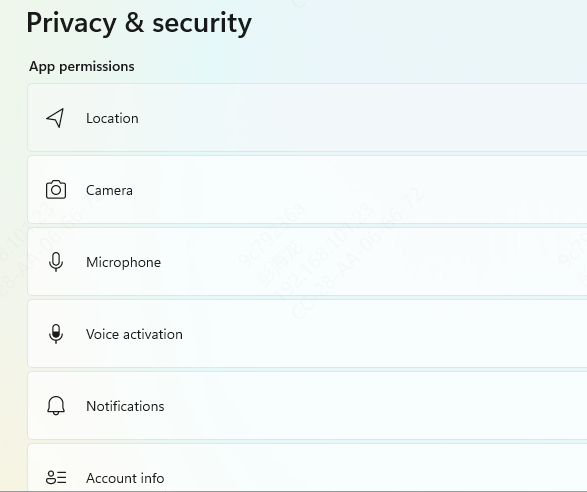
Step 5: Check Microphone Privacy Settings
Windows 11 may block microphone access.
Go to Settings → Privacy & Security
Click Microphone
Turn on:
Microphone access
Let apps access your microphone
Make sure your recording apps are allowed
Step 6: Test the Microphone in Another App or PC
To confirm whether the issue is software or hardware:
Test the Blue Yeti in another application
Try it on a different computer
If it fails everywhere, the microphone may be faulty
How to Prevent Blue Yeti Driver Issues in the Future
Keep Windows 11 updated
Avoid unplugging the mic during system updates
Use stable USB ports (prefer motherboard ports)
Regularly update USB and audio drivers
Disable aggressive USB power-saving features
Why the Blue Yeti Driver Disappears on Windows 11
Windows 11 update replaced or removed USB audio drivers
Corrupted or outdated USB or audio drivers
USB power management disabling the microphone
Faulty USB port or cable
Incorrect Windows sound or privacy settings
Driver conflicts caused by third-party audio software
Conclusion
When the Blue Yeti microphone driver disappears on Windows 11, the issue is usually related to USB audio drivers, power management, or Windows updates—not the microphone itself. By following the steps above, you can restore detection, reinstall the correct drivers, and regain full microphone functionality.









