
Using a docking station with your Lenovo ThinkPad laptop can significantly enhance your productivity by providing additional ports, enabling dual-monitor setups, and allowing you to connect external devices like printers, hard drives, and Ethernet. This guide will walk you through the steps to connect your ThinkPad to a docking station, ensuring you get the most out of your setup.
Gather the Necessary Cables and Accessories
Before you start connecting, ensure you have everything you need:
USB-C or Thunderbolt Cable: Depending on the docking station type, use the appropriate cable to connect the docking station to your ThinkPad
External Devices: Have your monitors, keyboard, mouse, and any other peripherals ready to be connected to the docking station
Power Adapter: If your docking station requires a power supply, plug in the power adapter to the docking station
.png "docking-station")
Connect the Docking Station to Your ThinkPad
Power the Docking Station: Plug the power adapter into your docking station if needed
Connect the Docking Station to the Laptop: Plug the USB-C or Thunderbolt cable into your ThinkPad's corresponding port. Ensure that the connection is secure
Monitor or Ethernet: If you're connecting external monitors or an Ethernet cable, connect them to the docking station now
Connect Peripherals to the Docking Station: Now that the docking station is connected to your laptop, you can start plugging in peripherals
Common devices include:
Monitors: Connect external displays to the available HDMI, DisplayPort, or VGA ports on the docking station
Keyboard and Mouse: Use the USB-A or USB-C ports for your keyboard and mouse.
External Storage Devices: Attach hard drives or flash drives via USB-A or USB-C ports
Other Devices: If you have printers, scanners, or audio devices, connect them to the docking station as well
.png "connect-cable")
Power On Your ThinkPad and Docking Station
Turn On the ThinkPad: Press the power button on your ThinkPad to boot it up
Automatic Detection: If everything is connected properly, your laptop should automatically detect the peripherals connected to the docking station. This includes displays, USB devices, and network connections
.png "make-sure-all-cable-connected")
Install Necessary Drivers
Ensuring that your docking station functions properly requires up-to-date drivers. Outdated or missing drivers can lead to issues such as external monitors not being detected, connectivity problems, or unstable performance. Using an automated driver update tool is a quick and reliable way to ensure your docking station works seamlessly.
Download Driver Talent X
Click the Download button: Visit the official Driver Talent X website and download the installer
Run the Setup: After the download finishes, open the installer and follow the on-screen prompts to complete the installation on your Lenovo laptop
Run a System Scan
Open Driver Talent X: Launch the application from your desktop or Start menu
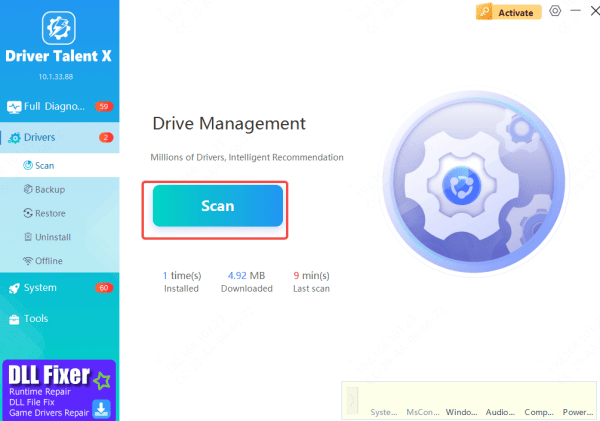
Navigate to Drivers: In the main interface, click on the "Drivers" tab
Click Scan: The software will perform a comprehensive scan of your laptop's system, checking for outdated, missing, or corrupted drivers that may affect the functionality of your USB-C docking station
Update Drivers
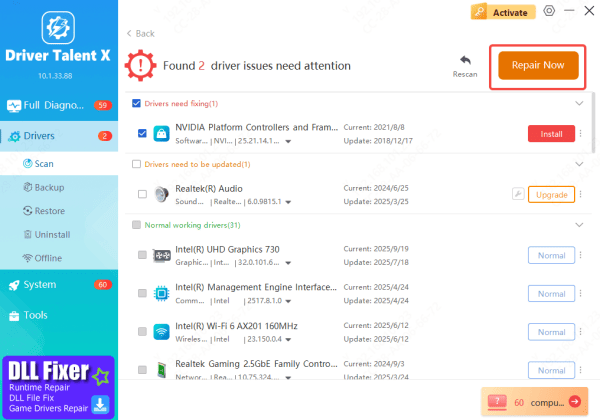
After the scan is finished, Driver Talent X will show a list of drivers that require updates or repairs
Click Upgrade or Repair: Choose the appropriate action to update or repair the identified drivers
Download and Install the Correct Drivers: Driver Talent X will automatically download and install the necessary drivers for your docking station. This includes drivers for USB-C, chipset, DisplayLink, networking, and graphics components—ensuring that your docking station works as intended
Restart Your PC
Restarting your device ensures that the newly updated drivers load properly, enabling your docking station to function smoothly
Configure Display Settings
If you've connected external monitors to your dock station, you might need to adjust the display settings on your laptop:
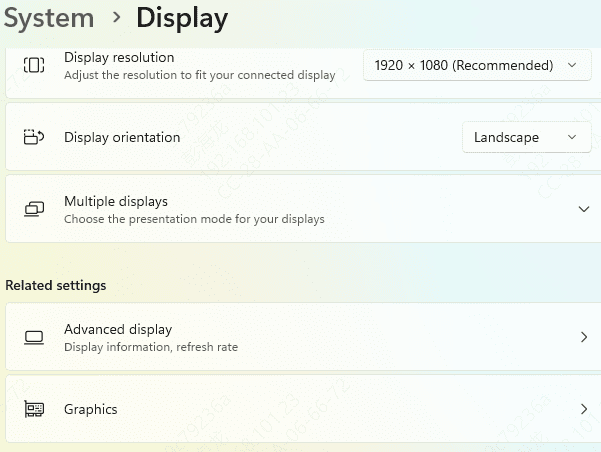
Open Display Settings: Right-click on your desktop and select Display Settings
Configure Display Mode: Choose how you want the displays to behave. You can extend your display (use multiple monitors), duplicate your display, or use only one monitor
Arrange the Displays: Drag the monitor icons in Display Settings to match the physical layout of your monitors
Conclusion
Connecting a docking station to your ThinkPad can transform your laptop into a powerful workstation by allowing you to easily connect multiple peripherals, including monitors, keyboards, and external storage. By following the steps above, you can quickly set up your ThinkPad docking station and enjoy an enhanced work or gaming experience.









