
If your Lenovo laptop is not detecting Wi-Fi networks on Windows 11, the problem can stem from several causes—disabled wireless settings, driver corruption, misconfigured network profiles, Windows updates, or even hardware faults. This complete guide walks you through every reliable fix to restore Wi-Fi connectivity on your Lenovo laptop.
Check Basic Wireless Settings
Ensure Wi-Fi Is Enabled
Sometimes Wi-Fi gets disabled accidentally.
Press Fn + F5, Fn + F7, or the key with a wireless icon (varies by Lenovo model)
Ensure the Wi-Fi icon lights up or appears active
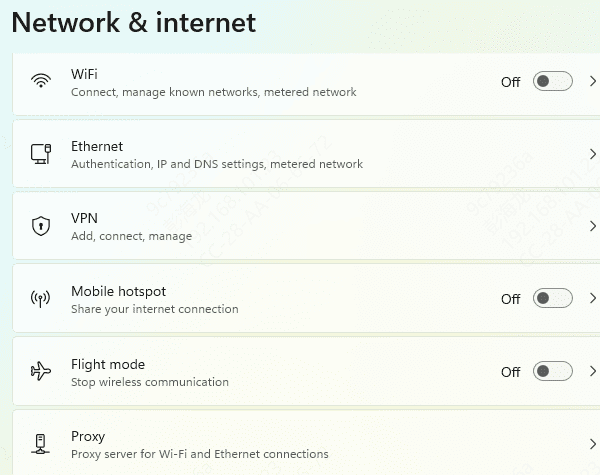
Turn On Wi-Fi in Windows Settings
Open Settings
Go to Network & Internet
Toggle Wi-Fi = On
If the Wi-Fi toggle is missing, your wireless adapter may be disabled—proceed to the next step.
Restart the Wireless Adapter
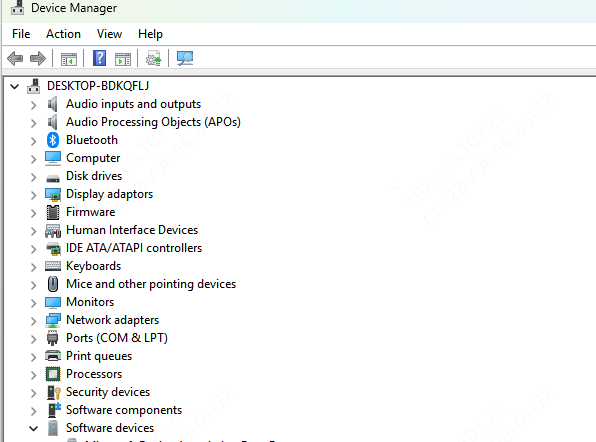
Right-click Start → Device Manager
Expand Network adapters
Right-click your Wi-Fi adapter (Intel, Realtek, Qualcomm, etc.)
Select Disable device
Wait 10 seconds
Select Enable device
Now check if Wi-Fi networks appear
Reset Network Settings
If corrupted network profiles or TCP/IP settings are blocking Wi-Fi detection:
Reset Network Completely
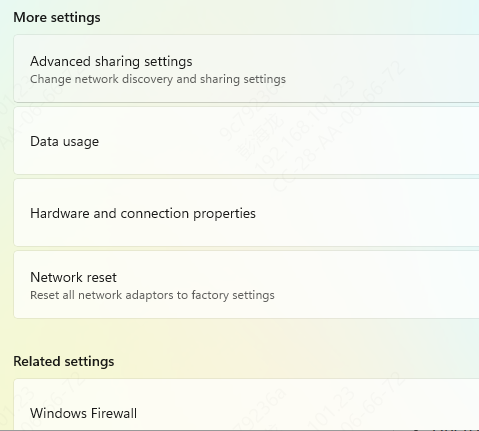
Go to Settings → Network & Internet
Select Advanced network settings
Click Network reset
Press Reset now
Restart your laptop
This restores all network components to factory state.
Update Wi-Fi & System Drivers
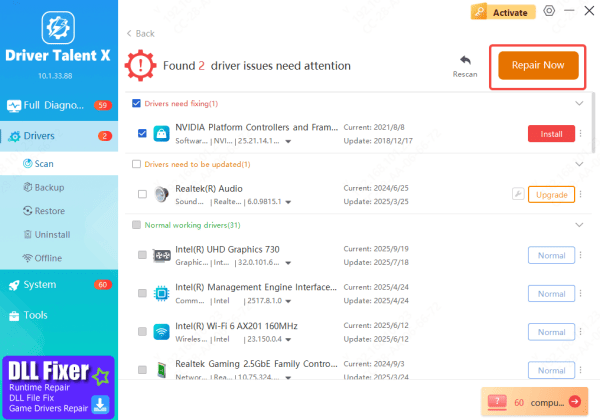
Driver problems are one of the most common reasons your Lenovo laptop won't detect wireless networks. Outdated or corrupted wireless, chipset, or system drivers can prevent Windows 11 from recognizing available Wi-Fi connections. Using an automated tool like Driver Talent X ensures your Wi-Fi adapter, chipset, and USB controller drivers are fully up to date and compatible with Windows 11.
Download and Install Driver Talent X
Click the Download button to get the installer
Run the setup file and complete the installation
Run a Wireless Driver Scan
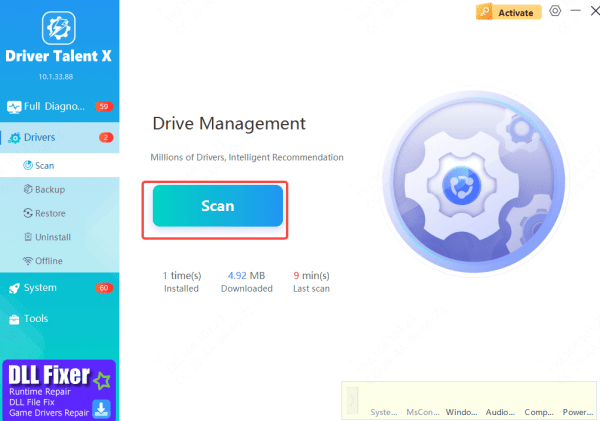
Open Driver Talent X
Go to Drivers → Scan
The program will check: Wi-Fi adapter drivers, Chipset drivers, USB/PCI controllers, and Network support components
Apply Driver Fixes
After scanning, select all wireless-related drivers
Click Repair Now or Update
Driver Talent X will automatically install the correct Lenovo-compatible versions
Restart Your Lenovo Laptop
A reboot loads the updated drivers and often restores Wi-Fi detection instantly
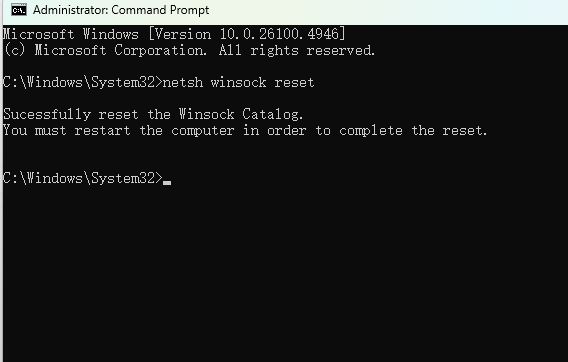
Flush DNS & Reset Winsock (Command Fix)
Open Command Prompt (Admin)
Run these commands one by one:
netsh winsock reset
netsh int ip reset
ipconfig /flushdns
ipconfig /release
ipconfig /renew
Restart your computer and check Wi-Fi again.
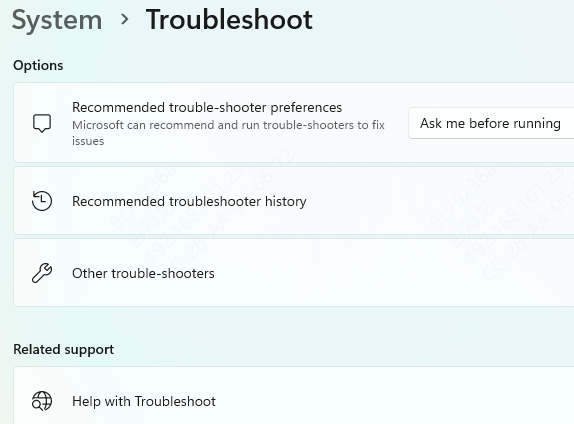
Run Windows Network Troubleshooter
Go to Settings → System → Troubleshoot
Click Other troubleshooters
Run:
Internet Connections
Network Adapter
Windows will attempt repairs automatically.
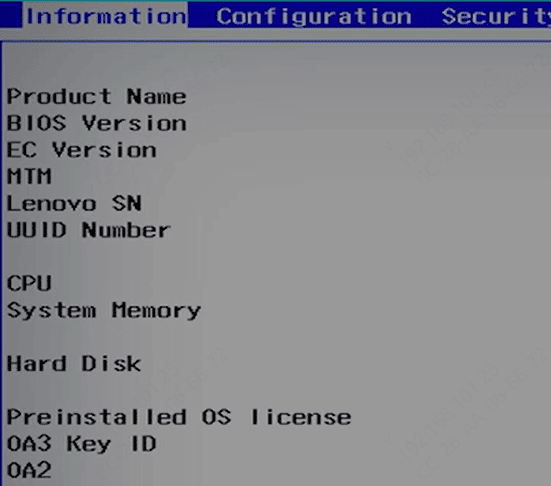
Check BIOS Wireless Settings
Some Lenovo laptops allow Wi-Fi to be disabled in BIOS.
Restart your laptop
Press F1, F2, or Del to enter BIOS
Look for:
Wireless
Internal Network Adapter
WLAN Settings
Ensure Wireless = Enabled
Save and exit
Hardware Failure
If none of the fixes work, your wireless module may be defective.
Common symptoms of hardware failure:
no Wi-Fi option in Windows at all
network adapter missing in Device Manager
Wi-Fi appears only intermittently
In this case, consider:
Lenovo service center repair
Replacement of the internal WLAN card

Causes of Lenovo Laptop Not Detecting Wi-Fi
Wi-Fi is turned off in Windows or via a keyboard shortcut
Airplane Mode is enabled
Outdated or corrupted wireless adapter drivers
Disabled wireless adapter in Device Manager
Incorrect network settings or registry corruption
Faulty Windows updates
DNS or TCP/IP stack conflicts
BIOS settings disabling the wireless card
Hardware failure of the Wi-Fi module
Conclusion
A Lenovo laptop failing to detect wireless networks on Windows 11 is usually caused by software issues, incorrect settings, or corrupted drivers. By checking wireless settings, resetting network components, updating drivers, and inspecting BIOS configurations, you can resolve most Wi-Fi detection problems. If the issue persists after applying all steps, the wireless hardware may require professional repair or replacement.









