
Input delay on a Logitech keyboard can be a frustrating issue, especially if you rely on it for gaming, work, or general use. Whether it's typing lag, delayed keystrokes, or intermittent keypresses, such problems can disrupt your productivity and experience. One of the most effective ways to address this issue is by updating your keyboard drivers. In this article, we'll guide you through the best methods to fix input delay by ensuring your Logitech keyboard drivers are up-to-date.
Why Driver Updates Are Crucial for Resolving Input Delay
Drivers act as the communication bridge between your Logitech keyboard and your operating system. When you press a key, the driver translates that action into a command for the system to process
If your drivers are outdated, corrupted, or incompatible, they might fail to relay information effectively, resulting in noticeable input delays
Updating your drivers ensures that your Logitech keyboard is communicating optimally with your device, leading to faster response times, fewer lags, and a smoother overall experience
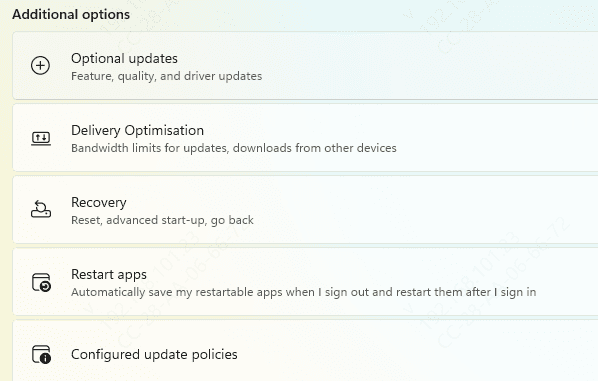
Check for Windows Updates
Windows occasionally include driver updates in their regular system updates. To ensure your drivers are up-to-date:
Click Start, then Settings
Navigate to Update & Security and click Check for Updates
If any updates are available, they will be automatically installed, including possible driver updates
Use Device Manager
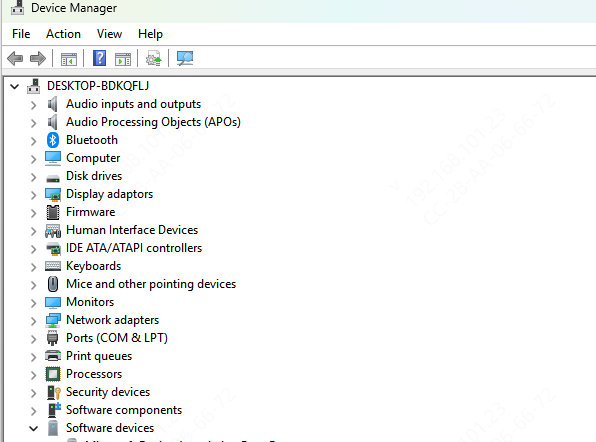
Press Windows + X and select Device Manager
Expand the "Keyboards" section, right-click on your Logitech keyboard, and select Update Driver
Choose Search automatically for updated driver software
If Windows finds a newer version, it will install it automatically
Automatically Update Logitech Keyboard Drivers with Driver Talent X (Recommended Solution)
If you're looking for a fast, hassle-free solution to fix input delay issues on your Logitech keyboard, using an automated driver updater like Driver Talent X is highly effective. This method is especially useful when multiple drivers are involved, or when you're unsure which specific driver needs updating. Here's how you can quickly update your Logitech keyboard drivers using Driver Talent X:
Download and Install Driver Talent X
Download Driver Talent X from the official website
Run the installer and follow the on-screen instructions to complete the installation process
Scan Your System for Outdated Drivers
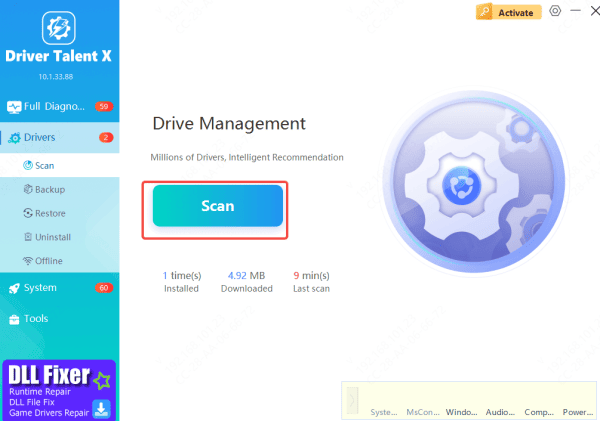
Launch the Driver Talent X software
Navigate to Drivers and click on Scan to allow the tool to check for outdated or faulty drivers
The software will automatically detect issues with your keyboard, chipset, USB, HID, and other system drivers that might be affecting keyboard performance
Update the Drivers
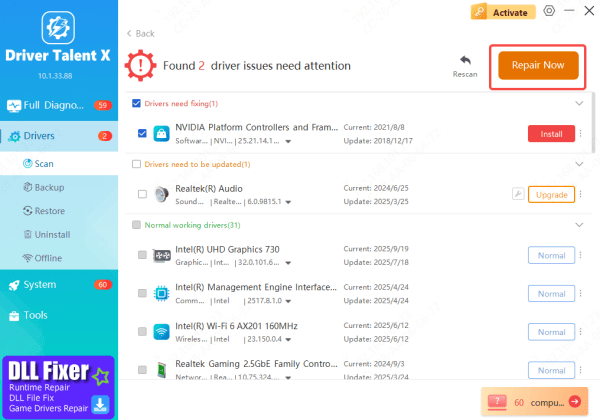
After the scan is complete, review the detected driver issues
Specifically, focus on the keyboard driver and any related drivers (e.g., USB or HID drivers)
Select the problematic drivers and click Repair Now to automatically update and fix the issues
Restart Your Laptop
Once the updates are installed, restart your computer to apply the changes
After rebooting, test your Logitech keyboard to see if the input delay issue has been resolved
This method is particularly helpful in situations like: Keyboard failure after Windows updates, Multiple drivers conflict, and Keyboard missing from Device Manager
By using Driver Talent X, you can ensure that your Logitech keyboard drivers are always up to date, minimizing input delay and improving overall keyboard performance
Use Logitech Options Software
Download and install Logitech Options from the Logitech website
Once installed, open Logitech Options and select your keyboard
Check for available updates in the software and follow the instructions to install them

Common Causes of Input Delay on Logitech Keyboards
Outdated or Corrupted Drivers: Drivers are essential for translating your keystrokes into actions on your screen. If these are outdated or corrupted, input can be delayed
Conflicts with Other Software or Hardware: Sometimes, other programs or connected devices can cause interference, leading to input lag
USB Port Issues: A problematic USB port or power-saving settings may reduce the keyboard's performance
Conclusion
Input delay on a Logitech keyboard can be a major inconvenience, but in most cases, the issue can be resolved by updating the drivers. Ensuring that your drivers are current is essential for the best performance, whether you're typing, working, or gaming. By following the steps in this guide, you should be able to fix input delay and enjoy a more responsive, efficient keyboard experience.









