
Keeping your Lenovo device updated is essential for maintaining system stability, improving hardware compatibility, and ensuring smooth performance on Windows 11. The BIOS, also known as the system firmware, controls low-level hardware functions such as power management, security, and device initialization. Updating the BIOS using the Lenovo BIOS Update Utility helps prevent boot issues, hardware errors, and performance problems that often appear when upgrading to Windows 11.
Prepare for a Safer BIOS Update
Before performing a BIOS update, it is important to make sure all essential system drivers—especially chipset, MEI, storage, and power management drivers—are fully up to date. Outdated or corrupted drivers may cause instability during the BIOS flashing process. To simplify this preparation, users can rely on a dedicated driver management tool such as Driver Talent X.
Download and Install
Click the "Download" button to obtain the installation package, then run it on your computer to complete the setup.
Run a System Check
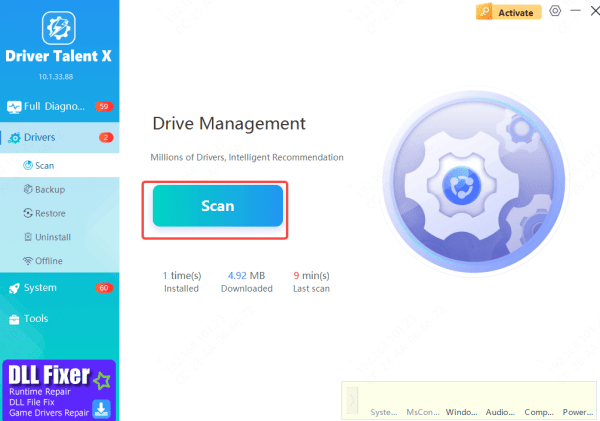
Open the application and navigate to "Drivers" > "Scan," then start the scan. The tool will thoroughly inspect your system's hardware and firmware status. Once the scan finishes, it will display all components that require updates.
Update Drivers
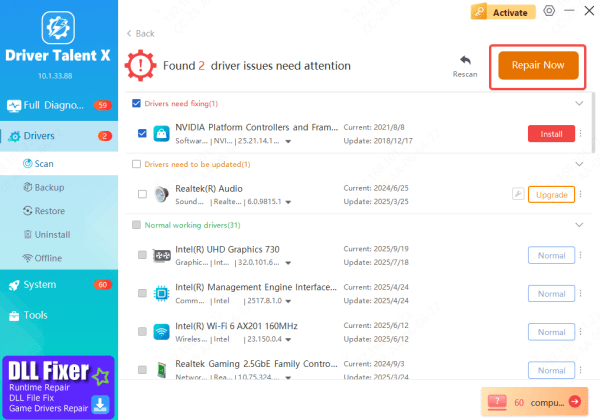
Select the recommended items and choose "Upgrade" or "Repair Now." The program will automatically fetch and install the newest, fully compatible versions.
Restart Your PC
Reboot your system to allow all updates to take effect. Keeping your system fully refreshed and stable significantly reduces the chances of BIOS-related issues.
By ensuring your system is fully optimized beforehand, Driver Talent X can significantly improve the safety and success rate of BIOS updates, especially on devices that have been running outdated firmware or Windows installations for a long time.
Method 1: Update through Lenovo Vantage
Lenovo Vantage is the official system management tool for Lenovo laptops and desktops, and it provides one of the safest and simplest ways to install BIOS updates on Windows 11.
Install Lenovo Vantage
If you don't already have it, download Lenovo Vantage from the Microsoft Store. Launch the app once installation is complete.
Check for system updates
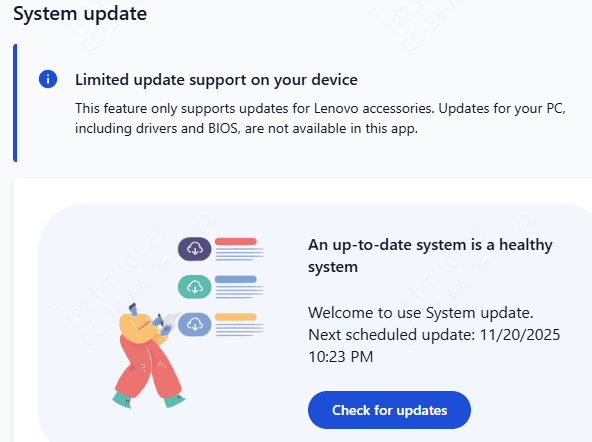
Inside Lenovo Vantage, go to Device → System Update. The tool will automatically scan your device for available updates, including BIOS, drivers, and firmware.
Look for BIOS/UEFI updates
If a BIOS update is available for your model, it will appear in the update list under Critical Updates or Firmware Updates. Select the BIOS update and click Install.
Follow on-screen instructions
Lenovo Vantage will download the BIOS package and prepare the system for flashing. You will be prompted to restart your computer to begin the update.
Complete the BIOS update
After restarting, the system will automatically enter the BIOS flashing environment. Do not power off, unplug, or press any keys during the process. The system will reboot again once the update finishes.
Lenovo Vantage provides an automated method that reduces the risk of installing the wrong BIOS file and ensures you always receive model-specific firmware verified by Lenovo.
Method 2: Manually download BIOS from Lenovo Support
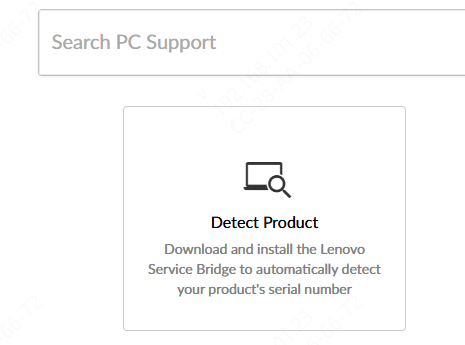
Identify your Lenovo model and Windows version by checking the bottom label, Lenovo Vantage, or System Information.
Go to the Lenovo Support website and search for your exact model
Under the BIOS or UEFI category, download the latest BIOS update package, usually provided as an .exe file
Before updating, back up important data and make sure the laptop is connected to AC power
Disable or suspend BitLocker if it is enabled, and close all running applications and antivirus software
Run the downloaded .exe file and follow the instructions. The installer will warn you that the system will restart
The system will reboot and automatically enter the BIOS flashing process. Do not turn off the computer or press any keys during the update
After the update completes, the system will restart normally. Check the BIOS version to confirm the update.
Conclusion
Keeping your BIOS updated is essential for stable performance and hardware compatibility on Windows 11. Whether you update through Lenovo Vantage or manually download the BIOS file from Lenovo Support, both methods ensure you install the correct firmware for your device. Preparing your system beforehand—such as updating key drivers with tools like Driver Talent X—makes the process safer and helps prevent update failures. With proper steps and precautions, maintaining an up-to-date BIOS becomes simple, safe, and beneficial for long-term system reliability.









