
If your Lenovo keyboard stops working or doesn't respond as expected on Windows 11, it can be frustrating, especially if you're working or trying to navigate your system. Keyboard issues often stem from software conflicts, outdated drivers, or temporary system glitches. This guide will walk you through effective solutions to resolve Lenovo keyboard driver issues and get your keyboard functioning again.
Check for Physical or Hardware Issues
Before diving into software fixes, it's important to ensure that the keyboard itself isn't physically damaged.
Inspect the keyboard for any visible damage, including stuck keys or broken components
If you're using an external keyboard, test it on another device to confirm that the keyboard itself isn't the issue
For laptops, make sure the keyboard isn't obstructed by any dirt or debris. Clean the keys carefully
Check the connection: If you're using a wired keyboard, ensure the cable is plugged in securely. For wireless keyboards, check the Bluetooth connection or replace the batteries
Update Keyboard Driver
Driver-related issues are a common cause of keyboard malfunctions on Lenovo laptops. Updating drivers ensures that your laptop's keyboard, USB controller, and related system components are working correctly with Windows.
Download and Install Driver Talent X
Click the "Download" button to get the Driver Talent X installer
Run the downloaded file and follow the on-screen instructions to complete the installation
Perform a Full System Scan
Open Driver Talent X from your desktop or Start menu
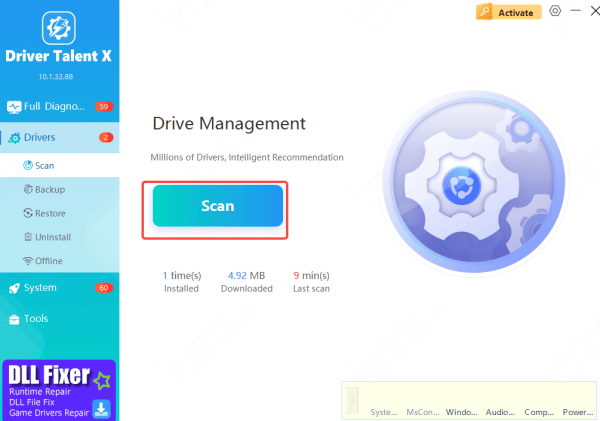
Navigate to "Drivers" > "Scan", and click the "Scan" button
Wait while Driver Talent X checks for outdated, missing, or corrupted drivers related to the keyboard, chipset, USB, or system drivers
Update All Drivers
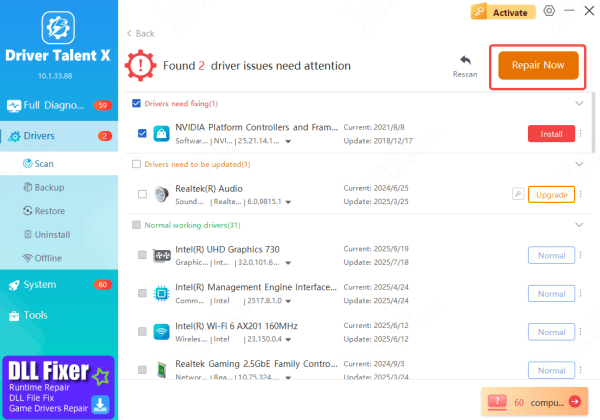
Once the scan is complete, the software will display a list of drivers requiring updates
Select the keyboard and any relevant drivers, then click "Repair Now"
Driver Talent X will automatically download and install the latest, certified drivers for your Lenovo laptop
Restart Your Laptop
After the installation is finished, reboot your laptop
Test your keyboard to check if the issue is resolved
If your keyboard is still unresponsive after the update, consider trying other troubleshooting steps to diagnose any remaining issues
Use Windows Troubleshooter
Windows 11 includes built-in troubleshooters that can help detect and fix common problems automatically.
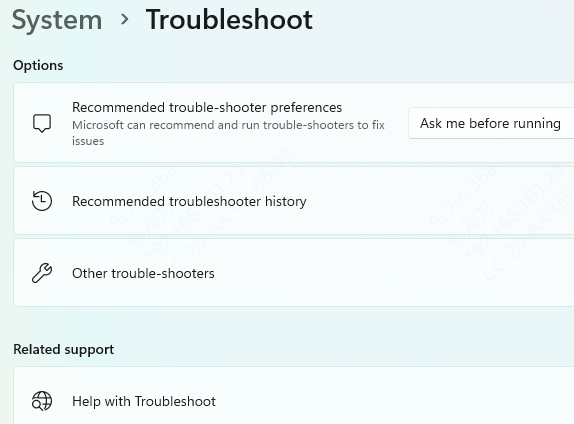
Go to Settings → Update & Security → Troubleshoot → Additional troubleshooters
Select Keyboard and click Run the troubleshooter
Follow the on-screen instructions to allow Windows to diagnose and fix the keyboard issue
Check Windows Update
Sometimes, Windows 11 updates can interfere with device drivers, causing them to stop working. Keeping your system up-to-date can fix these issues.
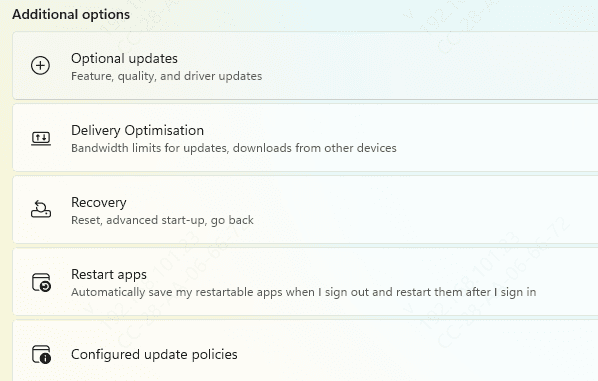
Go to Settings → Update & Security → Windows Update
Click Check for updates and install any available updates. This can include important fixes for hardware drivers, including your keyboard
Check for Conflicts with Other Devices or Software
Sometimes, conflicts with other peripherals or software can prevent the keyboard from working.
Disconnect external devices: If you have other peripherals plugged in (USB drives, external mice, etc.), try disconnecting them and testing the keyboard again
Disable third-party keyboard software: Some keyboard management programs may interfere with the driver. Disable or uninstall these programs if you suspect they're causing the issue

Test in Safe Mode
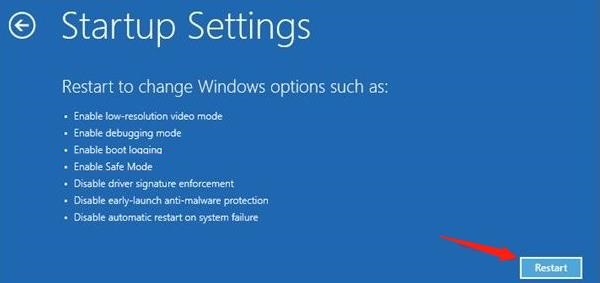
Booting your Lenovo laptop in Safe Mode can help you determine if the issue is related to third-party software.
Restart your laptop and press F8 (or Shift + F8) to enter Safe Mode
If the keyboard works fine in Safe Mode, the issue is likely caused by software conflicts or drivers, and you may need to perform a clean boot to isolate the problem
Update BIOS
Sometimes, outdated BIOS or chipset drivers can cause hardware issues like a non-responsive keyboard
Go to the Lenovo Support website, search for your model, and download the latest BIOS update Follow the instructions carefully to update your BIOS

Perform a Reset or Clean Installation (Last Resort)
If none of the above methods work, you may need to reset or reinstall Windows 11 as a last resort.
Factory reset: Backup your important data and perform a factory reset via Settings → Update & Security → Recovery → Reset this PC
Clean installation of Windows: This option completely reinstalls Windows 11, wiping your system. Ensure you back up all your data before proceeding

Conclusion
Dealing with a non-working keyboard on your Lenovo laptop can be frustrating, but in most cases, the issue can be fixed with a few troubleshooting steps. Whether it's updating the driver, using the troubleshooter, or performing a system restore, one of these methods should resolve the problem. If the issue persists, it might be a sign of a deeper hardware issue, in which case, reaching out to Lenovo support for further assistance is recommended.









