
Keeping your Lenovo keyboard driver up to date is essential for smooth typing, shortcut key functionality, and overall system stability. Outdated or corrupted keyboard drivers can lead to issues such as keys not responding, shortcut keys failing, delayed input, or the keyboard not working at all—especially after Windows updates. This comprehensive guide walks you through all reliable ways to update Lenovo keyboard drivers, from built-in Windows tools to official Lenovo utilities and automated driver solutions. Whether you're a beginner or an advanced user, you'll find a method that fits your needs.
Common Symptoms of Lenovo Keyboard Driver Problems
Before updating drivers, it helps to identify whether the keyboard issue is driver-related. Common signs include:
Keyboard not responding or working intermittently
Some keys or function keys (Fn keys) not working
Keyboard stops working after a Windows update
Keyboard not detected in Device Manager
Input lag or repeated keystrokes
If you notice any of these issues, updating the keyboard driver should be one of your first troubleshooting steps.
Method 1: Update Lenovo Keyboard Driver via Device Manager
Device Manager is the quickest built-in method for updating keyboard drivers.
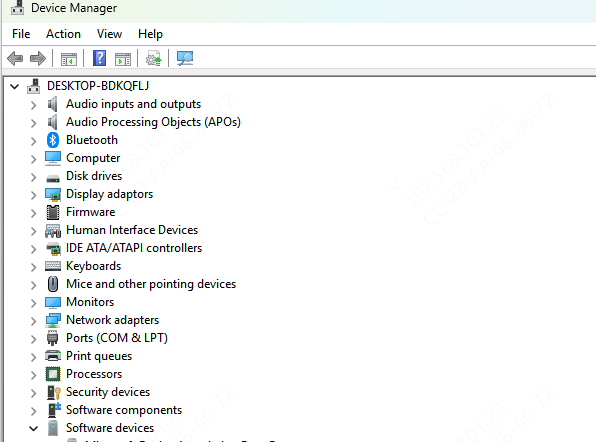
Press Win + X and select Device Manager
Expand Keyboards
Right-click Standard PS/2 Keyboard or HID Keyboard Device
Select Update driver
Choose Search automatically for drivers
Follow on-screen instructions and restart your laptop
Note: Windows may say the best driver is already installed—even when it's outdated. If problems persist, try other methods below.
Method 2: Download Keyboard Drivers from Lenovo Support Website
Lenovo provides model-specific drivers that are often more reliable than generic Windows drivers.
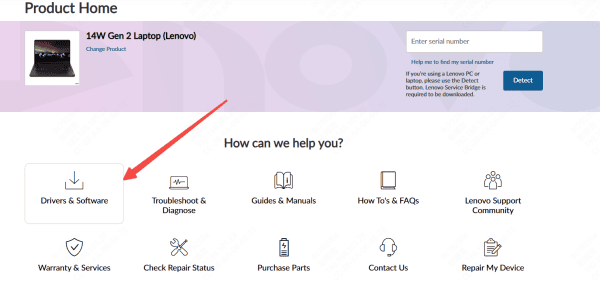
Visit support.lenovo.com
Enter your product model or serial number
Go to Drivers & Software
Select your Windows version
Download: Keyboard driver, Hotkey / Function Key driver, Lenovo Utility or Lenovo Hotkey Features Integration
Install the drivers and restart your laptop
This method is ideal if your keyboard stopped working after a system upgrade or BIOS update.
Method 3: Update Keyboard Drivers Using Lenovo Vantage
Lenovo Vantage is an official Lenovo utility.
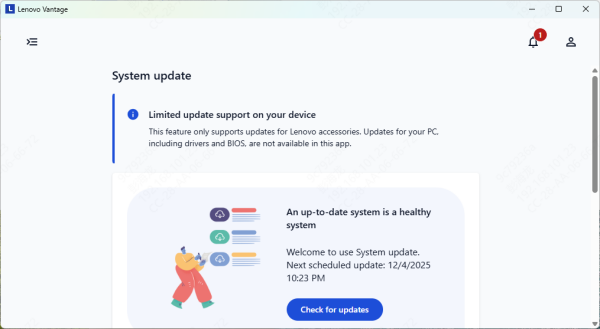
Install or open Lenovo Vantage from Microsoft Store
Go to System Update
Click Check for updates
Install all recommended updates related to:
Keyboard
Hotkeys
Input devices
Restart your system
Method 4: Automatically Update Keyboard Drivers with Driver Talent X (Recommended)
If you want the fastest and most error-free solution, using an automated driver updater is highly effective—especially when multiple drivers are involved.
Download and Install
Download Driver Talent X
Run the installer and follow on-screen instructions
Scan Your System
Launch the software
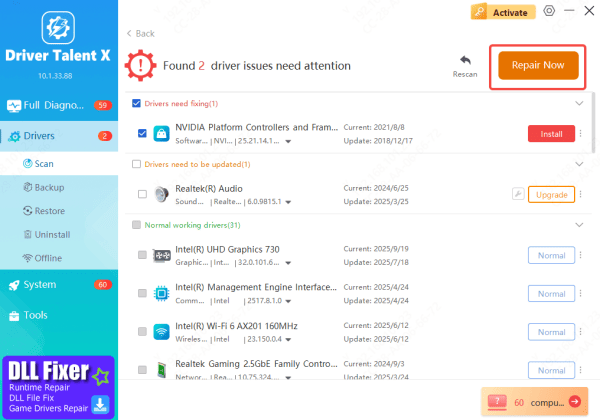
Go to Drivers → Scan
The tool checks keyboard, chipset, USB, HID, and system drivers

Update Drivers
Review detected driver issues
Select the keyboard and related drivers
Click Repair Now
Restart Your Laptop
Reboot to apply updates
Test keyboard functionality
This method is especially useful when: Keyboard fails after Windows updates, Multiple drivers conflict, or Keyboard is missing from Device Manager.
Method 5: Reinstall the Keyboard Driver (If Updating Fails)
If updating doesn't help, reinstalling the keyboard driver can resolve corruption issues.
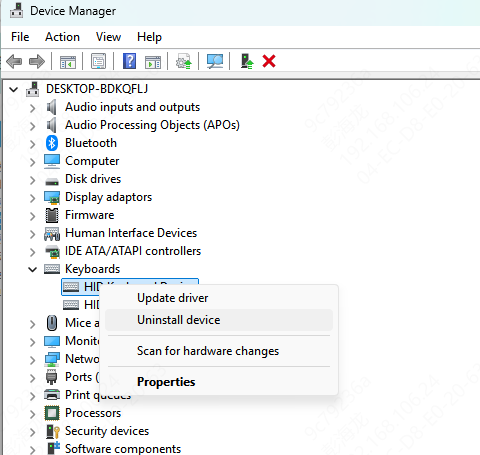
Open Device Manager
Expand Keyboards
Right-click your keyboard device
Select Uninstall device
Restart your Lenovo laptop
Windows will automatically reinstall a fresh keyboard driver during startup.
Additional TipsIf Keyboard Doesn't Work
Check Keyboard Settings
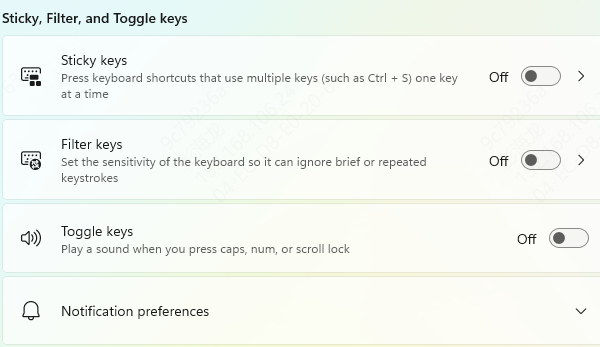
Go to Settings → Accessibility → Keyboard
Turn off Filter Keys, Sticky Keys, and Toggle Keys
Check BIOS Settings
Restart and press F1 / F2 / Del
Ensure Internal Keyboard is enabled
Test with an External Keyboard
If external keyboard works, the issue may be hardware-related
Prevent Future Keyboard Driver Issues
To keep your Lenovo keyboard working reliably:
Avoid interrupting Windows updates
Keep chipset and system drivers updated
Use Lenovo Vantage or Driver Talent X regularly
Restart after major driver updates
Avoid installing incompatible third-party keyboard tools
Conclusion
Updating your Lenovo keyboard driver is one of the most effective ways to fix typing issues, unresponsive keys, and function key failures. Whether you choose Device Manager, Lenovo's official tools, or an automated solution like Driver Talent X, keeping your drivers current ensures stable performance and smooth daily use.









