
Logitech keyboards are known for their reliability and ease of use, but sometimes, users may encounter issues where the keyboard doesn't connect to their computer or device. This can be frustrating, especially if you're in the middle of working, gaming, or attending a virtual meeting. Whether you're using a wired, wireless, or Bluetooth Logitech keyboard, there are several common reasons why it might fail to connect. Fortunately, in most cases, these issues can be fixed with a few troubleshooting steps. In this guide, we'll walk you through a series of solutions to fix Logitech keyboard connection issues, covering everything from basic checks to advanced troubleshooting methods.
Basic Troubleshooting Steps
Check the Power and Battery (For Wireless Models)
If you're using a wireless Logitech keyboard, the first thing to check is whether it's powered on and has enough battery:
Power On: Ensure the keyboard's power switch is in the "on" position. For many wireless keyboards, there is a small power switch located at the back or underneath
Battery Level: If your wireless keyboard uses replaceable batteries, try replacing them with fresh ones. If it's rechargeable, make sure it is fully charged
If your keyboard still isn't working, move to the next step

Ensure Proper Connections
If you're using a USB keyboard, ensure the USB receiver (for wireless models) or the USB cable is securely plugged into your computer. Here are a few tips:
USB Receiver (Wireless Models): Check that the Unifying Receiver is inserted into a working USB port. If possible, try another USB port
Wired Keyboard: Ensure the USB cable is firmly connected to the port and not damaged
.png "turn-on-keyboard")
Check for Interference
If you're using a wireless keyboard, external interference may be affecting the connection. This is especially true if the receiver is placed near metal objects or electronics that could disrupt the wireless signal.
Wireless Signal Interference: Move the USB receiver to a port closer to your keyboard, and make sure there are no large objects, such as monitors or other electronics, between the receiver and keyboard
Test the Keyboard on Another Device: To rule out device-specific issues, try connecting the keyboard to another computer or device. If the keyboard works on another device, the issue is likely with the computer's settings
Check Bluetooth: Check if keyboard is connected to Windows if you using Bluetooth to connect
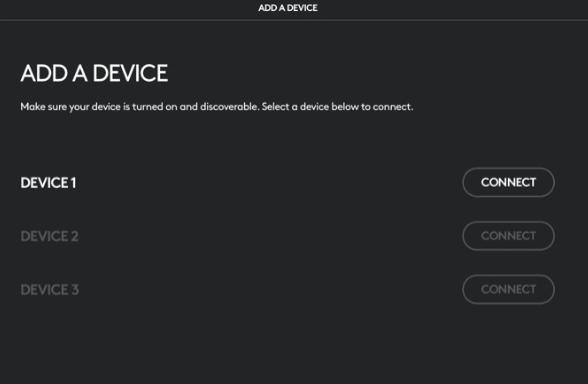
Reconnect Logitech Keyboard
Re-pair Logitech Wireless Keyboards
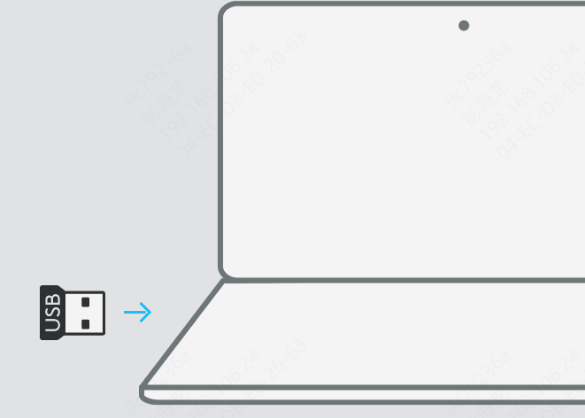
If you're using a wireless Logitech keyboard with a Unifying Receiver:
Unplug the receiver
Plug it into a different USB port
Press the pairing button on the receiver and on the keyboard to establish the connection
Re-pair Logitech Bluetooth Keyboards
For Bluetooth models:
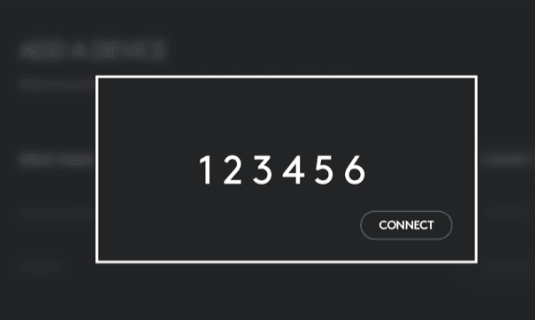
Go to your Bluetooth settings and find the connected device
Remove the keyboard from the list of paired devices
Re-pair the device by selecting it from the Bluetooth device list and following the on-screen prompts
Update or Reinstall Logitech Drivers
Outdated or missing drivers can cause connection issues. It's important to ensure that your drivers are up to date.
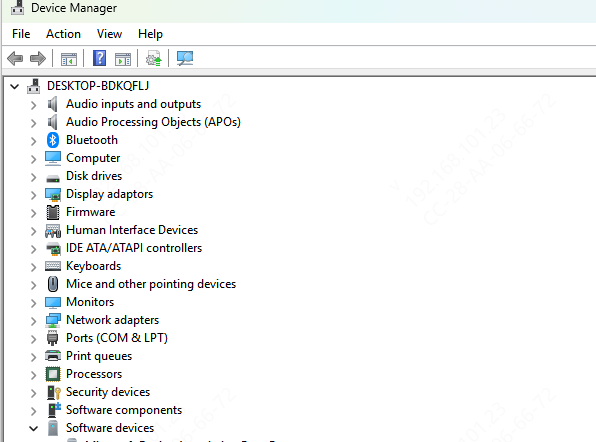
Update Drivers via Device Manager
Open Device Manager by right-clicking on the Start button and selecting Device Manager
Locate the Keyboards section and expand it
Right-click on your Logitech keyboard and select Update Driver
Follow the prompts to search for and install any available updates
Use Driver Talent X to Fix Driver Issues (Recommended)
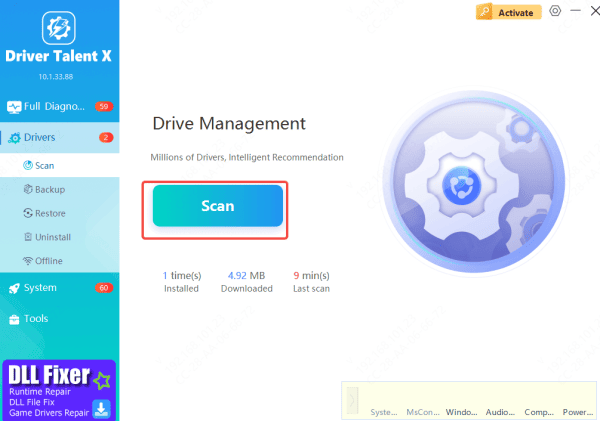
If you want to save time and avoid manual driver updates, you can use Driver Talent X to automatically scan for outdated or missing drivers and fix them in just a few clicks.
Download and install Driver Talent X from the official website
Open the program and navigate to Drivers → Scan
The tool will detect issues with your drivers, including the keyboard drivers, sound card drivers, and even USB drivers (for wireless models)
Click Repair Now or Update, and Driver Talent X will automatically install the correct drivers for you
After updating the drivers, restart your computer, plug in your keyboard, and check if it's working properly
Test Logitech Keyboard in BIOS
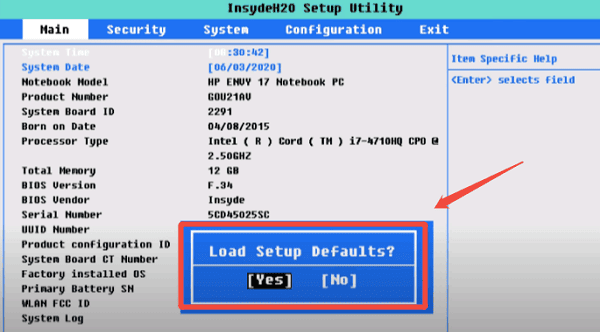
If your Logitech keyboard isn't working within Windows but is functioning in BIOS, the issue may be related to software settings or conflicts within the operating system.
Restart your computer
As soon as the computer starts up, press the BIOS key (usually F2, Delete, or Esc) to enter the BIOS setup
Test if the keyboard works in the BIOS menu
If it works in BIOS but not in Windows, it could be a software or driver issue. You may need to perform a more advanced troubleshooting step, like reinstalling your operating system or updating specific drivers
Ensure Correct Keyboard Settings
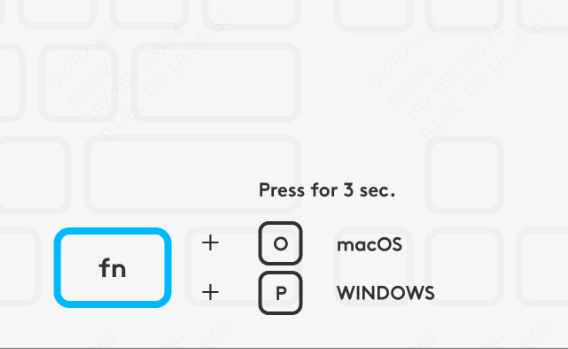
Check for Function Lock (Fn) Key
If certain keys on the Logitech keyboard aren't working, check if the Fn key is locked
Some models use the Fn key to enable secondary functions, and if it's accidentally locked, certain keys won't respond
Reset Keyboard Layout Settings
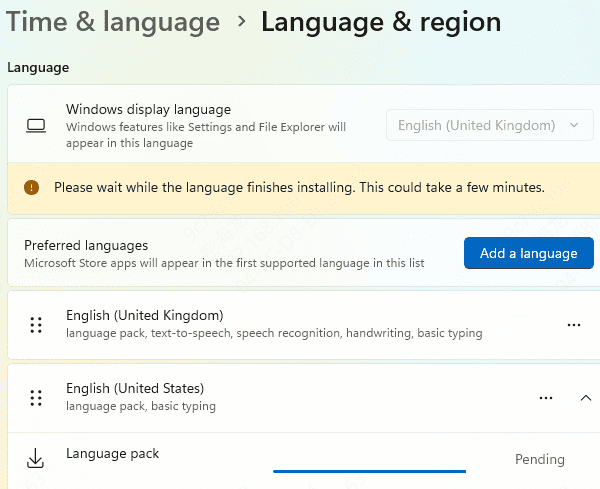
If you're using a non-standard keyboard layout, it may cause certain keys to not function correctly:
Go to Settings → Time & Language → Language in Windows
Ensure that the keyboard layout matches the physical layout of your Logitech keyboard
Uninstall and Reinstall Logitech G Hub
If you're using Logitech G Hub for customizing your keyboard settings, reinstalling the software can often fix connectivity issues
Sometimes, configuration or firmware issues within G Hub can cause problems with keyboard detection

Conclusion
While encountering connection issues with your Logitech keyboard can be frustrating, it's usually possible to resolve the problem with some basic troubleshooting. Start by checking the power and connections, then move on to testing drivers, resetting software, or even updating drivers using Driver Talent X. By following these steps, you'll be back to using your keyboard in no time, whether for work, gaming, or casual browsing.









