
The Logitech MX Master 2S is a powerful and ergonomic mouse designed for productivity, creativity, and everyday professional use. While the hardware itself is excellent, you won't unlock its full potential without installing the correct software. Features like customizable buttons, gesture controls, smooth scrolling, and multi-device switching all rely on Logitech's software. This guide will walk you through downloading, installing, and setting up Logitech MX Master 2S software on Windows, as well as fixing common issues that may prevent the mouse from working properly.
Key Features Unlocked by Logitech Options
Custom button assignments
Gesture controls for multitasking
SmartShift and smooth scrolling customization
Adjustable pointer speed (DPI)
App-specific profiles

System Requirements
Before installing the software, make sure your system meets these requirements:
Operating System: Windows 10 or Windows 11
Connection: USB Unifying Receiver or Bluetooth
Internet: Required for download and updates
Permissions: Administrator access for installation
How to Download Logitech MX Master 2S Software
Follow these steps to download the software safely:
Go to the official Logitech website
Search for MX Master 2S
Select your operating system (Windows)
Download Logitech Options
Avoid downloading from third-party websites to prevent compatibility issues or malware
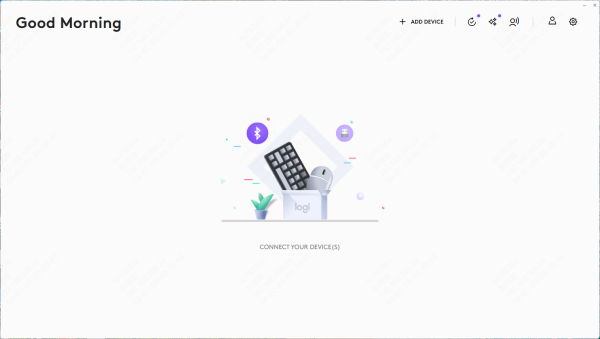
How to Set Up MX Master 2S in Logitech Options
Detecting the Mouse
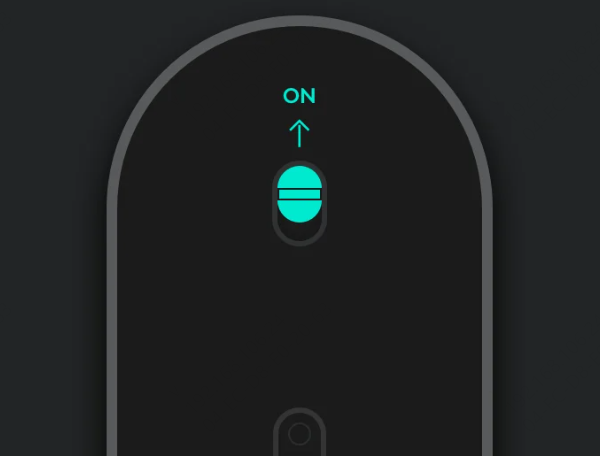
Turn on the MX Master 2S
Connect it using either:
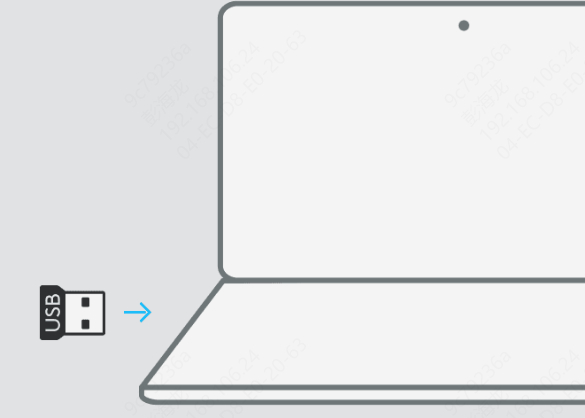
USB Unifying Receiver, or
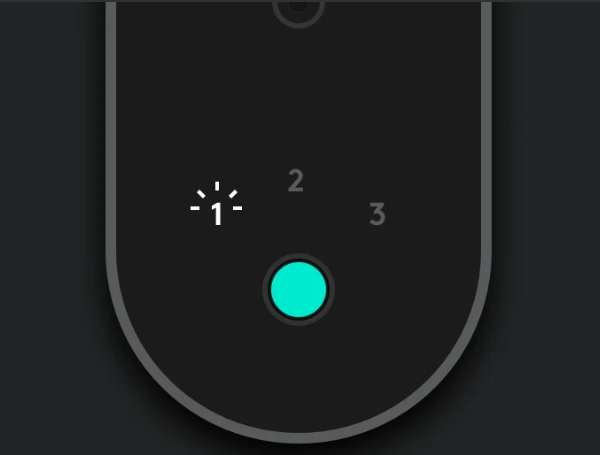
Bluetooth pairing mode
Logitech Options should automatically detect the mouse
Customizing Buttons and Gestures
Select your MX Master 2S in the software
Assign actions to:
Thumb wheel
Gesture button
Side buttons
Enable gesture controls for window switching, desktop navigation, and more
.png "select-mouse")
Adjusting Scrolling and Pointer Speed
Customize SmartShift sensitivity
Adjust scroll speed and smooth scrolling
Fine-tune pointer speed (DPI) for precision or speed
Creating App-Specific Profiles
Set different button behaviors for apps like: Photoshop, Excel, and Browsers
The mouse automatically switches profiles when apps change
.png "setting-mouse")
Common Problems and How to Fix Them
MX Master 2S Not Detected in Logitech Options
Make sure the mouse is powered on
Replug the USB receiver or re-pair Bluetooth
Try a different USB port
Restart Logitech Options and your PC
Software Opens but Mouse Doesn't Respond
Close Logitech Options completely
Reopen it with administrator privileges
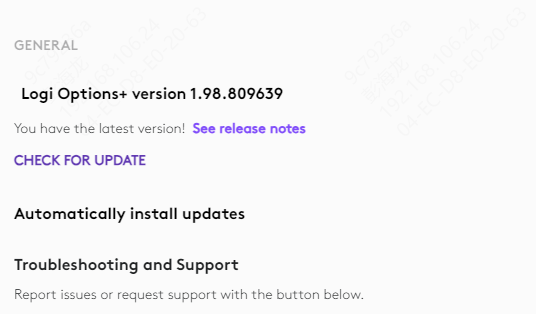
Check for software updates inside Logitech Options
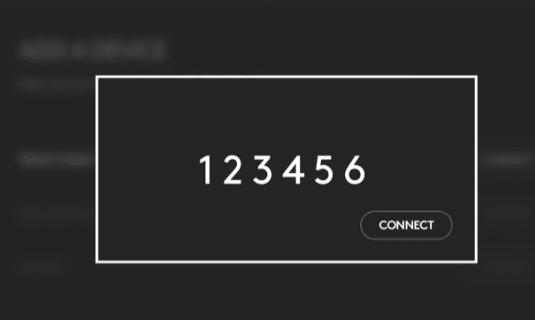
Bluetooth Connection Issues
Remove MX Master 2S from Bluetooth settings
Re-pair the mouse from scratch
Ensure no other devices are interfering
Driver Issues for MX Master 2S
Outdated or corrupted drivers can prevent Logitech Options from detecting your mouse or applying settings correctly. This includes mouse drivers, USB drivers, and Bluetooth drivers.
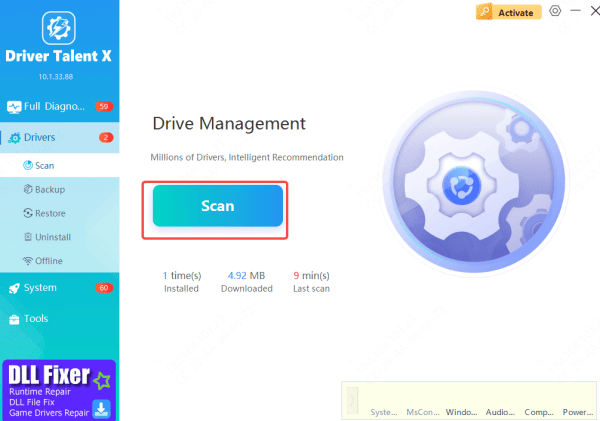
To save time and avoid manual driver troubleshooting, you can use Driver Talent X:
Download and install Driver Talent X
Open the program and go to Drivers → Scan
Let the tool scan mouse, USB, and Bluetooth drivers
Click Repair Now or Update to fix detected issues
Restart your computer after updates
This method helps ensure your MX Master 2S works smoothly with Logitech Options and Windows
Tips for Best Performance
Keep Logitech Options updated
Replace or recharge the battery when low
Use USB receiver for maximum stability
Avoid USB hubs for the receiver
Restart Logitech Options if profiles don't apply correctly
Conclusion
Installing and configuring the correct software is essential to getting the most out of your Logitech MX Master 2S. With Logitech Options, you gain access to powerful customization features that significantly improve productivity and comfort. If you encounter detection or performance issues, driver-related problems are often the root cause—and updating them can quickly restore functionality. Follow the steps in this guide, and your MX Master 2S should be running smoothly, efficiently, and exactly the way you want it.









