
A Lenovo laptop screen that suddenly stops working can be frustrating and disruptive. You may see a completely black screen, a white screen, flickering display, dim backlight, or no image at all even though the laptop appears to be powered on. Screen issues can be caused by driver problems, incorrect display settings, hardware connection faults, or internal component failures. This troubleshooting guide walks you through all effective methods—starting from simple checks to advanced fixes—to help you diagnose and resolve Lenovo laptop screen problems.
Step 1: Perform Basic Display Checks
Start with these quick and easy checks:
Make sure the laptop is fully powered on, not in sleep or hibernation mode
Increase screen brightness using Fn + brightness keys
Restart the laptop to rule out temporary system glitches
Disconnect all external devices (USB drives, docks, external monitors)
Sometimes, a simple restart or brightness adjustment resolves the issue
.png "restart-laptop")
Step 2: Check for External Display Output
Connect your Lenovo laptop to an external monitor or TV using HDMI, DisplayPort, or VGA
If the external display works, the issue is likely with the laptop screen, cable, or display driver
If no display appears externally either, the problem may be related to the graphics card, motherboard, or system firmware
This step helps isolate hardware from software causes
.png "use-external-monitor")
Step 3: Reset the Graphics Driver
A corrupted or frozen graphics driver can cause a black or blank screen
Press Windows + Ctrl + Shift + B
You should hear a beep or see the screen refresh
This shortcut restarts the graphics driver without rebooting the system
Step 4: Update or Reinstall Display Drivers
Outdated or damaged display drivers are one of the most common causes of screen problems on Lenovo laptops.
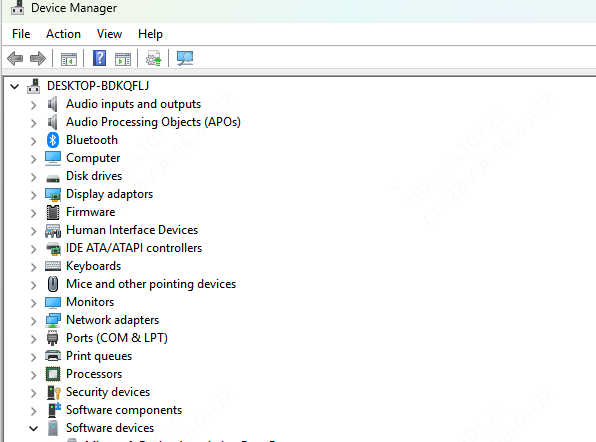
Option 1: Update via Device Manager
Right-click Start → Device Manager
Expand Display adapters
Right-click your graphics driver (Intel, NVIDIA, or AMD)
Select Update driver
Option 2: Use an Automated Driver Update Tool
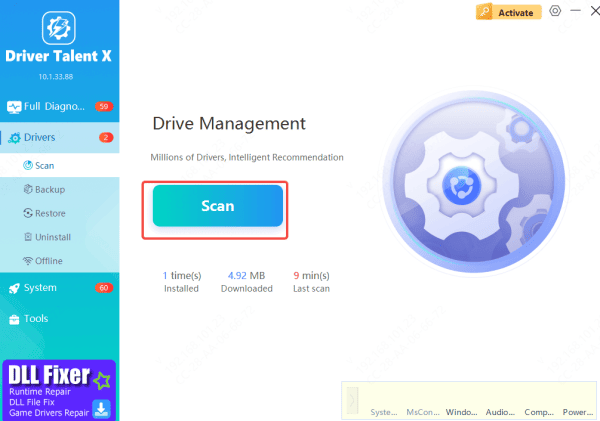
Download and install Driver Talent X, launch the program, and run a full driver scan
The tool will check essential components such as graphics drivers, USB-C or Thunderbolt display drivers, and chipset drivers that affect screen output
Once the scan is complete, apply the recommended fixes by updating or repairing the drivers, then restart your laptop to ensure the changes take effect
This method helps avoid installing incorrect driver versions and is especially useful when manual updates fail to resolve screen problems
Step 5: Check Windows Display Settings
Incorrect display configuration can make it seem like the screen is not working.
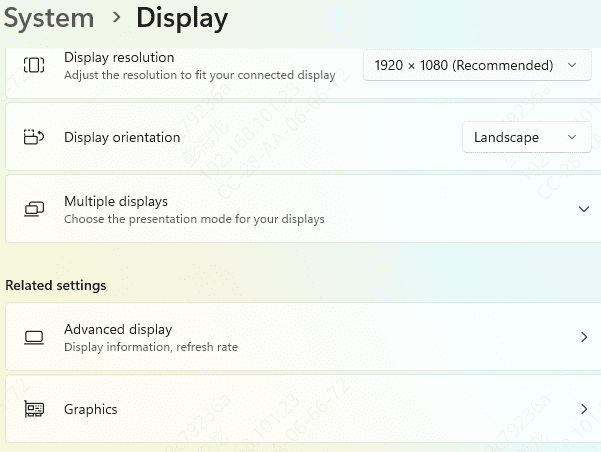
Right-click on the desktop → Display settings
Make sure the laptop screen is set as the main display
Try changing the screen resolution to a recommended value
Set Multiple displays to "Duplicate" or "Extend" if needed
Step 6: Boot into Safe Mode
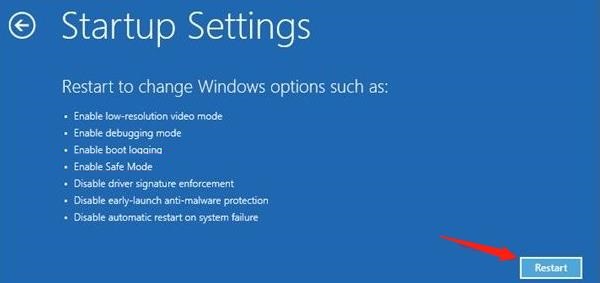
Booting into Safe Mode loads Windows with minimal drivers
If the screen works in Safe Mode, the issue is likely caused by a driver or software conflict
If it still does not work, a hardware issue is more likely
Step 7: Check BIOS and System Updates
Outdated BIOS or firmware can also cause display issues.
Restart your Lenovo laptop and enter BIOS (usually F2, F1, or Del)
Check if the display works in BIOS
If available, update BIOS from Lenovo's official support site

Step 8: Inspect Hardware Connections
If you are comfortable with hardware:
A loose or damaged LCD cable can cause black or flickering screens
Backlight failure can cause a very dim display
Physical damage to the screen panel may require replacement
For internal hardware issues, professional repair is recommended
.png "disconnect-battery")
Common Symptoms of a Lenovo Laptop Screen Issue
Screen is black but laptop power light is on
Screen stays white or gray
Display flickers or shows lines
Screen is very dim or backlight not working
External monitor works, but laptop screen does not
Screen goes blank after Windows loads
Conclusion
A Lenovo laptop screen not working can be caused by anything from a simple driver glitch to a serious hardware failure. By following this step-by-step troubleshooting guide, you can systematically identify the cause and apply the right fix—saving time, frustration, and unnecessary repair costs.









