
If your Lenovo laptop cannot detect any wireless networks on Windows 11, you're not alone. Many users experience this issue after system updates, driver corruption, hardware problems, or incorrect network settings. When the WiFi list is empty—even though other devices can see networks—it usually indicates a problem with drivers, configuration, or the wireless adapter itself. This guide provides all effective solutions to help you restore WiFi detection on your Lenovo laptop, step by step.
Ensure WiFi Is Enabled on Windows 11
Sometimes the laptop cannot detect networks simply because WiFi is disabled.
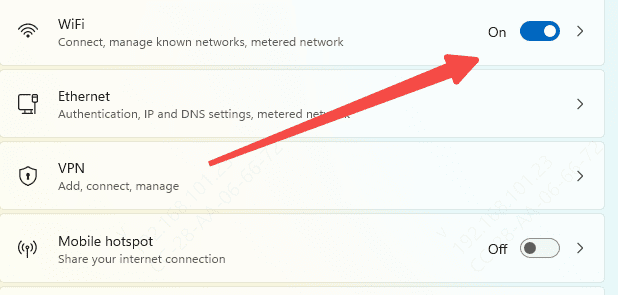
Check WiFi status
Go to Settings → Network & Internet → Wi-Fi
Ensure Wi-Fi is turned ON
Disable Airplane mode
Also press:
Fn + F8, Fn + F9, or Fn + F7
Update or Reinstall Your WiFi Driver
Most "no wireless networks detected" issues come from corrupted or outdated WiFi drivers. Updating or reinstalling the driver typically solves the problem.
Download and Install Driver Talent X
Start by downloading the Driver Talent X installer
Once the file has been downloaded, open it and follow the on-screen instructions to complete the installation on your Lenovo laptop
Run a Full Driver Scan
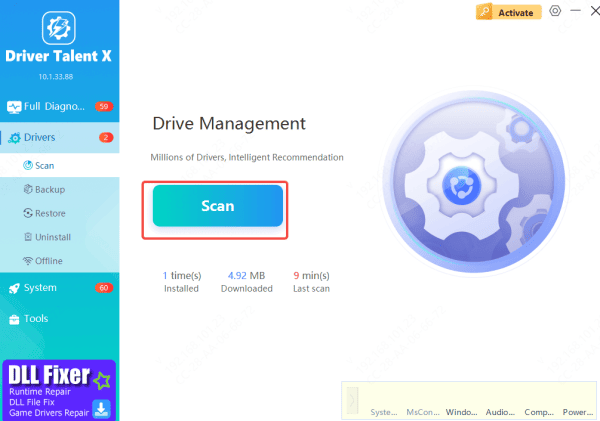
After installation, open Driver Talent X and navigate to the Drivers section
Click Scan, and the tool will automatically check your system for outdated, missing, or corrupted drivers—including the wireless network driver responsible for WiFi detection
Update the Lenovo WiFi Driver
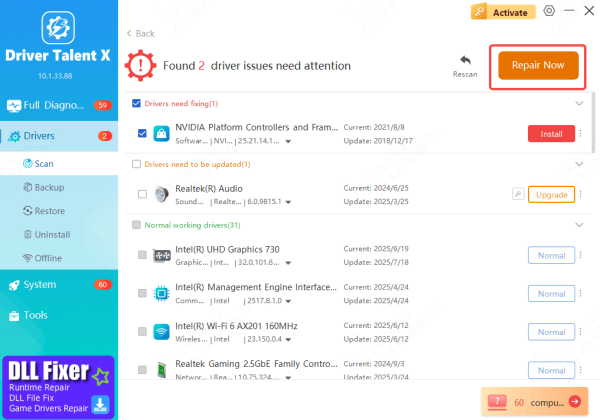
When the scan is finished, Driver Talent X will list all identified driver issues
Locate your WiFi Network Adapter, then select Upgrade or Repair Now to let the software download and install the correct Windows 11 WiFi driver tailored for your Lenovo device
Restart Your Laptop
After the driver update is complete, restart your computer
Rebooting ensures that the new WiFi driver is properly applied, helping restore stable, reliable, and fully functional wireless connectivity
Use Lenovo Vantage to Restore WiFi Function
Lenovo Vantage automatically detects missing or corrupted network drivers and applies Lenovo-approved updates.
Install Lenovo Vantage from Microsoft Store
Open the app
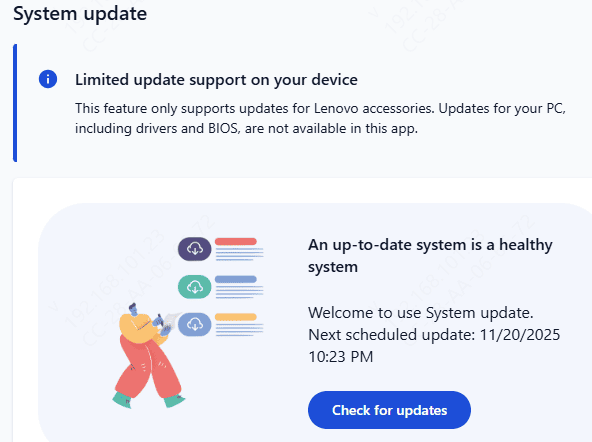
Go to Device → System Update
Click Check for Updates
Install any WiFi / Network / Wireless updates shown
Restart your laptop
This tool is highly reliable for Lenovo-specific driver issues.
Reset Network Settings to Default
If configuration files are corrupted, resetting network settings can fix the issue.
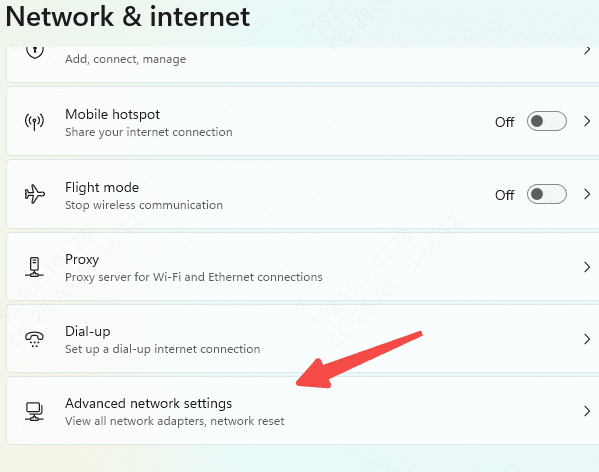
Go to Settings → Network & Internet → Advanced network settings
Scroll down to Network reset
Click Reset now
Restart your laptop
This resets:
WiFi adapters
DNS
TCP/IP settings
Network profiles
After restarting, reconnect to your WiFi.
Check WLAN AutoConfig Service
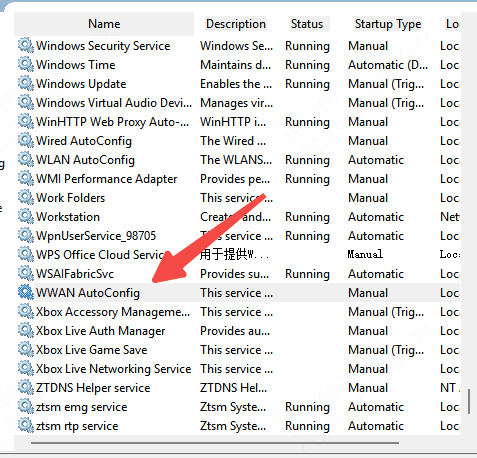
This Windows service controls WiFi detection. If it's disabled, no networks will appear.
Press Win + R, type services.msc, press Enter
Find WLAN AutoConfig
Double-click it
Set Startup type: Automatic
Click Start if the service is stopped
Click OK
Run Network Commands in Command Prompt
These commands reset core network configurations.
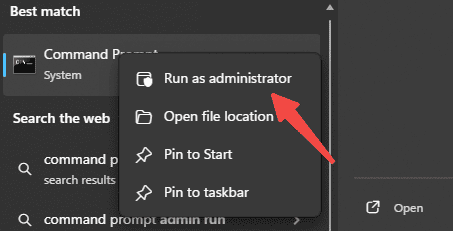
Open Command Prompt as Administrator and enter
netsh winsock reset
netsh int ip reset
ipconfig /release
ipconfig /renew
ipconfig /flushdns
Restart your laptop after running the commands.
Check for Windows Updates
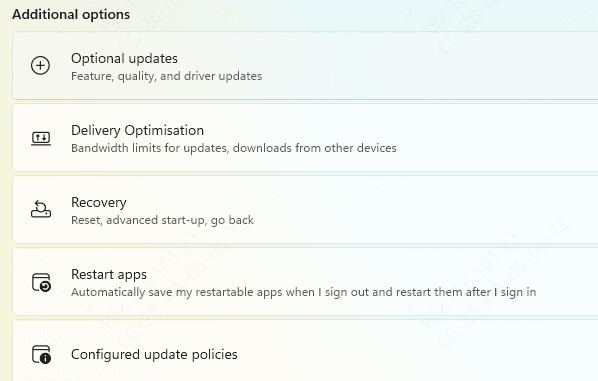
Sometimes WiFi stops working due to incomplete system updates.
Go to Settings → Windows Update
Click Check for updates
Install all pending updates
Restart
Conclusion
In summary, a Lenovo laptop running Windows 11 may fail to detect wireless networks due to disabled WiFi, outdated or corrupted drivers, misconfigured network settings, or system issues. By following the steps outlined—enabling WiFi, updating drivers via tools like Driver Talent X or Lenovo Vantage, using the Windows Network Troubleshooter, resetting network settings, ensuring WLAN AutoConfig is running, running network commands, and installing the latest Windows updates—you can effectively restore WiFi connectivity and enjoy a stable wireless connection on your device.









