The Logitech Zone Wireless headset is renowned for its excellent audio quality, comfort, and wireless convenience. However, like any wireless device, users may sometimes face connectivity issues, such as the headset failing to pair with their devices, intermittent audio cuts, or connection drops. In this guide, we'll cover everything from basic checks to advanced fixes to help you resolve connectivity issues with your Logitech Zone Wireless headset.
Basic Troubleshooting Steps
Let's start with some simple steps that can often resolve common connection issues with the Logitech Zone Wireless headset:
Ensure Bluetooth is Enabled: Confirm that Bluetooth is turned on in your paired device, and try connecting to other Bluetooth devices to check that your Bluetooth functionality is working
Disconnect Other Bluetooth Devices: If other Bluetooth devices are connected to your system, disconnect them to avoid interference
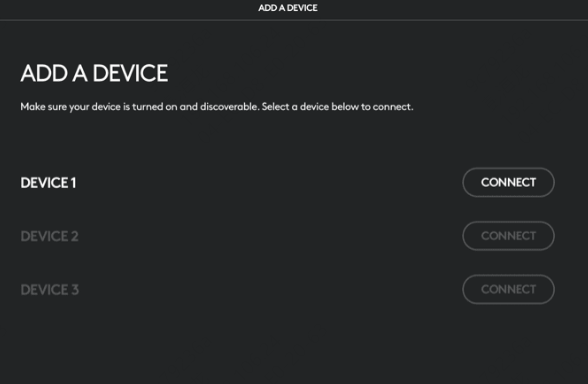
Forget the Device and Pair Again: Go to your device's Bluetooth settings, forget the Logitech Zone Wireless headset, and then try pairing it again
Reset the Headset: Reset the Logitech Zone Wireless headset by holding down the power button for 10 seconds to refresh the connection
Try Different USB Ports: If using a USB receiver, plug it into different USB ports to rule out any faulty ports
Advanced Troubleshooting
Outdated or corrupted drivers are a common cause of connectivity issues. Use the following steps to update drivers:
Use Device Manager
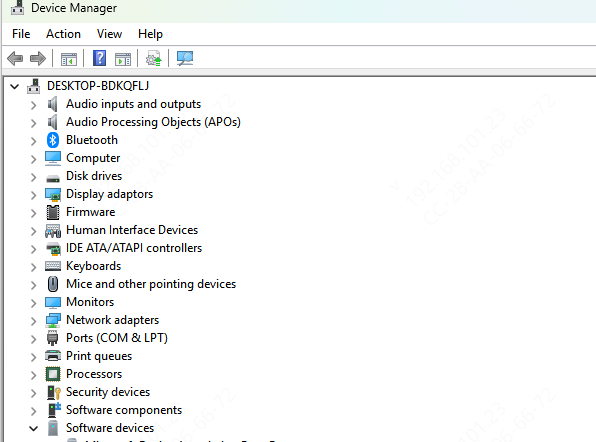
Right-click on the Windows Start menu and select Device Manager
Locate Bluetooth and Sound, video and game controllers sections
Right-click on the Logitech Zone Wireless device and select Update Driver
Use Driver Talent X (Recommended)
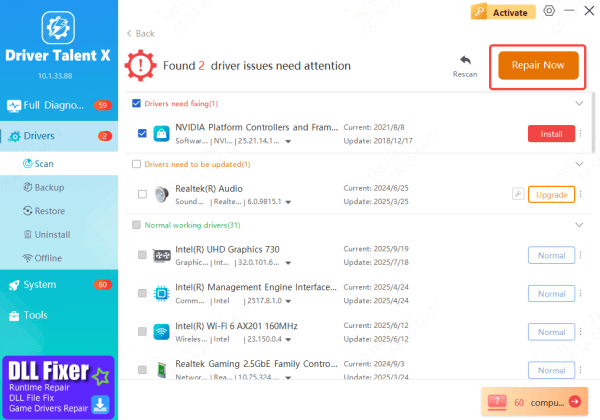
Driver Talent X is a convenient tool that automatically scans your system for outdated or missing drivers and updates them for you. This ensures your Logitech Zone Wireless is running on the latest and most compatible driver versions.
Download and Install: Get Driver Talent X from the official website and install it on your PC
Launch and Scan: Open the software, go to Drivers → Scan, and let the tool check for outdated drivers
Repair or Update: Once the scan is complete, click Repair Now to update the drivers for your Logitech Zone Wireless headset automatically
Restart Your PC: After updating, restart your computer to apply the changes
Logitech Zone Wireless Software and Firmware Updates
Ensure that your Logitech Zone Wireless headset is using the latest firmware. Firmware updates often address connectivity issues and improve overall performance. Here's how to update your firmware:
Download and Install Logitech G Hub: If you don't already have it, download Logitech G Hub from the official website and install it on your computer
Check for Updates: Open Logitech G Hub, select your headset, and look for the Firmware Update option
Install the Update: If a new firmware version is available, click Update Now to begin the process.
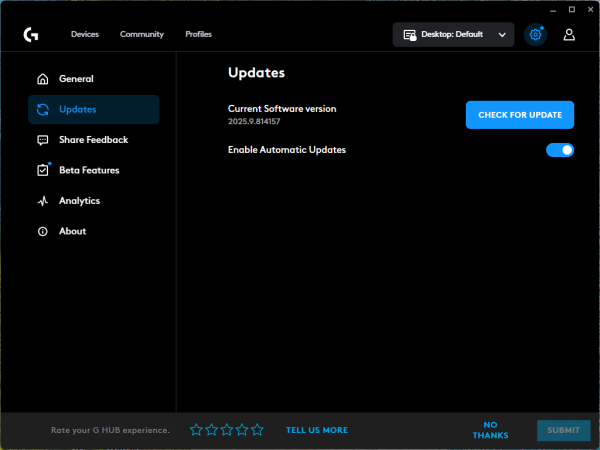
Check Software Updates
Make sure the Logitech G Hub or Logitech Zone software is up-to-date to avoid compatibility issues that might affect connectivity
Conclusion
Connectivity issues with the Logitech Zone Wireless headset are typically caused by either software, driver, or interference problems. By following the troubleshooting steps above, you should be able to resolve most issues and restore a stable connection for your headset. Remember to keep your firmware and drivers up-to-date and ensure proper setup for the best experience.









