
Keeping your Lenovo sound driver up to date on Windows 11 is essential for clear audio output, stable system performance, and compatibility with applications like Zoom, Teams, YouTube, and games. If your Lenovo laptop has no sound, distorted audio, microphone issues, or missing audio devices, outdated or corrupted sound drivers are often the root cause. This extended guide explains all reliable ways to update, repair, and verify Lenovo audio drivers on Windows 11, from basic checks to advanced troubleshooting.
Method 1: Update Lenovo Sound Driver via Device Manager
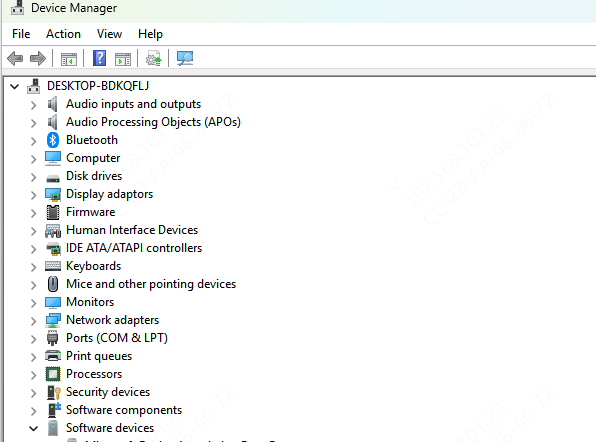
Press Win + X and select Device Manager
Expand Sound, video and game controllers
Right-click your audio device (Realtek Audio / Intel Smart Sound)
Select Update driver
Choose Search automatically for drivers
Windows will attempt to install the latest available driver
Note: This method may not always find the newest Lenovo-optimized driver.
Method 2: Download Sound Driver from Lenovo Support
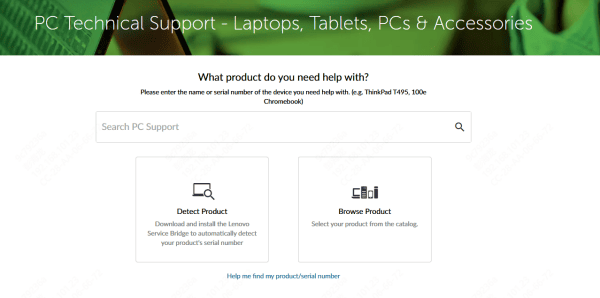
Visit support.lenovo.com
Enter your laptop model or serial number
Go to Drivers & Software
Select Windows 11 as your operating system
Expand Audio
Download the latest sound driver
Run the installer and follow on-screen instructions
Restart your laptop
Method 3: Automatically Update Lenovo Sound Driver (Recommended)
If you want a faster and error-free solution, an automated driver updater can simplify the process.
Download and Install Driver Talent X
Download the installer
Run the setup file and complete installation
Scan System
Open the program
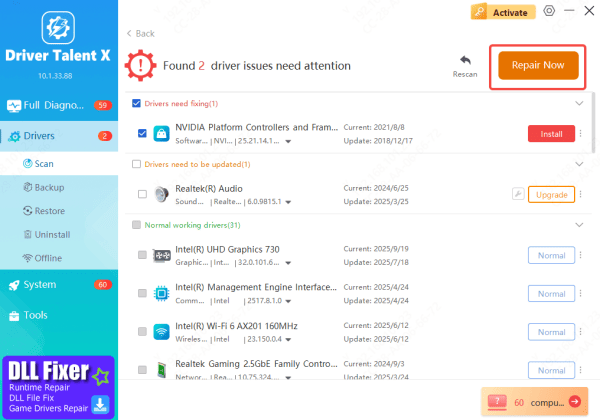
Go to Drivers → Scan
The tool checks audio, chipset, system, and related drivers

Update Sound Driver
Click Repair Now or Update
The correct Windows 11 sound driver installs automatically
Restart Your Laptop
Reboot to apply changes
Audio often returns immediately after restart
This method is ideal for beginners and users experiencing multiple driver issues
Method 4: Roll Back Sound Driver (If Audio Stopped After Update)
If sound stopped working after a Windows or driver update, rolling back can help.
Open Device Manager
Right-click your audio device
Select Properties → Driver tab
Click Roll Back Driver
Restart your system
This restores the previous stable driver version.

Method 5: Reinstall Lenovo Sound Driver Completely
If updating fails, a clean reinstall may fix driver corruption.
Open Device Manager
Right-click the audio device
Select Uninstall device
Check Delete the driver software for this device
Restart your laptop
Windows will reinstall a fresh driver automatically.

Additional Fixes If Updating the Driver Doesn't Work
Check Windows Audio Services
Press Win + R, type services.msc
Ensure these services are Running:
Windows Audio
Windows Audio Endpoint Builder
Set Correct Playback Device
Right-click speaker icon → Sound settings
Ensure the correct output device is selected
Run Windows Audio Troubleshooter
Settings → System → Troubleshoot → Other troubleshooters
Run Playing Audio

Common Symptoms of Lenovo Sound Driver Issues
No sound from speakers or headphones
Audio device missing from Sound settings
Red "X" on the speaker icon
Sound works intermittently
Microphone not detected
Audio stopped working after a Windows 11 update
Conclusion
Updating the Lenovo sound driver on Windows 11 is one of the most effective ways to fix audio problems, improve sound quality, and restore missing devices. Whether you choose Device Manager, Lenovo Support, or an automated solution like Driver Talent X, keeping your audio drivers current ensures stable performance and compatibility with modern applications.









