
A non-responsive touchpad on your Lenovo laptop can be frustrating—especially when you rely on it for daily work or navigation. Touchpad issues in Windows 11 are usually caused by incorrect settings, outdated drivers, system bugs, or hardware malfunctions. The good news is that most problems can be fixed with simple troubleshooting steps. This guide covers all effective methods to fix a Lenovo touchpad not working on Windows 11, from basic checks to advanced driver solutions.
Check If the Touchpad Is Enabled
Before diving into technical fixes, ensure your touchpad is not disabled accidentally.
Use Windows Setting
Press Win + I to open Settings
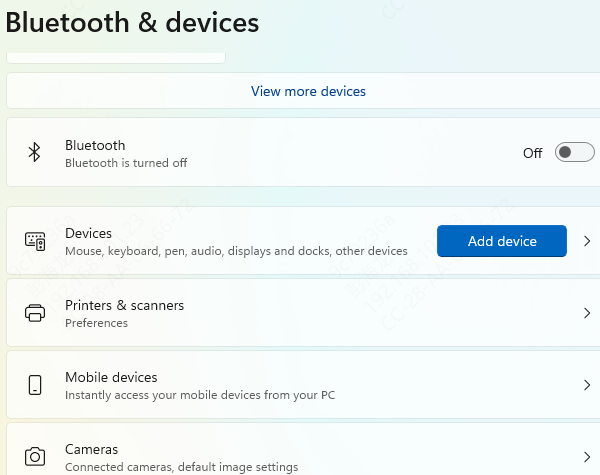
Go to Bluetooth & devices
Select Touchpad
Make sure the Touchpad toggle is turned ON
If it's already on, toggle it Off → On to reset it
Check the Function Key (FN Key)
Some Lenovo laptops have a shortcut that disables the touchpad
Try pressing: Fn + F6, Fn + F8,or Fn + F9
(Varies by model—look for a touchpad icon on the key)
Click Start → Power → Restart
Update Touchpad Drivers
Outdated or corrupted drivers are among the most common causes of a malfunctioning touchpad.
Using Driver Talent X
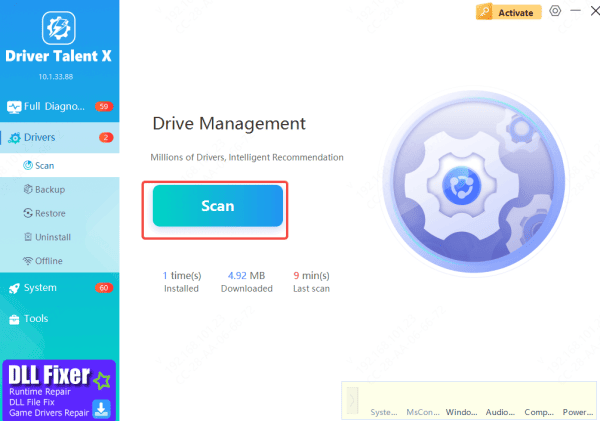
Download and install Driver Talent X
Click Scan to allow the software to check your device for touchpad, input, chipset, and controller driver problem
Driver Talent X will automatically download and install the correct Lenovo-compatible drivers for Windows 11, ensuring full hardware compatibility
Update via Device Manager
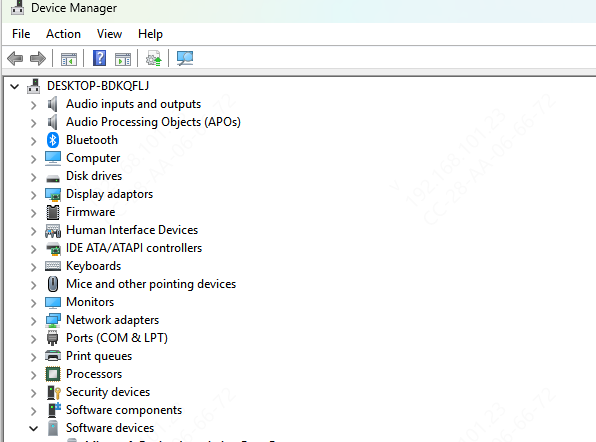
Right-click Start and choose Device Manager
Expand Human Interface Devices or Mice and other pointing devices
Right-click your touchpad driver (Lenovo Touchpad or ELAN/Synaptics)
Select Update driver → Search automatically for drivers
Install Drivers Using Lenovo Vantage
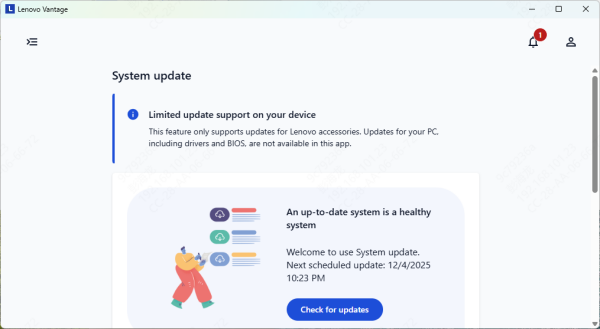
Lenovo Vantage ensures that you always get the latest manufacturer-approved drivers.
Open Microsoft Store
Search Lenovo Vantage and install it
Open Vantage → Go to Device → System Update
Download and install any available touchpad or chipset updates
Download Drivers Directly from Lenovo Support
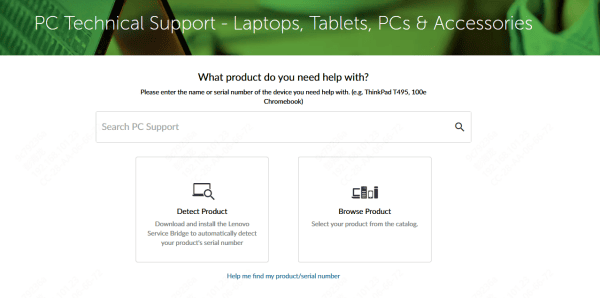
Visit the Lenovo Support site
Enter your laptop model
Navigate to Drivers & Software
Download the latest Touchpad, Chipset, and Input drivers
Install them and restart your PC
Enable Touchpad in BIOS
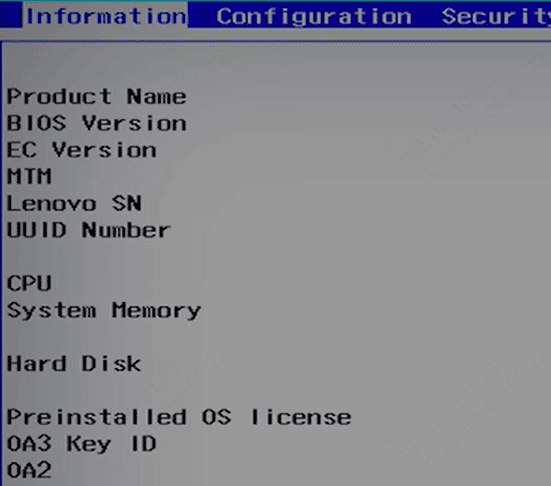
If the touchpad is disabled at BIOS level, Windows cannot recognize it.
Restart your computer
Press F1, F2, F12, or Del repeatedly (depends on model) to enter BIOS
Go to Configuration or Input settings
Look for Touchpad or TrackPad
Select Enabled
Save & Exit (usually F10)
Run Windows Hardware Troubleshooter
Windows 11 can automatically detect input device issues.
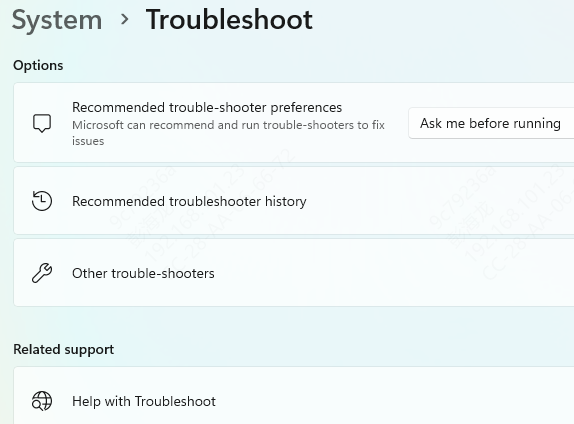
Press Win + I to open Settings
Go to System → Troubleshoot → Other troubleshooters
Find Keyboard and click Run (it also affects touchpad behavior)
Apply recommended fixes
Check Windows Updates
System updates often fix bugs that affect touchpad performance.
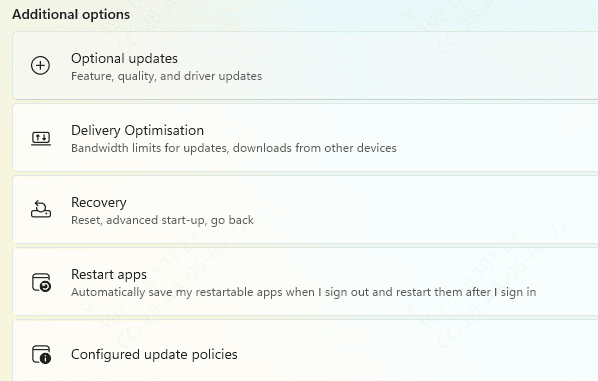
Open Settings → Windows Update
Click Check for updates
Install everything available, including optional driver updates
Turn Off Tablet Mode / Touchscreen Input Settings
If your Lenovo laptop supports tablet mode, Windows may disable the touchpad automatically.
Open Settings.
Go to System → Tablet
Set When using this device as a tablet to Don't switch to tablet mode
Disable gestures that override touchpad behavior
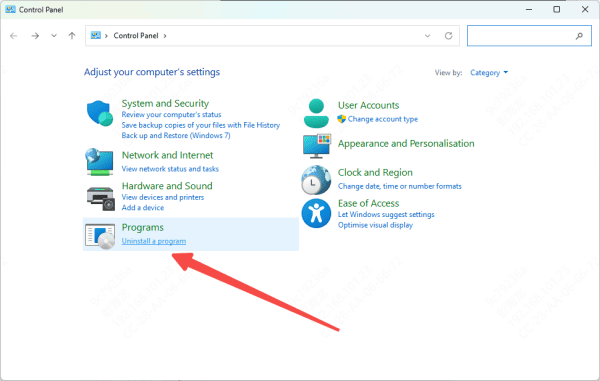
Check for Conflicting Third-Party Software
Third-party mouse software (Logitech, Razer, etc.) can override touchpad functionality.
Uninstall any of the following if installed:
External mouse drivers
Gesture control apps
Input-enhancement tools
Then restart your PC
Check for Hardware Issues
If none of the software fixes work, your touchpad might be physically damaged.
Possible hardware causes:
Loose touchpad cable
Moisture damage
Wear and tear
Faulty touchpad sensor
Visit a Lenovo-authorized service center for inspection and repair
Conclusion
Lenovo touchpad issues on Windows 11 are often caused by incorrect settings or outdated drivers, and most problems can be fixed using simple steps like enabling the touchpad, updating drivers, or resetting touchpad settings. Only in rare cases do hardware issues require professional repair.









