
A non-functional keyboard on Windows 11 can bring productivity to a grinding halt. Whether your keyboard is completely unresponsive, key presses are delayed or certain keys aren't working, this issue is usually rooted in software conflicts or simple settings errors, not permanent hardware damage.
This comprehensive guide breaks down the common causes of keyboard failure on Windows 11 and provides detailed, step-by-step solutions to restore full functionality.
Part I: Understanding the Causes
Identifying the source of the problem helps you choose the most effective fix. Keyboard failures on Windows 11 typically fall into these categories:
1. Driver and Software Conflicts
Corrupted or Outdated Drivers: Windows 11 updates sometimes install incompatible or corrupted keyboard and chipset drivers, leading to communication failure.
Filter Keys Feature: This accessibility feature, designed to ignore brief or repeated key presses, can inadvertently make your keyboard seem unresponsive or lagged.
Third-Party Application Interference: Gaming software, system monitoring tools, or keyboard lighting utilities may conflict with Windows' input stack.
2. Physical and Connectivity Issues
Loose USB Connection: For external keyboards, a loose cable or faulty USB port can cut the connection.
Laptop Function Lock: Accidental pressing of the function (Fn) key combination can sometimes disable or lock certain keyboard functions.
Hardware Damage: Bent keys, spills, or internal connector damage (less common, but possible).
Part II: Step-by-Step Solutions and Fixes
Start with the most efficient software solution, followed by essential settings checks and hardware troubleshooting.
Method 1: Automated Driver Update and Repair
The fastest and most reliable way to resolve post-update keyboard issues is by fixing corrupted drivers. Using a specialized utility ensures that all necessary input, USB, and chipset drivers are correctly updated.
Preparation:
Since your main keyboard is non-functional, use the On-Screen Keyboard (search for it in the Start Menu) or an external working mouse to navigate.
Download and install the Driver Talent X application.
Run Scan:
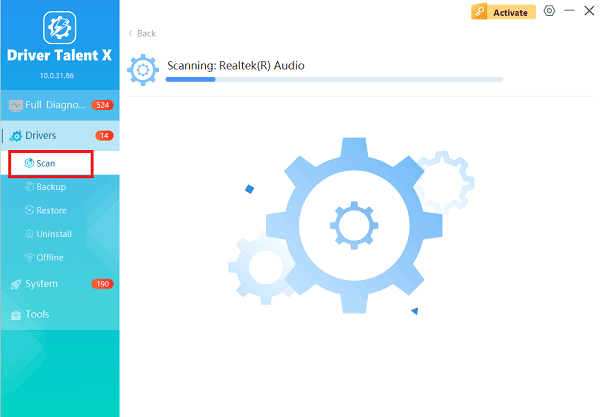
Launch the application and go to "Drivers" > "Scan", click "Scan".
The software will perform a deep analysis of your system, focusing on input and controller drivers.
Install the Update:
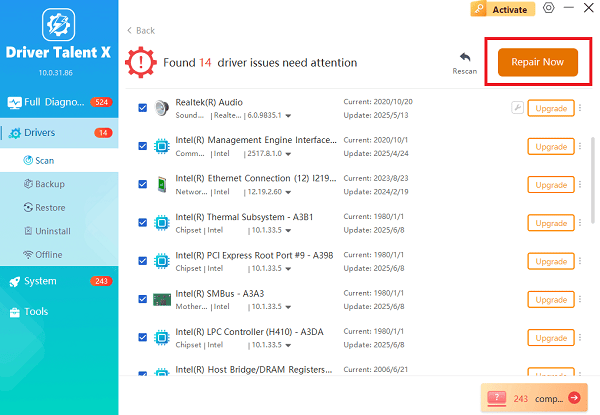
After the scan is complete, the software will display a list of all drivers that need attention.
Select the necessary keyboard and controller drivers and click the "Upgrade" or "Repair Now" button. Driver Talent X will download the latest, certified versions specific to your hardware.
Restart Your PC:
After the installation is complete, restart your computer.
The new drivers should load correctly, resolving the keyboard conflict.
Method 2: Check Keyboard Settings and Features
Windows accessibility settings, while helpful for some, can sometimes interfere with normal typing.
Disable Filter Keys:
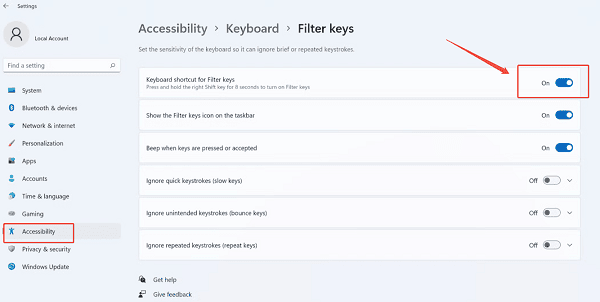
Press Windows Key + I to open Settings.
Navigate to "Accessibility" > "Keyboard".
Ensure the "Filter Keys" toggle switch is set to "Off". If it was on, turn it off and test the keyboard.
Toggle Sticky Keys:
While in the same menu ("Settings" > "Accessibility" > "Keyboard"), check the "Sticky Keys" setting and ensure it is also set to "Off", as it can alter key behavior.
Method 3: Troubleshoot via Device Manager
This method forces Windows to forget the old driver and install a fresh copy upon reboot.
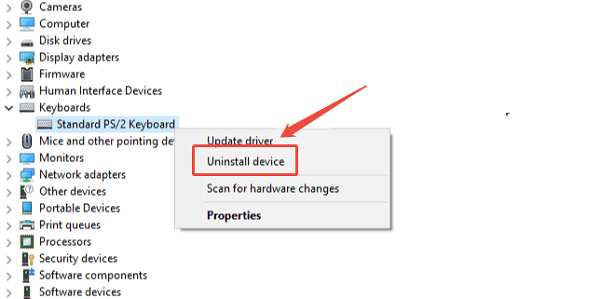
Press Windows Key + X and select "Device Manager".
Expand the "Keyboards" category.
Right-click on your keyboard entry (often labeled as "HID Keyboard Device" or "Standard PS/2 Keyboard").
Select "Uninstall device". Do NOT check the box to delete the driver software.
In the Device Manager menu, click "Action" > "Scan for hardware changes". Windows will attempt to re-install a default driver immediately.
Restart your PC to complete the process.
Method 4: Physical and System Checks
For issues with external keyboards, these checks are crucial.
1). Check Connection and Ports:
External Keyboards: Unplug the keyboard cable and try plugging it into a different USB port (try a different type, like USB 2.0 vs. USB 3.0).
Wireless Keyboards: Ensure the batteries are fresh, and the USB receiver is functioning and properly paired.
2). Function Lock Check (Laptops Only): On laptops, press the Fn + Num Lock key combination or the Fn + Esc combination, as these sometimes toggle keyboard locks.
3). Clean Installation: If the keyboard has been exposed to liquids or dust, shut down the computer and gently clean around the keys using compressed air.
Conclusion
A keyboard failure on Windows 11 is almost always a solvable issue stemming from software or settings. The most effective route is to first address potential driver conflicts with Driver Talent X, ensuring all necessary system and input drivers are stable. By combining this with simple checks, you can reliably restore full, smooth typing capability to your Windows 11 PC.
See also:
Qualcomm Atheros QCA61x4A Driver Download and Installation Guide
Network Adapter Not Working on Windows? Try These Fixes









