AMD Adrenalin drivers are essential for optimal graphics performance, gaming stability, and system compatibility. However, many users encounter issues where the AMD Adrenalin driver update fails, freezes, or does not install properly.
These problems are often caused by corrupted drivers, Windows conflicts, incomplete installations, or permission errors. This guide provides a complete set of proven solutions, starting with a reliable driver update method using Driver Talent X, followed by multiple manual fixes to fully resolve the issue.
Update AMD Drivers First Using Driver Talent X
Outdated or corrupted AMD drivers are the most common reason why AMD Adrenalin updates fail. Driver Talent X can automatically detect your GPU model, remove incompatible drivers, and install the most stable AMD driver version for your system. This method significantly reduces update errors and saves time.
Download and Install:
Click the "Download" button to download the installer. Save the setup file to your computer.
Double-click the installer and follow the on-screen instructions to complete the installation process.
Scan Your System:
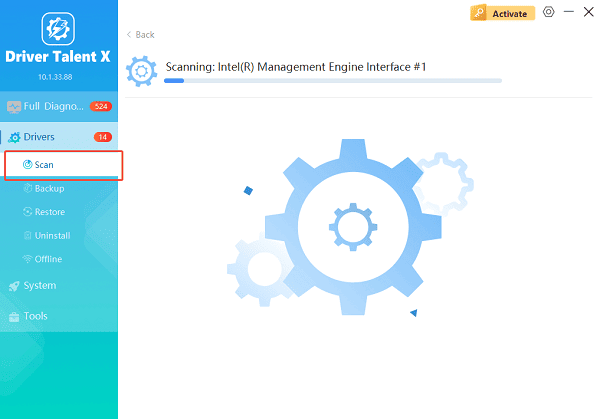
Open Driver Talent X from the desktop shortcut or the Windows Start menu, go to "Drivers" > "Scan", click "Scan".
Driver Talent X will scan for outdated, missing, or corrupted drivers, including AMD graphics drivers, chipset drivers, and system components.
Update All Drivers:
Locate AMD-related drivers in the scan results, especially display adapters and chipset drivers. Click the necessary drivers and click the "Upgrade" or "Repair Now" button.
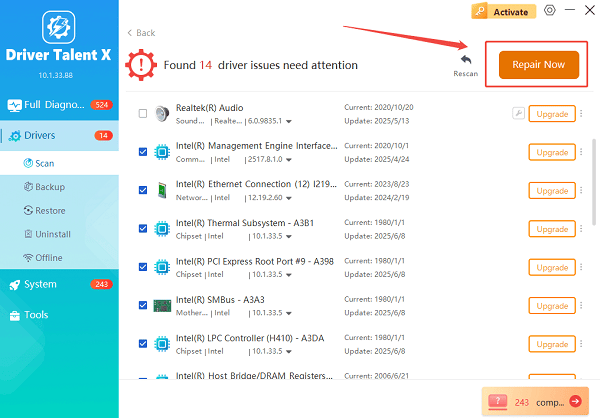
Driver Talent X will reliably download the latest drivers and execute a clean installation, critical for performance enhancements and stability fixes.
Restart Your Computer:
Wait for the download and installation process to complete.
Restart your computer to apply the changes.
This process ensures your system has a clean and compatible AMD driver, which often resolves AMD Adrenalin update issues immediately.
Why AMD Adrenalin Driver Update Is Not Working?
Before applying additional fixes, it is helpful to understand the root causes:
Corrupted or partially installed AMD drivers
Conflicts with previous NVIDIA or Intel GPU drivers
Windows Update overriding AMD driver installation
Insufficient administrator permissions
Antivirus or firewall blocking installation files
Damaged AMD Adrenalin installer package
Solution 1: Perform a Clean AMD Driver Installation
A clean installation removes all remnants of previous AMD drivers that may block updates.
Steps:
Press Windows + X and select Device Manager.
Expand "Display adapters", right-click your AMD GPU, and choose "Uninstall device".
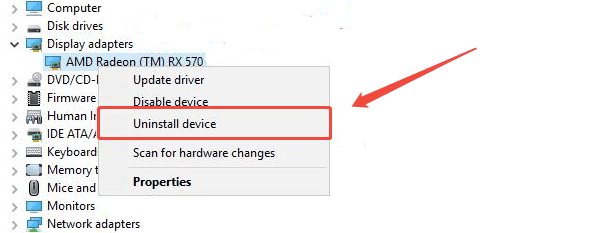
Check "Delete the driver software for this device", then click "Uninstall".
Restart your PC.
Reinstall the AMD driver using Driver Talent X or the official AMD installer.
Solution 2: Disable Windows Automatic Driver Updates Temporarily
Windows may install its own driver version, causing AMD Adrenalin to fail.
Steps:
Press Windows + R, type "sysdm.cpl", and press Enter.
Open the "Hardware" tab and click "Device Installation Settings".
Select "No (your device might not work as expected)", click "Save Changes".
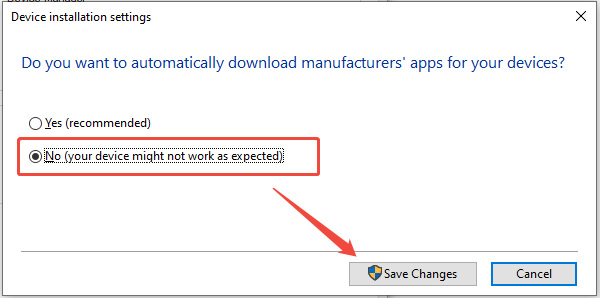
Retry the AMD driver update.
Solution 3: Run AMD Adrenalin Installer as Administrator
Permission issues can prevent driver installation.
Steps:
Right-click the AMD Adrenalin installer file.
Select "Run as administrator".
Follow the on-screen instructions carefully.
Restart your system after installation.
Solution 4: Temporarily Disable Antivirus and Firewall
Security software may block AMD installation files.
Steps:
Temporarily disable your antivirus and firewall.
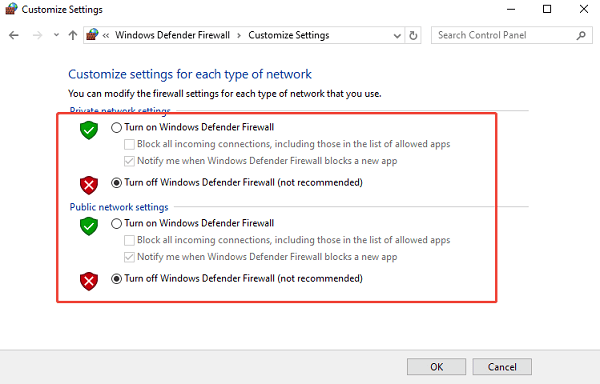
Disconnect unnecessary external devices.
Run the AMD Adrenalin installer again.
Re-enable your security software after installation completes.
Solution 5: Install AMD Drivers in Safe Mode
Safe Mode prevents background conflicts during installation.
Steps:
Press Windows + R, type "msconfig", and press Enter.
Go to the "Boot" tab and check "Safe boot".
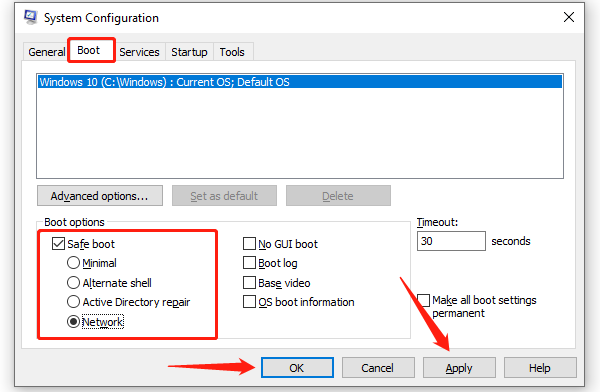
Restart your PC.
Install the AMD driver using Driver Talent X or the AMD installer.
Return to msconfig, uncheck "Safe boot", and restart normally.
Solution 6: Update Windows System Files
Outdated or corrupted Windows components can cause driver installation failures.
Steps:
Press Windows + I and go to "Update & Security".
Click "Windows Update" and select "Check for updates".
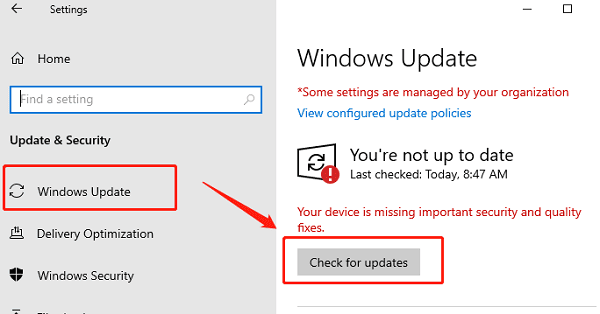
Install all available updates.
Restart your computer and try the AMD driver update again.
Additional Tips to Prevent Future AMD Driver Issues
Always remove old GPU drivers before switching graphics cards
Avoid installing beta AMD drivers unless necessary
Keep Windows fully updated
Use Driver Talent X regularly to maintain driver stability
Restart your system after every driver installation
Conclusion
When AMD Adrenalin driver updates are not working, the issue is usually related to driver conflicts, corrupted files, or system restrictions. Updating your AMD graphics driver using Driver Talent X should be your first step, as it provides a clean, stable, and compatible installation. If the problem persists, the additional methods above will help eliminate deeper system conflicts and ensure smooth AMD driver updates in the future.
See also:
How to Update Graphics Driver Intel on Windows PC
HP Drivers Download – Official and Safe Methods for Windows









