
Attempting to update your AMD Radeon graphics driver and repeatedly running into "Installation Failed", installer crashes, or unexpected system errors is a common issue. A failed driver update prevents you from accessing critical performance gains, new game optimizations, and essential security patches from AMD Adrenalin Edition software.
The root cause maybe the new driver itself or interference from residual files of the old driver, conflicts with security software, or an unstable system environment. This guide provides comprehensive, step-by-step solutions to ensure a successful AMD driver update, starting with the most effective method for cleaning up conflicts.
Part I: Driver Cleanup and Conflict Resolution
A clean installation is absolutely vital for AMD drivers. Leftover files, registry entries, or corrupted data from previous installations are the single biggest cause of new driver installation failures.
Method 1: Automated Driver Update with Driver Talent X
Manually cleaning the driver cache and registry entries can be tedious and prone to error. A specialized utility automates this entire process, ensuring your system is thoroughly prepared and the correct, latest driver is installed.
Download and Install:
Click the "Download" button to download the software package.
Install it on your Windows PC.
Run Scan:
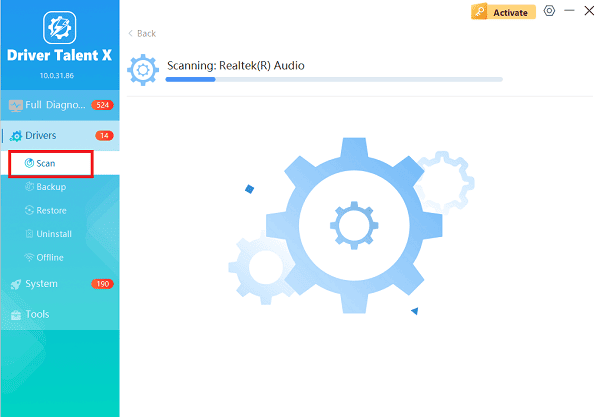
Launch the application and go to "Drivers" > "Scan", click "Scan".
The software will perform a deep analysis of your system, specifically checking the status of your AMD GPU and related components.
Execute Clean Installation:
After the scan is complete, the software will display a list of all drivers that need attention. Select the AMD driver and other relative driver, click the "Upgrade" or "Repair Now" button.
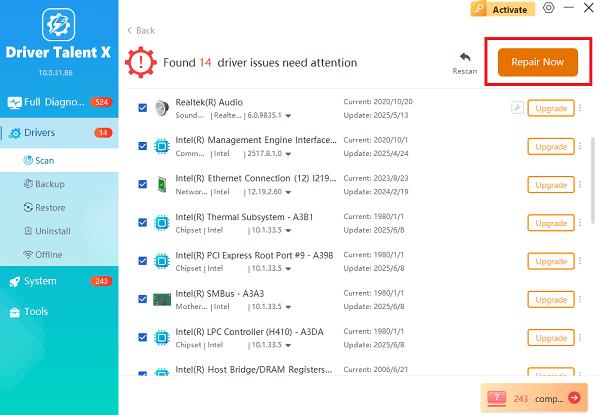
Driver Talent X will first perform a deep uninstall and cleanup of any problematic old AMD files, then reliably download the correct, latest driver, and execute a completely clean installation automatically, bypassing typical failure points.
Restart:
Once the process is finalized, restart your PC.
Method 2: Use AMD Cleanup Utility
AMD provides its own official tool to remove drivers and related files cleanly before attempting a fresh install.
Download Utility: Download the latest AMD Cleanup Utility from the official AMD website.
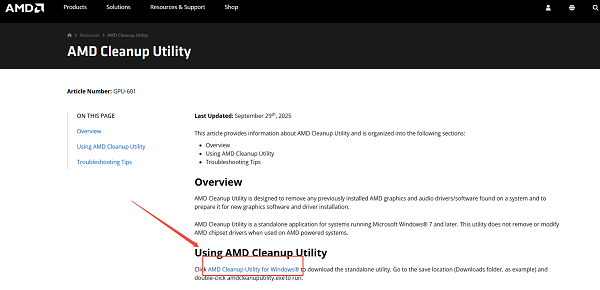
Run Utility: Close all applications and run the tool as an administrator. It will prompt you to enter Safe Mode—it is highly recommended to do so for the most thorough clean.
Execute Cleanup: Follow the prompts to allow the utility to remove all existing AMD driver components.
Reinstall Driver: After the system restarts (in normal mode), run the official AMD Adrenalin installer you downloaded and proceed with the installation.
Part II: System and Security Troubleshooting
These steps address external factors, such as security software or Windows components, that block the installation process.
Method 1: Disable Security Software Temporarily
Antivirus programs and firewalls can often interfere with the AMD installer's ability to write large files, leading to an installation failure error.
Disable Antivirus/Firewall: Temporarily disable any third-party antivirus software or security suite you are running.
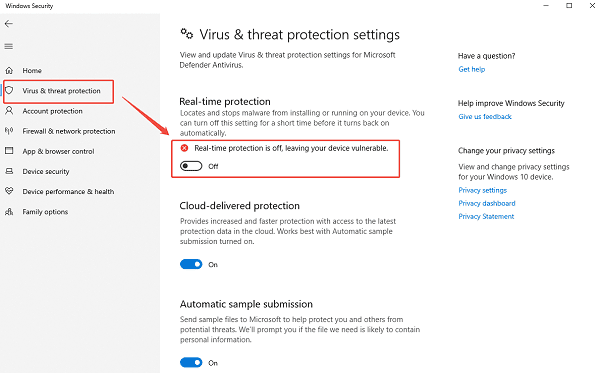
Disable Windows Defender (Testing): If using Windows Defender, temporarily disable "Real-time protection" in Windows Security settings.
Run Installer: Attempt to run the AMD Adrenalin installer again.
Crucial Step: Re-enable your antivirus and firewall immediately after the installation is complete.
Method 2: Manually Download the Full Installer
Relying on the Adrenalin software's built-in download feature can sometimes fail due to network instability. Downloading the full installer manually is often more reliable.
Use Official Website: Go to the official AMD Drivers and Support website.
Select Specs: Manually select your specific Radeon GPU model and Operating System.
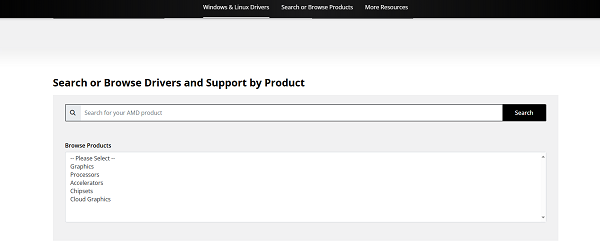
Download: Download the full, complete installer file (usually several hundred MB).
Run as Administrator: Right-click the downloaded file and select "Run as administrator" to start the installation.
Part III: Advanced Windows Component Check
If core Windows files are corrupted, it can prevent any installation from writing files successfully.
Method 1: Run the System File Checker (SFC Scan)
Corrupted core Windows system files can disrupt installation processes and lead to driver failure.
Open Command Prompt as Administrator (Win + R > type "cmd" > right-click and choose "Run as administrator").
Type the command: sfc /scannow
Press Enter and wait for the scan to reach 100%. If the tool finds and fixes errors, restart your PC and attempt the AMD installation again.
Method 2: Update Windows
Ensure your operating system is fully up to date, as many new AMD drivers rely on the latest Windows cumulative updates to function correctly.
Press Windows Key + I to open Settings.
Go to "Update & Security" > "Windows Update".
Click "Check for updates" and install any pending updates.
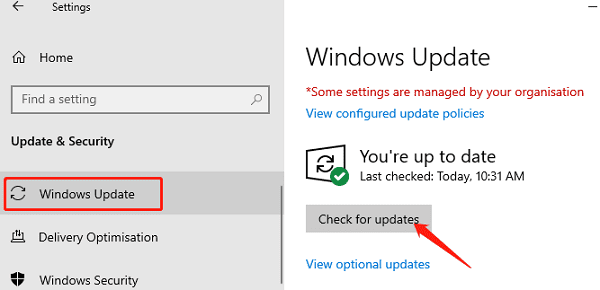
Restart your PC and then try the AMD installation one last time.
Conclusion
AMD graphics driver update failures are highly common due to software conflicts, but they are entirely fixable. The most reliable strategy is achieving a truly clean slate by using Driver Talent X to execute a clean, conflict-free update.
By combining this foundational cleanup with temporarily disabling security software and ensuring system file integrity with the SFC scan, you can systematically eliminate failure points and ensure a successful driver installation, maximizing your gaming and productivity performance.
See also:
Elden Ring: Nightreign Highlights and System Requirements Overview
[Fixed] 'xinput1_3.dll Was Not Found' Error on Windows









