
In the world of competitive gaming, every advantage counts. That's where custom settings for your Logitech gaming mouse come in. With Logitech's versatile gaming mice, like the G502 HERO or the G Pro X Superlight, you can customize almost every aspect of your mouse to suit your specific needs, from DPI settings to button configurations and RGB lighting. In this guide, we'll walk you through the essential settings that will enhance your gameplay experience and give you that competitive edge.
Customizing DPI Settings
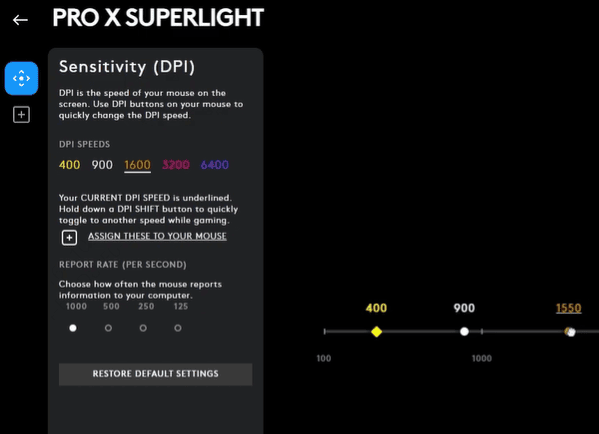
DPI is a critical factor when it comes to gaming precision. The higher the DPI, the faster the cursor moves on-screen for a given movement. Here's how you can adjust your DPI settings:
Steps to Adjust DPI in Logitech G HUB or Logitech Options:
Open Logitech G HUB or Logitech Options
Select your mouse from the dashboard
Find the DPI settings and adjust them to your preference
Why DPI Matters
FPS (First-Person Shooters): Lower DPI (around 400–800) helps with precise aiming and targeting
.png "fps-game")
MOBA (Multiplayer Online Battle Arenas): Medium DPI (around 1200–2000) is ideal for fast movements while maintaining control
.png "moba-game")
MMO (Massively Multiplayer Online): Higher DPI (2000–4000) can help navigate large maps quickly and execute complex combos
.png "mmo-game")
Customizing Buttons and Macros
Most Logitech gaming mice feature programmable buttons that allow you to reassign commands for quick access. Here's how you can set them up:
Steps to Remap Buttons:
Open Logitech G HUB.
Select your mouse.
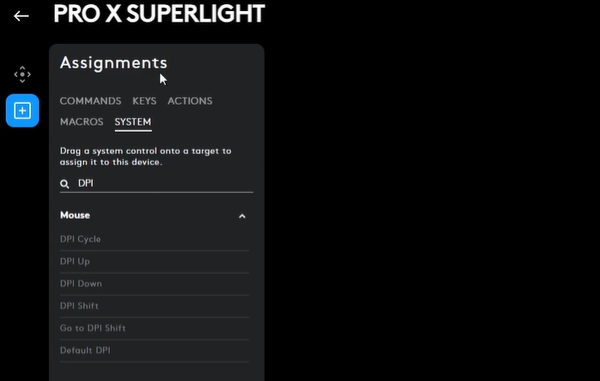
Go to the "Assignments" tab
Drag and drop actions to specific buttons on your mouse
Macros allow you to automate complex sequences of actions (such as combos in MMOs or quick-switching in FPS). For example, you can map a single button to a series of keystrokes or in-game commands to save time during crucial moments.
Personalizing RGB Lighting
RGB lighting isn't just for looks—it's also functional. Customizing the lighting can not only make your setup look cooler but also provide visual cues during gameplay.
How to Customize RGB Lighting:
Open Logitech G HUB
Go to the "LIGHTSYNC" section
Choose between static, breathing, or color-shift effects
Select colors that align with your gaming or aesthetic preferences
Functional RGB Lighting:
For some games, you can sync your RGB lighting to reflect in-game actions. For example, your mouse can change color when your health is low, or it could pulse when you're in combat mode.
.png "rgb-setting")
Troubleshooting Custom Settings
Occasionally, you might run into issues where custom settings don't save or your mouse is not responding as expected. Here are some quick fixes:
Reset Settings
If your mouse stops responding to custom settings, try resetting it through the G HUB software
Driver Issues
Keeping your Logitech G502 Hero drivers up-to-date is crucial for maintaining peak performance Updating drivers enhances responsiveness, resolves bugs, and ensures compatibility with the latest system updates and games
With Driver Talent X, this process becomes fast and automatic, saving you time while keeping your drivers current

Software Conflicts
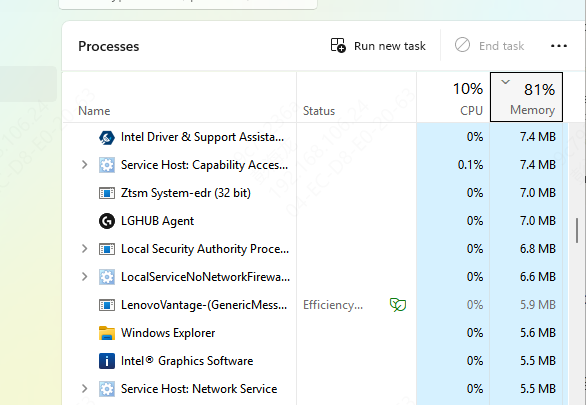
Close any background applications that may interfere with G HUB (e.g., third-party mouse software)
Conclusion
Customizing your Logitech gaming mouse is one of the best ways to enhance your gameplay and improve your performance. Whether it's adjusting DPI for precision, setting up macros for complex combos, or personalizing your RGB lighting, these settings can help you play smarter and more efficiently. Don't be afraid to experiment and tweak the settings until you find the perfect configuration that suits your gaming style. With the right customization, your Logitech gaming mouse can become an even more powerful tool in your gaming arsenal.









