
Keeping your Lenovo drivers updated is essential for maintaining optimal performance, security, and compatibility with new software and hardware. Outdated or missing drivers can cause issues like system crashes, slow performance, or device malfunctions. This guide walks you through the most effective ways to update your Lenovo drivers and keep your system running smoothly.
Method 1: Using Driver Talent X for Automated Driver Updates
This software checks for outdated drivers and automatically installs the latest versions for you.
Download and Install Driver Talent X
Visit the official website of Driver Talent X and download the installer
Run the installer and follow the on-screen instructions to complete the installation process
Run a System Scan
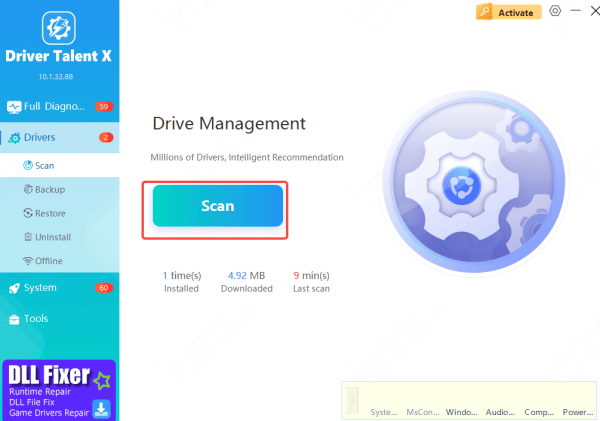
After installation, open Driver Talent X
Navigate to Drivers > Scan, and click Scan
The tool will scan your system and identify any outdated, missing, or incompatible drivers
Update Drivers
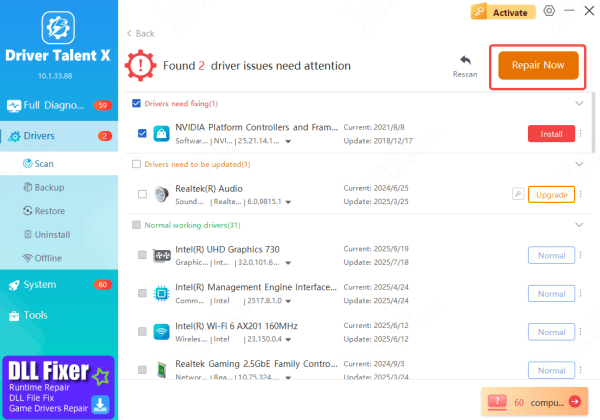
Once the scan finishes, Driver Talent X will list the drivers that need updating
Select the drivers you wish to update, and click Repair Now or Update
Restart Your Laptop
After the updates are installed, restart your laptop to allow Windows to properly load the new drivers.
Method 2: Using Lenovo System Update Tool
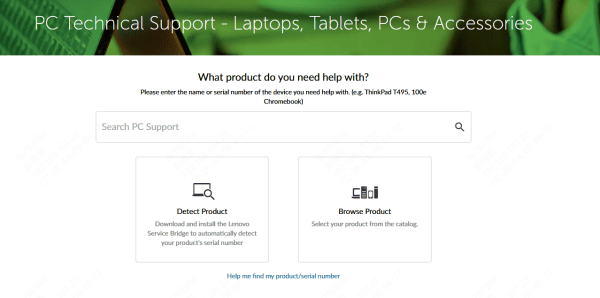
Go to Lenovo's official support website: Lenovo Support
Search for your Lenovo model by entering the serial number or machine type
Navigate to the Drivers & Software section
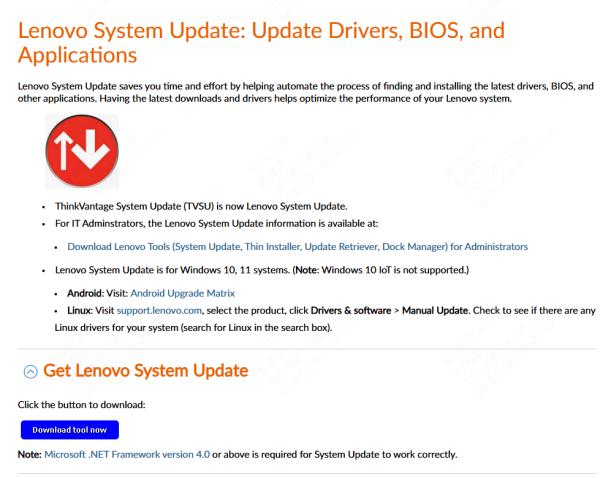
Download and install the Lenovo System Update tool
Open the Lenovo System Update tool
The tool will automatically scan your system for outdated drivers and software updates
Restart Your Laptop
Once the updates are installed, restart your laptop to apply the changes
Method 3: Update via Device Manager
If you prefer a manual approach, you can use Device Manager in Windows to update drivers individually.
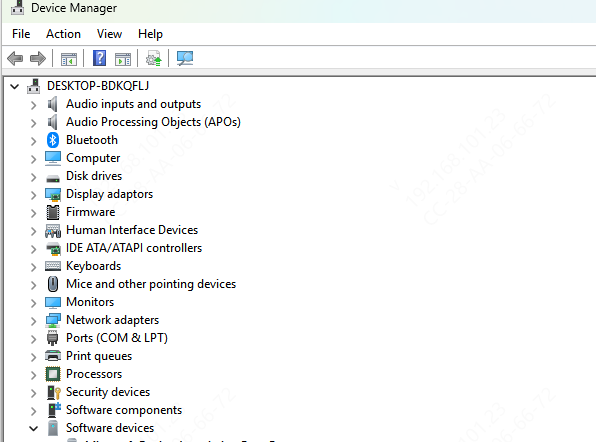
Open Device Manager
Press Win + X and select Device Manager from the menu
Find the Device
Expand the categories (such as Display Adapters, Network Adapters) to locate the device you want to update
Right-click the device, and select Update driver
Search for Updates
Select Search automatically for updated driver software. Windows will search for and install the latest drivers
Restart Your Laptop
After the installation is complete, restart your laptop to apply the new drivers
Method 4: Download Drivers Directly from Lenovo's Website
If you want to manually download drivers for your Lenovo device, you can access them directly from the Lenovo support website.
Go to Lenovo Support Website
Enter your Lenovo laptop or desktop model number or serial number
Under the Drivers & Software tab, scroll through the list and download the required drivers for your system
Make sure to select the appropriate operating system version to get the correct driver
Once downloaded, run the driver installation files and follow the prompts to install the drivers
Restart your computer after installing the drivers to finalize the process
Method 5: Check for Windows Updates
Sometimes, Windows Update includes driver updates, especially for important hardware like graphics cards, network adapters, and more.
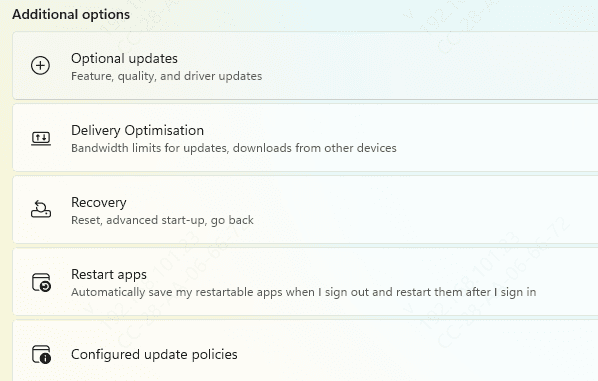
Open Windows Update
Go to Settings > Update & Security > Windows Update.
Check for Updates
Click on Check for updates and install any available updates, including drivers for your Lenovo device
Troubleshooting Driver Update Issues
Sometimes, issues can arise during the driver update process. Here are a few troubleshooting tips:
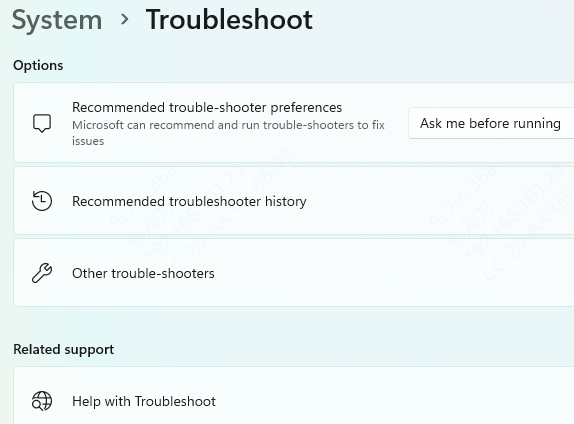
Driver updates fail to install: Try restarting your laptop or running Windows Troubleshooter for hardware and devices
Device not recognized after a driver update : Open Device Manager, find the device, right-click, and select Uninstall device. Restart your laptop, and Windows will attempt to reinstall the device automatically
Why Keep Your Lenovo Drivers Updated
Updating your drivers regularly ensures that your Lenovo laptop or desktop operates at peak efficiency. New drivers can:
Improve system performance and responsiveness
Resolve compatibility issues with new software and hardware
Fix bugs, glitches, or crashes caused by outdated drivers
Enhance security by patching vulnerabilities
Neglecting driver updates can result in hardware failures, connectivity issues, or other serious performance problems. So, it's vital to check for and install updates periodically
Conclusion
Regularly updating your Lenovo drivers is essential for maintaining the health and performance of your system. By following the steps in this guide, you can keep your Lenovo device running smoothly and avoid common performance issues caused by outdated drivers.









