
A keyboard that suddenly stops working, types incorrect characters, or suffers from unresponsive keys is a huge disruption. Whether you're a gamer, writer, or professional, a malfunctioning keyboard can halt your productivity. In most cases, these issues are not due to hardware failure but rather outdated, corrupted, or incompatible keyboard drivers.
Keeping your drivers current is essential for ensuring smooth communication between your keyboard and the Windows operating system. This comprehensive guide will show you two distinct methods—automatic and manual—to successfully update your keyboard driver on Windows 10 and 11.
Part I: Automatic Update (The Quickest Method)
For users who want a fast, reliable, and hands-off solution, using a specialized driver tool is the best option. The program scan your entire system, identify all problematic drivers (including hidden or missing components), and install the correct, official versions with minimal user input.
Using Driver Talent X for One-Click Driver Fix:
Driver Talent X is an effective utility that manages all drivers, ensuring that the necessary keyboard, chipset, and USB drivers are harmonized with your Windows version.
Download and Install: Click the "Download" button to download and install the Driver Talent X application (you may need to use an on-screen keyboard or a temporary mouse for this step).
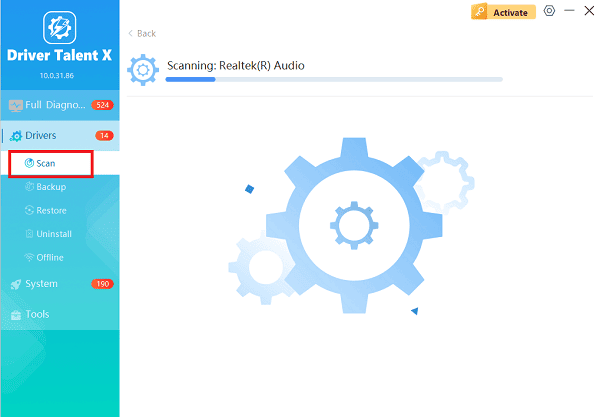
Run Scan: Launch the software and go to "Drivers" > "Scan", click "Scan". The program will comprehensively analyze your PC for outdated, missing, or problematic drivers across all hardware components.
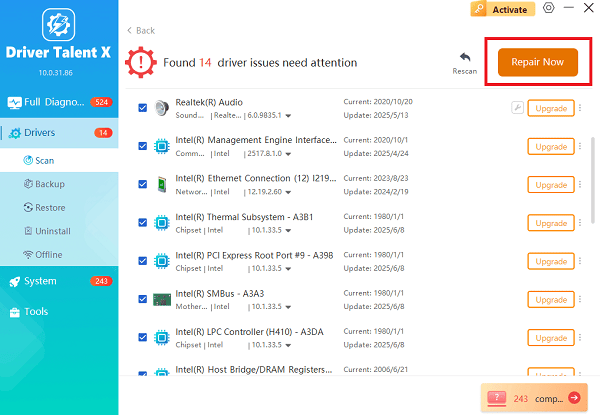
Install the Update: After the scan is complete, the software will display a list of all drivers that need attention. Click the "Repair Now" button. Driver Talent X will automatically download the correct, verified files from its database and install them.
Restart Your PC: Once the installation is finished, restart your computer. A reboot is necessary to fully implement the new drivers and establish a stable connection.
Part II: Manual Update (Using Built-in Windows Tools)
For users comfortable with system settings, Windows provides manual methods through the Device Manager and Windows Update.
Method 1: Update Driver via Device Manager
This is the standard procedure for fixing a driver that Windows has incorrectly loaded or flagged.
Open Device Manager: Press Windows Key + X and select "Device Manager" from the list.
Locate Keyboards: Expand the "Keyboards" category by clicking the arrow next to it.
Identify the Device: Right-click on your keyboard device (it may be listed as "Standard PS/2 Keyboard", "HID Keyboard Device" or the specific manufacturer's name).
Initiate Update: Select "Update driver".
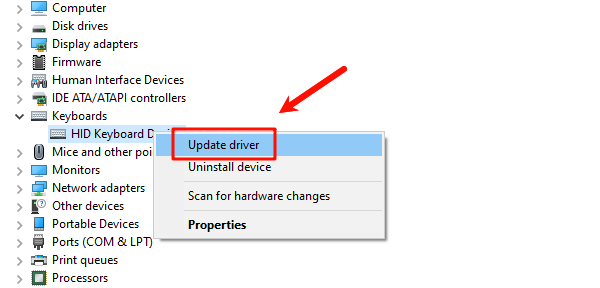
Choose Automatic Search: In the resulting dialog box, choose "Search automatically for drivers". Windows will scan your local PC and the internet for the most compatible driver.
Method 2: Uninstall and Reinstall the Driver
If the driver is corrupted, uninstalling it and letting Windows reinstall a fresh copy often solves the problem.
Open "Device Manager" (refer to Step 1 in Method 1).
Uninstall the Driver: Right-click on your keyboard device under "Keyboards" and select "Uninstall device".
Confirm: Click "Uninstall" in the confirmation box. Do NOT check the box that says "Delete the driver software for this device".
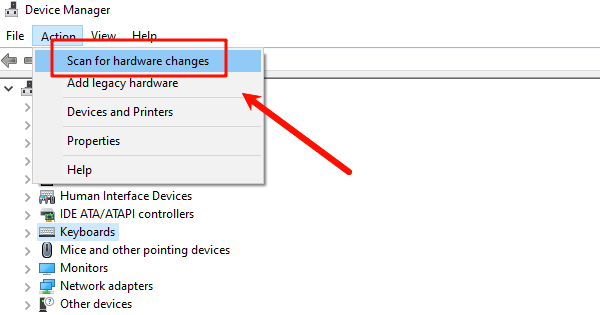
Reinstall Automatically: Go to the top menu bar in Device Manager and select "Action" > "Scan for hardware changes". Windows will detect the missing keyboard and automatically reinstall the correct default driver.
Method 3: Check Windows Optional Updates
Newer, specific drivers are sometimes listed under the optional updates section in Windows Settings.
Open Settings (Press Windows Key + I).
Go to "Windows Update" (or "Update & Security" in Windows 10).
Click "Check for updates".
If available, click "View optional updates" (Windows 11) or "Advanced options" (Windows 10).
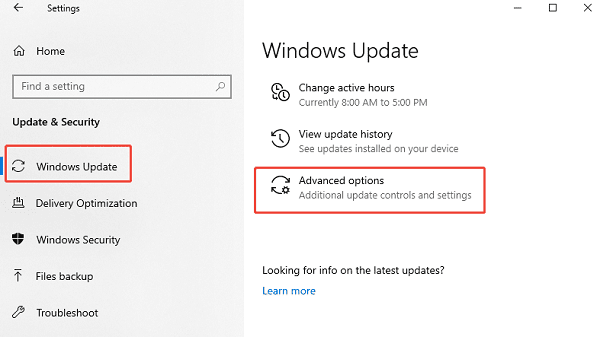
Expand the "Driver updates" section. If a driver for your keyboard is listed, select it and click "Download and install".
Conclusion
Keyboard malfunctions due to drivers are common but straightforward to fix. Whether you choose Driver Talent X or prefer the control of manual methods via the Device Manager, updating your keyboard drivers will typically resolve issues like unresponsiveness, lag, or incorrect key mapping. By keeping this essential system component updated, you ensure smooth, uninterrupted typing and peak performance from your device.
See also:
Mandragora: Whispers of the Witch Tree Overview
Overview of Tempest Rising on Steam
[Fixed] Red Dead Redemption 2 ERR_GFX_STATE Graphics Error
Ways to Fix The Elder Scrolls IV: Oblivion Remastered Startup Crash









