
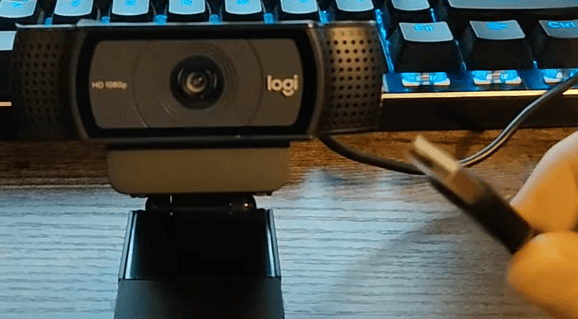
A webcam is essential for video calls, online streaming, and recording, and ensuring it works seamlessly is vital for a smooth experience. One of the most common issues that users face with their Logitech webcams is poor video quality, connectivity problems, or the webcam not being detected at all. These issues can often be traced back to outdated or corrupted drivers. In this guide, we will walk you through the best ways to update Logitech webcam drivers, helping you restore functionality and improve performance.
Method 1: Update Drivers Using Device Manager
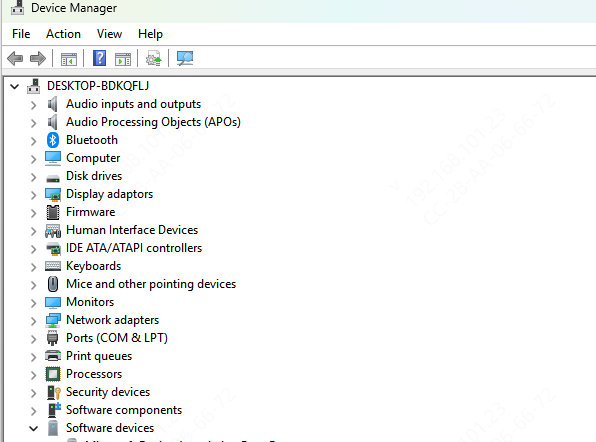
Press Windows + X and select Device Manager
Alternatively, press Windows + R, type devmgmt.msc, and press Enter
In the Device Manager window, expand the Imaging Devices section
Locate your Logitech webcam (e.g., "Logitech C920" or "Logitech Brio")
Right-click on your Logitech webcam and select Update Driver
Choose Search automatically for updated driver software
Windows will search for the latest driver version and automatically download and install it if available
Method 2: Update Drivers Using Driver Talent X
Download & Install Driver Talent X
Get the installer from the official Driver Talent website
Run the installer and follow the on-screen instructions to install the software on your laptop or desktop
Scan for Outdated or Missing Drivers
After installation, open the software
Go to the Drivers tab and click Scan to check all system drivers, including the Logitech webcam driver
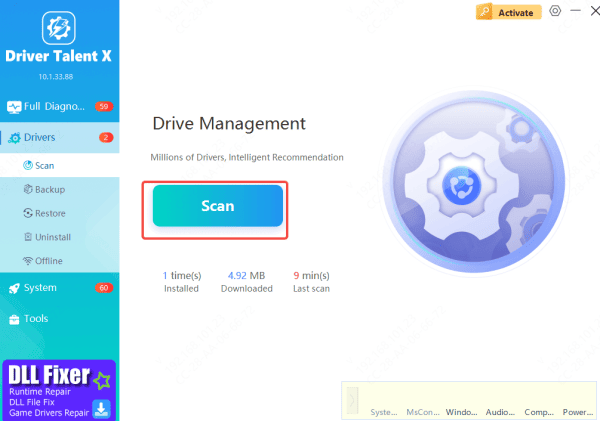
Update Logitech Webcam Driver
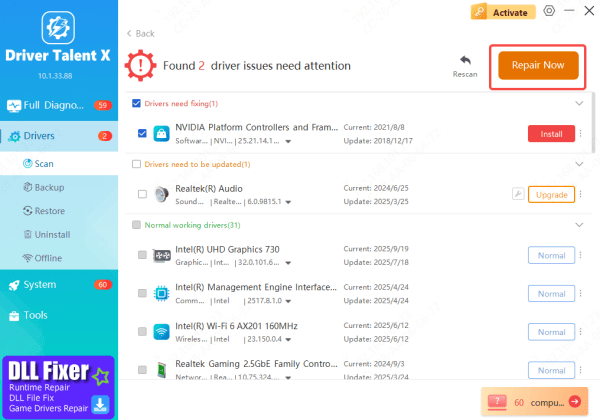
In the scan results, find the Imaging Devices section, where your Logitech webcam should be listed
Click Upgrade to update the driver to the latest version, or click Repair Now if the driver is corrupted or has errors
Restart Your Computer
After the update, restart your computer to ensure the new drivers are applied correctly
Test the Webcam: Open a video call app, like Zoom or Skype, or use the Camera app to verify that the webcam is functioning properly again
Troubleshooting Common Issues After Driver Update
Even after updating the drivers, you may run into issues. Here's how to troubleshoot:
Driver Not Found or Webcam Missing
Check Device Manager: If the webcam is missing in Device Manager, try unplugging and reconnecting the webcam to a different USB port
Reinstall the Webcam: Right-click on the Imaging Devices section, uninstall the webcam, and then reinstall it
Test USB Ports: Use different USB ports, preferably USB 3.0, for better performance
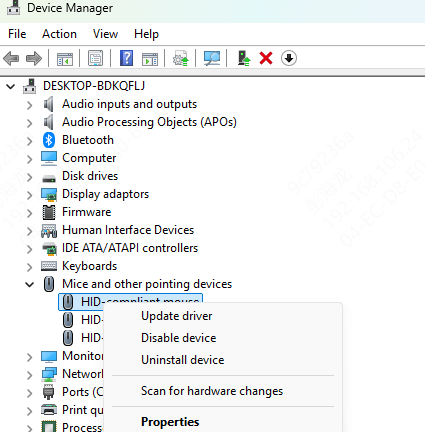
Webcam Still Not Working After Update
Check Compatibility: Ensure that the drivers you downloaded are compatible with your operating system version (Windows)
Test with Another App: Sometimes, the issue may be app-specific. Try using your webcam in a different program like Skype, Zoom, or the Camera app
Disable Antivirus/Firewall: Temporarily disable antivirus software or firewalls that might be blocking the webcam's functionality
Why You Need to Update Logitech Webcam Drivers
Bug Fixes and Performance Improvements: Driver updates often include fixes for known issues and enhancements to improve performance
Compatibility: Updated drivers ensure that your webcam is compatible with the latest operating system updates, such as Windows 10/11
New Features: Some driver updates introduce new features or functionality, enhancing the webcam's capabilities
Video Quality: With updated drivers, your webcam can deliver better video resolution, smoother performance, and clearer sound
Conclusion
Updating your Logitech webcam drivers is a simple yet effective way to resolve performance issues, improve video quality, and ensure compatibility with the latest software









