
If your Intel graphics driver download fails on Windows, you may experience screen flickering, low resolution, poor performance, or error messages during installation. This issue is common on Windows 10/11 systems and is usually related to outdated drivers, system conflicts, corrupted files, or incorrect installation methods. Below is a complete guide with multiple solutions to help you resolve the problem quickly.
Update Intel Graphics Driver with Driver Talent X
Using a professional driver management tool is the safest and most efficient way to fix Intel graphics driver download failures. Driver Talent X automatically detects your hardware, finds the correct Intel graphics driver version, and installs it without compatibility issues.
Download and Install:
Click the "Download" button to download the installer to your computer.
Run the installer, follow the on-screen instructions, choose the installation path, and complete the setup.
Scan for Driver Issues:
Open Driver Talent X from the desktop shortcut or Start menu and go to "Drivers" > "Scan", click "Scan".
The software will detect outdated, missing, corrupted, or incompatible drivers related to your Intel CPU and chipset.
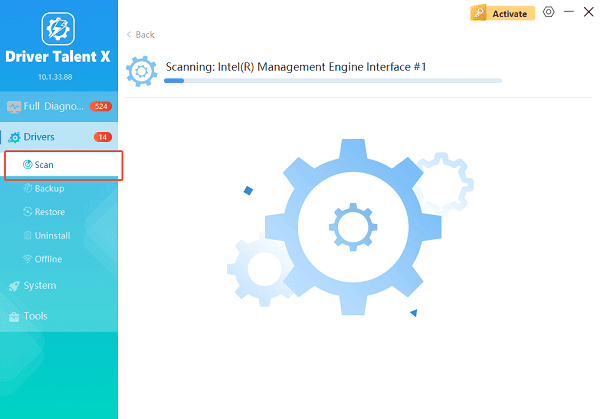
Update Drivers Automatically:
After the scan is complete, the software will display a list of all drivers that need attention. Select the necessary drivers and click the "Upgrade" or "Repair Now" button.
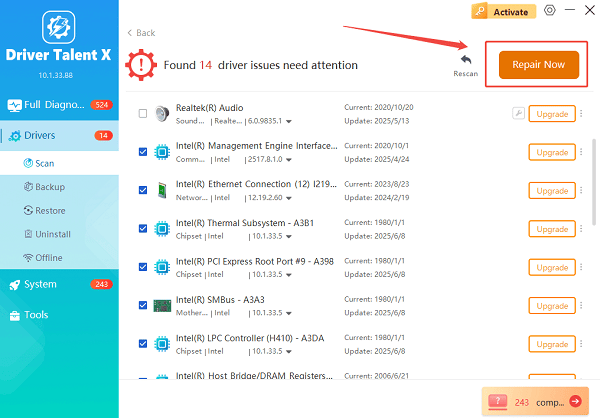
Driver Talent X will download and install the correct drivers automatically.
Restart Your Computer:
Wait for the download and installation process to complete.
Restart your computer to apply the changes.
This method avoids manual errors, prevents installing the wrong driver version, and resolves most Intel graphics driver download failed issues in one step.
Common Causes of Intel Graphics Driver Download Failed
Understanding the root cause helps you choose the right fix:
Incompatible driver version for your Intel GPU
Corrupted Windows system files
Conflicts with existing or old graphics drivers
Interrupted or blocked downloads
Windows Update issues
Insufficient system permissions
Fix 1: Download Drivers from Intel Official Website
If automatic tools are unavailable, you can manually install the driver:
Press Windows + X and select Device Manager.
Expand "Display adapters", right-click Intel Graphics and choose "Properties".
Check the exact GPU model under the Details tab.
Visit Intel's official support page.
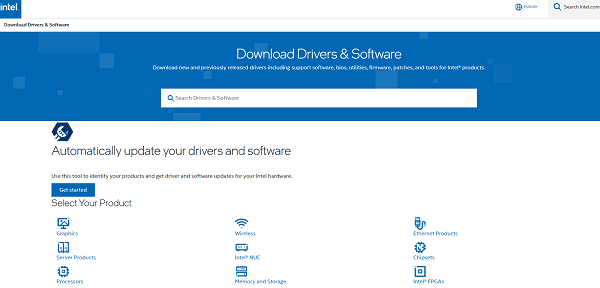
Download the driver matching your GPU model and Windows version.
Run the installer as administrator and follow the on-screen instructions.
Restart your PC.
Manual installation works but requires careful model matching to avoid failure.
Fix 2: Use Device Manager to Update the Driver
Windows can sometimes find a compatible driver automatically:
Open Device Manager.
Expand "Display adapters", right-click Intel Graphics, select "Update driver".
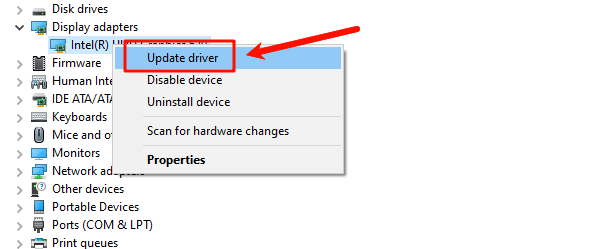
Choose "Search automatically for drivers".
Follow the prompts and restart your system.
This method may install a stable but not always the latest driver version.
Fix 3: Remove Old Graphics Drivers Completely
Conflicting or corrupted drivers can cause download failures:
Open Device Manager.
Right-click Intel Graphics under Display adapters, select "Uninstall device".
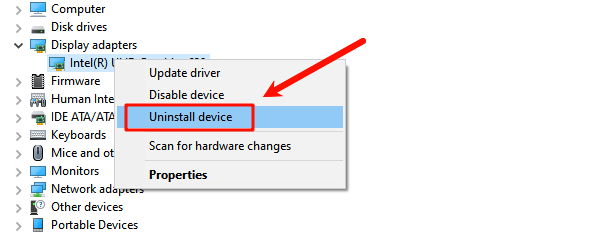
Check "Delete the driver software for this device".
Restart your computer.
Reinstall the driver using Driver Talent X or Intel's official installer.
This ensures a clean installation environment.
Fix 4: Run Windows Update
Windows updates often include driver fixes:
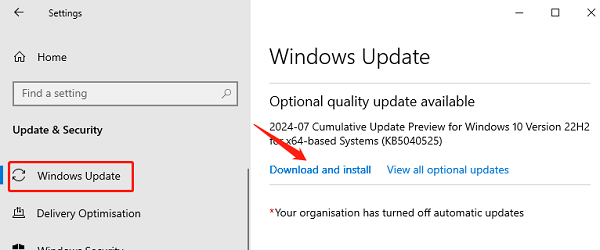
Press Windows + I to open Settings.
Go to Update & Security.
Click Windows Update, select "Check for updates".
Install all available updates and optional driver updates.
Restart your PC.
Fix 5: Repair Corrupted System Files
System file corruption can block driver downloads:
Press Windows + S, type "cmd".
Right-click Command Prompt and select "Run as administrator".
Enter the following command: sfc /scannow
Wait for the scan to complete.
Restart your system after repairs are finished.
Fix 6: Disable Third-Party Antivirus Temporarily
Some security programs may block driver downloads:
Temporarily disable your antivirus software.
Retry downloading or installing the Intel graphics driver.
Re-enable antivirus protection after installation.
Final Thoughts
When Intel graphics driver download fails on Windows, the issue is usually caused by compatibility problems, corrupted files, or outdated drivers. The fastest and safest solution is using Driver Talent X, which automatically detects and installs the correct Intel graphics driver without manual errors.
If needed, manual methods like Device Manager updates, clean uninstallation, and system repairs can also resolve the problem. Keeping your Intel graphics driver up to date ensures better display quality, improved performance, and system stability on Windows 10 and Windows 11.
See also:
Mandragora: Whispers of the Witch Tree Overview
Overview of Tempest Rising on Steam
[Fixed] Red Dead Redemption 2 ERR_GFX_STATE Graphics Error
Ways to Fix The Elder Scrolls IV: Oblivion Remastered Startup Crash









