
When keyboard drivers for an HP laptop stop working, you may experience unresponsive keys, missing function shortcuts, or complete keyboard failure. This issue is commonly caused by outdated or corrupted drivers, Windows updates, incorrect settings, or system conflicts.
The good news is that most keyboard driver problems can be resolved with the right steps. This guide explains the causes and provides multiple proven solutions, starting with the most effective driver update method.
Update HP Keyboard Drivers Using Driver Talent X
Outdated or incompatible keyboard drivers are the leading cause of keyboard issues on HP laptops. Using a professional driver management tool can save time and prevent installation errors.
Download and Install:
Use an external working mouse or the on-screen keyboard (search for "On-Screen Keyboard" in the Windows search bar) to navigate.
Download and install the Driver Talent X application onto your HP laptop.
Run Scan:
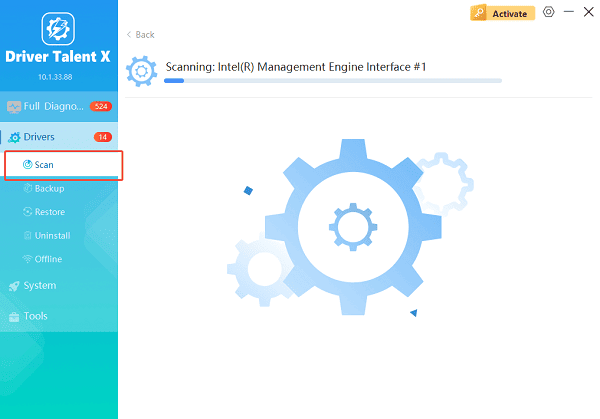
Launch the application and go to "Drivers" > "Scan", click "Scan".
The software will perform a deep analysis of your system, focusing on peripheral and controller drivers.
Install the Update:
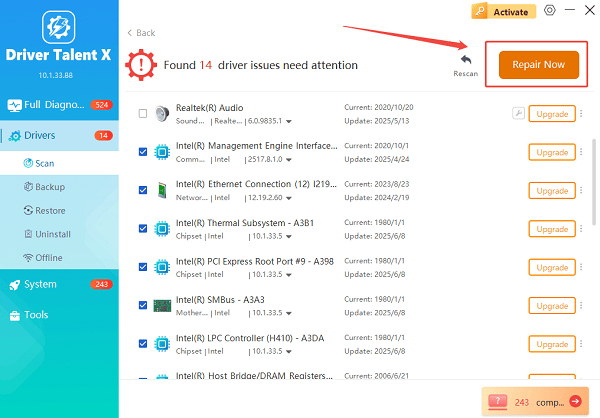
After the scan is complete, the software will display a list of all drivers that need attention.
Select the necessary drivers and click the "Repair Now" button. Driver Talent X will download the latest, certified versions, often resolving the lock issue instantly.
Restart your Laptop:
Restart your laptop to apply the changes.
Driver Talent X ensures the driver matches your exact HP laptop model and Windows version, reducing the risk of compatibility problems.
Common Causes of HP Laptop Keyboard Driver Issues
Before applying other fixes, it helps to understand why the keyboard driver may stop working:
Corrupted or outdated keyboard drivers
Windows updates overriding HP-specific drivers
Disabled keyboard devices in Device Manager
HP Hotkey or system utility malfunction
Fast Startup or power settings conflicts
Physical connection or internal hardware issues
Fix 1: Reinstall the Keyboard Driver Manually
If updating does not resolve the issue, reinstalling the driver can refresh the keyboard configuration.
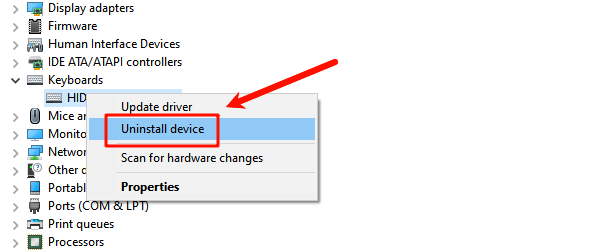
Press Windows + X and select Device Manager.
Expand "Keyboards", right-click Standard PS/2 Keyboard or HID Keyboard Device, select "Uninstall device".
Restart your HP laptop.
Windows will automatically reinstall the keyboard driver on boot.
Fix 2: Enable the Keyboard Device in Device Manager
Sometimes the keyboard driver is installed but disabled.
Open Device Manager.
Expand "Keyboards", right-click the keyboard device, select "Enable device" if available.
Restart the system and test the keyboard.
Fix 3: Install HP Hotkey Support or System Drivers
HP laptops rely on additional system drivers for function keys and special keyboard features.
Visit the official HP support website.
Enter your laptop model number.
Download and install HP Hotkey Support or HP System Event Utility.
Restart your laptop.
These drivers are essential for function keys, brightness control, and media shortcuts.
Fix 4: Disable Filter Keys in Windows
Filter Keys can make the keyboard appear unresponsive.
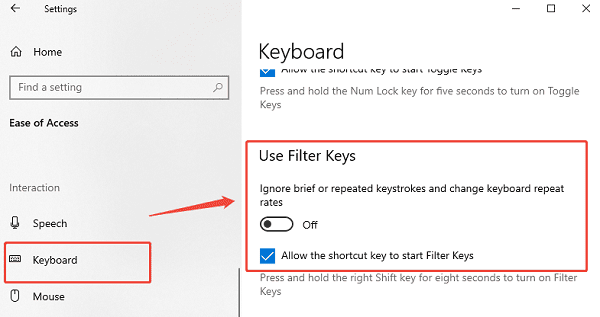
Go to Settings > Ease of Access > Keyboard.
Turn off "Filter Keys".
Close Settings and test the keyboard.
Fix 5: Turn Off Fast Startup
Fast Startup can prevent drivers from loading properly.
Open Control Panel > Power Options.
Click "Choose what the power buttons do".
Select "Change settings that are currently unavailable".
Uncheck "Turn on fast startup (recommended)".
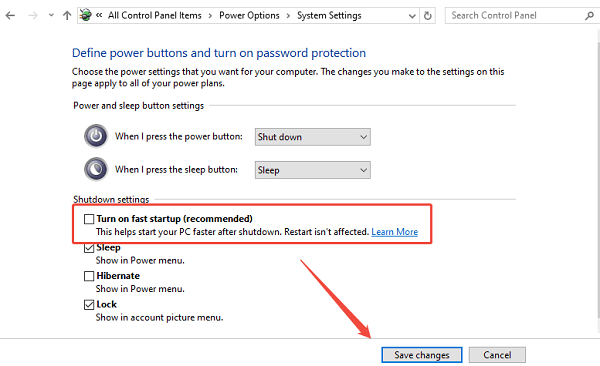
Save changes and restart the laptop.
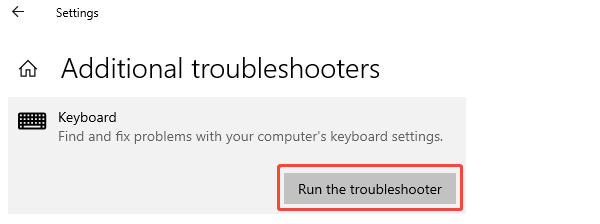
Fix 6: Run the Windows Keyboard Troubleshooter
Windows includes a built-in tool that can detect configuration issues.
Go to Settings > Update & Security.
Select Troubleshoot > Additional troubleshooters.
Find Keyboard, click "Run the troubleshooter" and follow the on-screen instructions.
Fix 7: Check for Windows Updates
Missing system updates can cause driver conflicts.
Open Settings > Update & Security > Windows Update.
Click "Check for updates".
Install all available updates.
Restart your HP laptop.
Fix 8: Test with an External Keyboard
If none of the software fixes work, connect an external USB keyboard.
If the external keyboard works, the issue may be with the internal keyboard hardware.
If it does not work, the problem is likely driver- or system-related.
Final Thoughts
Keyboard drivers not working on an HP laptop is a common but fixable issue. Starting with a reliable driver update using Driver Talent X is the fastest and safest approach. If the problem persists, reinstalling drivers, adjusting Windows settings, and installing HP-specific utilities can restore full keyboard functionality. By following these steps in order, you can accurately diagnose the issue and get your HP laptop keyboard working again.
See also:
Mandragora: Whispers of the Witch Tree Overview
Overview of Tempest Rising on Steam
[Fixed] Red Dead Redemption 2 ERR_GFX_STATE Graphics Error
Ways to Fix The Elder Scrolls IV: Oblivion Remastered Startup Crash









