
If your Lenovo Bluetooth driver is not working on Windows 11, it can be frustrating, especially when you're trying to connect devices like wireless headphones, speakers, or a keyboard. The issue can manifest in various ways, such as Bluetooth not turning on, devices not connecting, or Bluetooth being absent from the settings or Device Manager. This comprehensive guide will walk you through effective methods to resolve Bluetooth driver issues on your Lenovo laptop.
Basic Troubleshooting Steps
Before diving into more technical fixes, start with these simple steps:
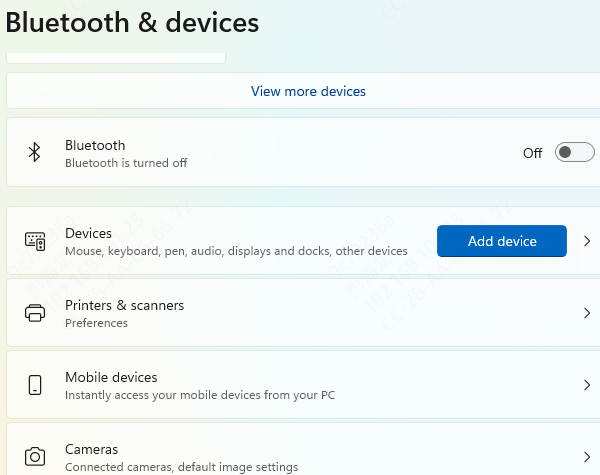
Check Bluetooth Settings
Ensure that Bluetooth is enabled in Windows settings:
Press Win + I to open the Settings menu
Go to Devices and click on Bluetooth & other devices
Toggle Bluetooth to "On" if it's turned off
If Bluetooth is turned on but still not working, try turning it off and on again to reset the connection
Check Airplane Mode
Bluetooth may be disabled if Airplane mode is activated. Make sure that Airplane mode is off:
Click on the Network icon in the taskbar
Check that Airplane mode is not enabled. If it is, click to turn it off
Update Bluetooth Driver
Outdated or corrupted Bluetooth drivers are one of the most common reasons for Bluetooth issues. To update your driver:
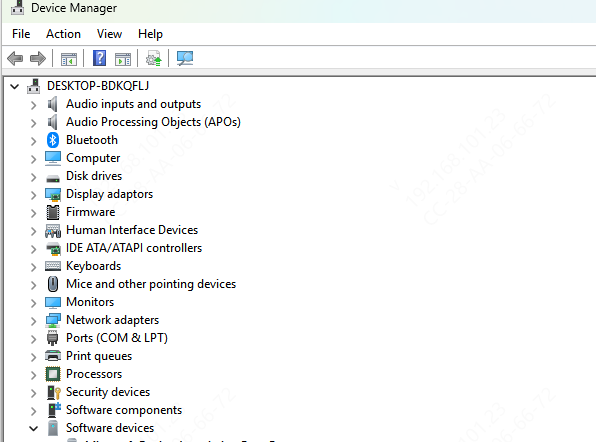
Using Device Manager
Open Device Manager and expand the Bluetooth section
Right-click on your Bluetooth device and select Update driver
Choose Search automatically for updated driver software
Follow the on-screen instructions to install any available updates
Using Lenovo Vantage
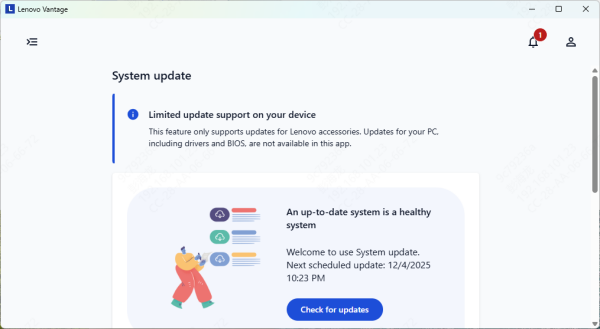
Lenovo Vantage is a useful tool for keeping your system updated, including Bluetooth drivers:
Download and install Lenovo Vantage from the Microsoft Store
Open Lenovo Vantage and go to the System Update tab
Click on Check for Updates and install any available Bluetooth driver updates
Using Driver Talent X
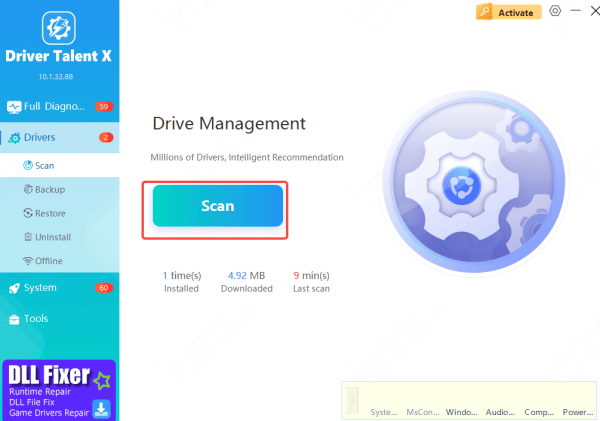
Driver Talent X is an automated tool that simplifies driver management:
Download Driver Talent X from the official website
Run the program and select Scan to check for outdated or corrupted drivers
The software will list any drivers needing updates, including Bluetooth drivers. Select Repair Now to automatically download and install the latest Bluetooth drivers
Check for Windows Updates
Windows updates can include important fixes for Bluetooth functionality. Ensure your system is fully updated:
Press Win + I to open Settings
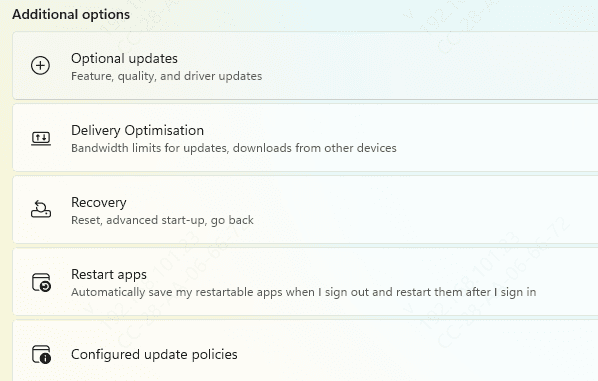
Go to Windows Update and click Check for updates
Install any available updates, especially those related to Bluetooth, and restart your laptop
Check for Bluetooth Service Issues
If the Bluetooth service isn't running correctly, it can cause connectivity problems. Here's how to restart the Bluetooth service:
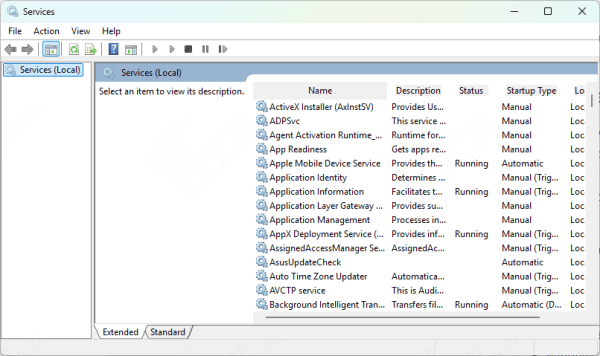
Press Win + R, type services.msc, and press Enter
In the Services window, scroll down to find Bluetooth Support Service
Right-click on it and select Restart
Double-click the service, set its startup type to Automatic, and click OK
BIOS Update
Sometimes, updating the BIOS can resolve hardware-related issues, including Bluetooth problems. Lenovo offers BIOS updates to improve system stability and compatibility.
Go to the Lenovo Support website and search for your laptop model
Check if there is any BIOS update available for your laptop and download it
Follow the instructions provided to update your BIOS. Ensure that your laptop is connected to a stable power source during the update process
.png "select-product")
Use Troubleshooter
Windows 11 includes a built-in Bluetooth troubleshooter that can help detect and fix issues automatically.
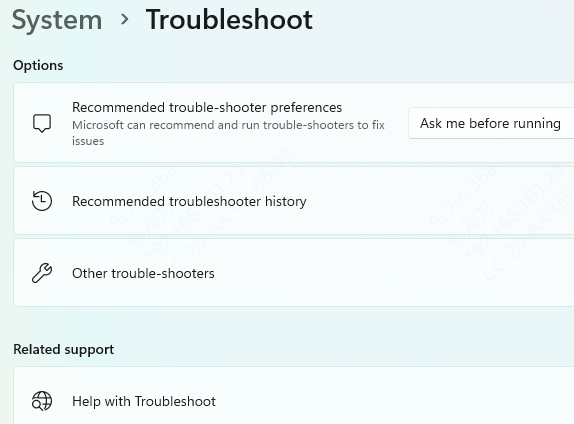
Open Settings and go to System > Troubleshoot
Select Other troubleshooters
Find Bluetooth and click Run. Follow the on-screen instructions
Hardware Issues
If none of the software solutions work, there might be a hardware problem with your Bluetooth adapter. In such cases, you can try the following:
Use an External Bluetooth Adapter: If your internal Bluetooth adapter is malfunctioning, consider using a USB Bluetooth dongle to restore Bluetooth functionality
Contact Lenovo Support: If you suspect a hardware issue, reach out to Lenovo customer service for further assistance or visit an authorized service center
Conclusion
A malfunctioning Bluetooth driver on your Lenovo laptop can disrupt your productivity and connectivity. However, most Bluetooth issues on Windows 11 can be fixed using the steps outlined above. Start with basic troubleshooting and work your way up to more advanced solutions, such as updating drivers, checking system services, or reinstalling Bluetooth drivers. If the issue persists, it may be time to consider hardware solutions or reach out to Lenovo support for assistance.









