
Keeping Lenovo docking station drivers up to date is essential for stable connections, proper display output, USB device recognition, Ethernet performance, and charging functionality.
Outdated or incompatible drivers can cause issues such as external monitors not detected, USB ports not working, network disconnections, or the dock failing to respond entirely. This guide explains how to update Lenovo docking station drivers safely on Windows, starting with the most reliable and efficient method.
Update Lenovo Drivers with Driver Talent X
Lenovo docking stations rely on multiple drivers, including USB controller drivers, display drivers, chipset drivers, and network drivers. Driver Talent X can automatically identify all related components and install the correct versions for your specific Lenovo dock and Windows system.
Download and Install:
Use your laptop's built-in keyboard and an external mouse to navigate.
Download and install the Driver Talent X application on your Windows PC.
Run Scan:
Plug the docking station into your laptop using the original cable and ensure it is powered on.
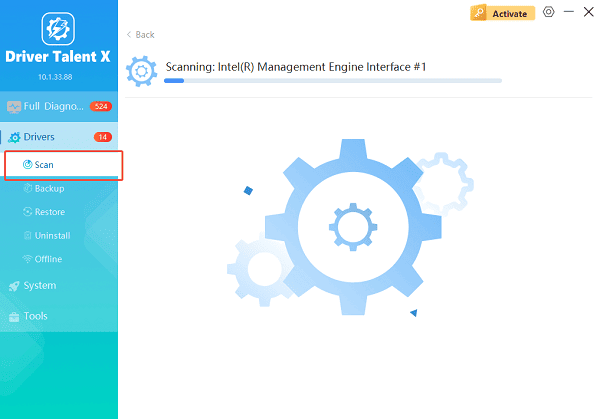
Launch the application and go to "Drivers" > "Scan", click "Scan".
Wait while the tool scans system drivers, including graphics, USB controllers, Thunderbolt, network, and docking-related components.
Execute Update:
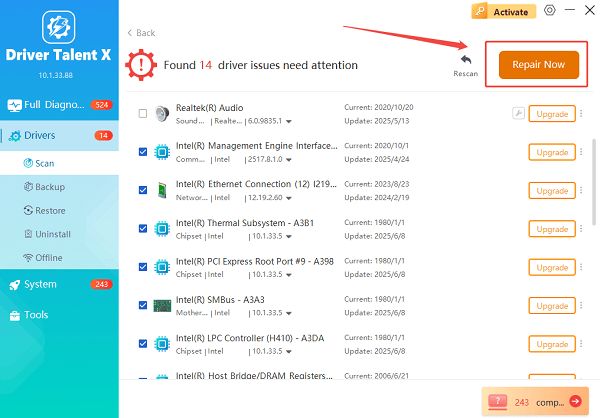
After the scan is complete, the software will display a list of all drivers that need attention.
Select the necessary drivers (prioritizing the Chipset, Thunderbolt, and BIOS) and click the "Repair Now" button. Driver Talent X will download the latest, certified drivers specific to your Dell model.
Restart Your Computer:
Do not unplug the docking station or shut down the system during the update process.
Reboot the system to apply all driver changes correctly.
This method minimizes the risk of installing incorrect drivers and is the safest option for most users.
Common Symptoms of Outdated Lenovo Docking Station Drivers
External monitors not detected or flickering
USB devices not recognized
Ethernet port not working
Audio output missing through the dock
Charging issues or unstable connections
Method 1: Update Docking Station Drivers via Device Manager
Windows Device Manager allows manual driver updates, though it may not always find the latest versions.
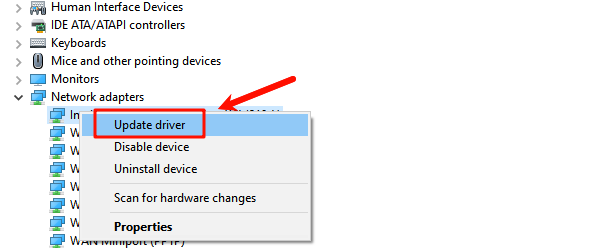
Right-click the Start menu and open Device Manager.
Expand sections such as Universal Serial Bus controllers, Display adapters, Network adapters, and Sound, video and game controllers.
Right-click each relevant device and select "Update driver".
Choose "Search automatically for drivers".
Restart your computer after updates complete.
This method is useful for basic updates but may miss Lenovo-specific drivers.
Method 2: Download Drivers from Lenovo Support Website
For advanced users, manual installation from Lenovo's official support site is another safe option.
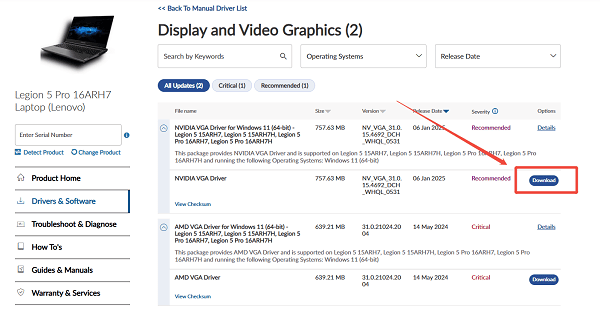
Visit Lenovo's official support website.
Enter your laptop model or docking station model.
Select your Windows version.
Download drivers related to docking, USB, graphics, Ethernet, and chipset.
Install drivers one by one, following on-screen instructions.
Restart the system after installation.
This method requires careful driver selection to avoid compatibility issues.
Method 3: Update Graphics Drivers Separately
Docking stations rely heavily on graphics drivers for external displays.
Open Device Manager
Expand Display adapters, right-click your Intel, NVIDIA, or AMD graphics device, select "Update driver".
Restart the system.
Updating graphics drivers can resolve monitor detection and resolution problems.
Method 4: Update Windows and Driver Updates
Windows Update may include stability improvements for docking devices.
Open Settings > Update & Security.
Go to "Windows Update".
Click "Check for updates".
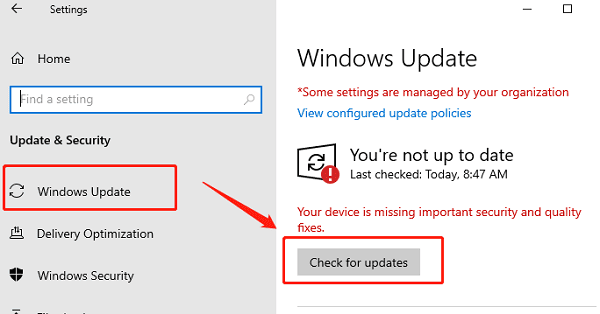
Open Advanced options > Optional updates.
Install any available driver updates.
Restart the computer.
Method 5: Power Reset the Docking Station
Sometimes driver-related issues are triggered by power states.
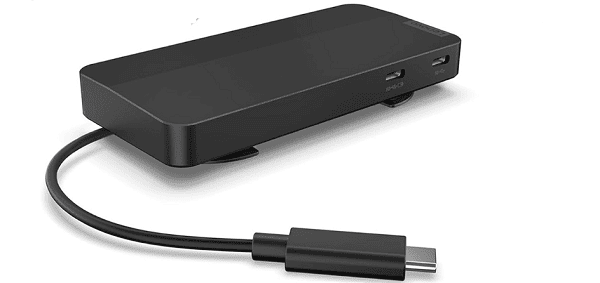
Disconnect the docking station from the laptop.
Unplug all peripherals and power cables.
Wait at least 30 seconds.
Reconnect the docking station and power it on.
Restart the laptop.
How to Update Lenovo Docking Station Drivers Safely
Always update all related drivers together, not individually.
Avoid unplugging the dock during driver installation.
Restart the system after driver updates.
Use trusted tools like Driver Talent X to reduce compatibility risks.
Conclusion
Updating Lenovo docking station drivers safely is crucial for reliable performance and device compatibility. Using Driver Talent X as the first step ensures that all required drivers are detected and updated correctly with minimal risk.
If needed, additional methods such as Device Manager, Lenovo support downloads, and Windows Update can further resolve issues. By following these steps, you can maintain a stable and fully functional Lenovo docking station on Windows.
See also:
How to Fix CoD Vanguard Not Launching on PC
How to Resolve Crashing Issues in Warframe









