
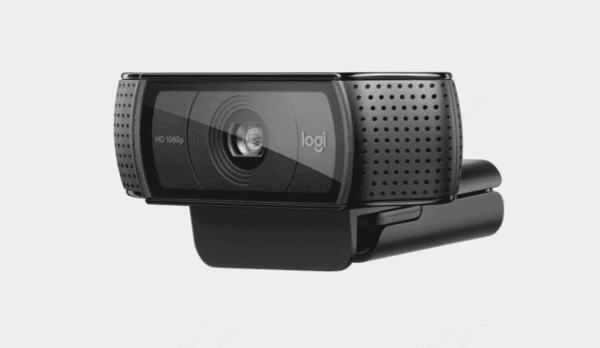
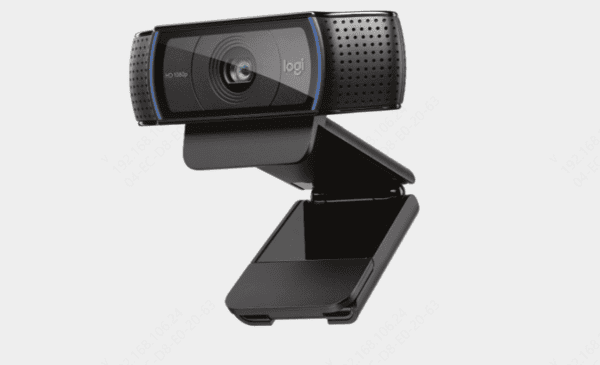
The Logitech C920 is one of the most popular webcams for streaming, video conferencing, and content creation due to its excellent video quality and ease of use. However, like any piece of technology, issues can arise, and sometimes your webcam just won't work as expected. If you're facing problems with your Logitech C920 webcam, don't worry. In this guide, we'll walk you through the common causes and how to fix them step-by-step.
Basic Troubleshooting Steps
Let's start with the basics to resolve any immediate issues:
Check the Physical Connection
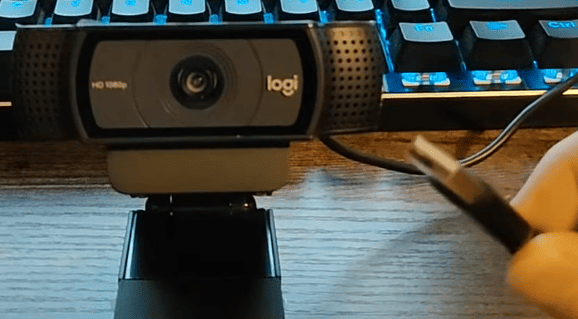
Make sure your Logitech C920 is securely plugged into the USB port
Try connecting it to a different USB port, preferably a USB 3.0 port for better performance
Test on Another Computer
Plug your Logitech C920 into a different computer to determine if the issue lies with your computer or the webcam itself
Restart Your Computer
Reboot your computer to reset any software or device conflicts that may be causing the webcam not to work
Update or Reinstall Webcam Drivers
Manually
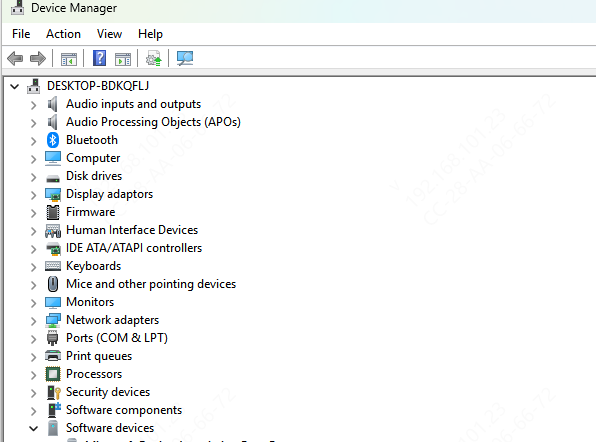
Open Device Manager (press Win + X, then choose Device Manager). Expand the "Imaging Devices" section, right-click on the Logitech C920 webcam, and select Update Driver
You can choose to search automatically for updated driver software
Using Driver Talent X
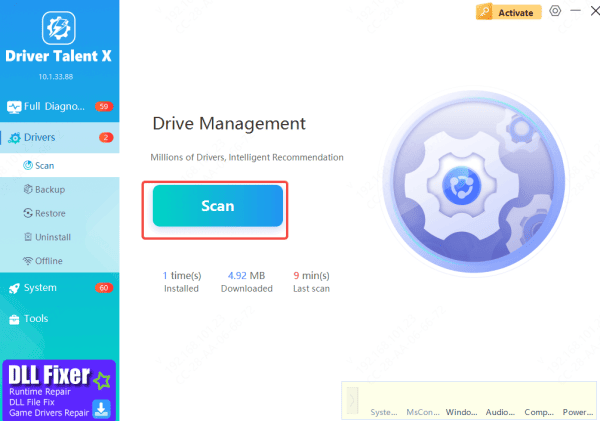
To simplify the process and ensure your webcam is working with the latest drivers, consider using Driver Talent X
It automatically detects and updates all your drivers—including the ones for your Logitech C920 webcam—so that it's always ready to perform at its best
Adjust Webcam Settings
Check Device Settings in Windows
Open Settings → Devices → Cameras, and ensure that the Logitech C920 is listed
If it's disabled, enable it
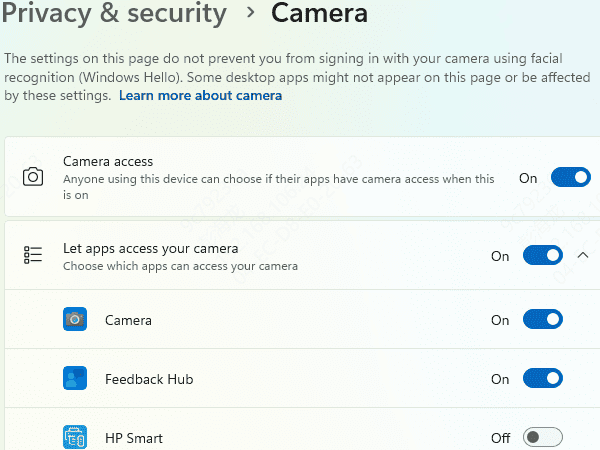
Adjust Privacy Settings
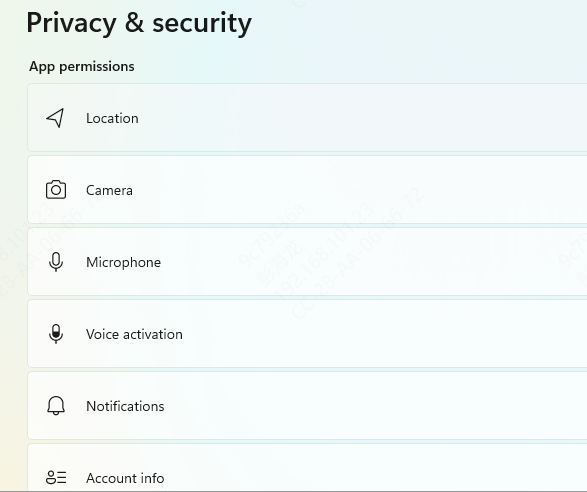
Go to Settings → Privacy → Camera and make sure that apps are allowed to access your camera Ensure that the relevant applications like Zoom, Skype, etc., have permission to use the camera
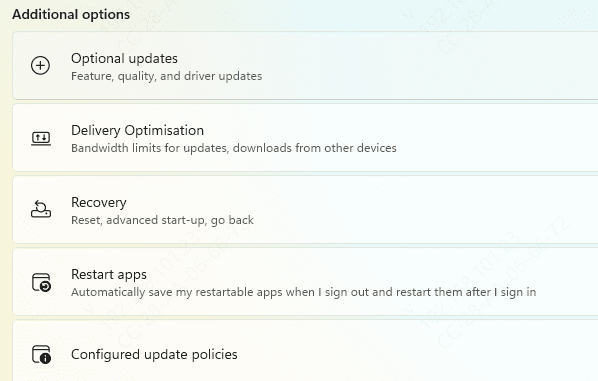
Check for Windows Updates
Ensure that your Windows operating system is up-to-date
Sometimes, updates include bug fixes that may resolve webcam issues
Common Reasons for the Logitech C920 Webcam Not Working
Several factors can cause your Logitech C920 webcam to stop working. These are the most common reasons:
Driver Issues
Outdated or Missing Drivers: If your webcam drivers are outdated, missing, or incompatible, it may not work properly
Corrupted Drivers: Sometimes, the drivers can become corrupted, especially after system updates, leading to functionality issues
USB Port or Connection Problems
Loose or Faulty USB Connection: A loose or faulty USB connection may cause your webcam to stop working. Make sure the connection is secure
Wrong USB Port: If the webcam is plugged into an older USB 2.0 port instead of a USB 3.0 port, performance issues or lack of detection may occur
Software Conflicts
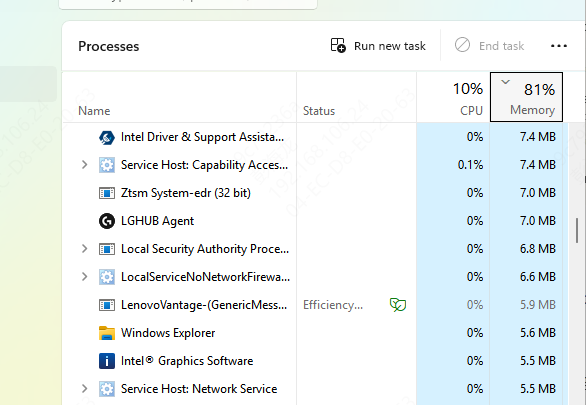
Blocked by Security Software: Security software or firewalls may block your webcam from functioning, especially if it mistakenly flags the webcam as a security risk
App Conflicts: Sometimes, video conferencing software (like Zoom, Skype, etc.) may not detect your webcam due to software conflicts
Hardware Failures
Physical Damage: Physical issues with the webcam itself—such as damaged wires or internal parts—could be to blame
Internal Component Malfunction: There could also be a malfunction in the internal components of the webcam, leading to failure
Conclusion
In most cases, the Logitech C920 webcam can be quickly restored to full functionality with the above troubleshooting steps. Start with basic solutions, such as checking the physical connection and restarting your computer, and then move to more advanced fixes like updating or reinstalling drivers. By following these steps, you should be able to resolve most issues with your Logitech C920 webcam. If all else fails, consider getting in touch with Logitech's customer support for further assistance.









