
Logitech mouse are widely used on Windows 11 for office work, gaming, and creative tasks. However, without the correct driver and software, you may encounter issues such as cursor lag, buttons not responding, DPI settings not saving, or the mouse not being recognized at all.
To ensure stable performance and full functionality, installing or updating the Logitech mouse driver properly is essential. This guide starts with the most efficient and reliable method using Driver Talent X, followed by several alternative solutions to help you complete the installation successfully.
Update Logitech Mouse Driver Using Driver Talent X
Driver-related issues are the most common cause of Logitech mouse problems on Windows 11. Driver Talent X is designed to automatically detect outdated, missing, or incompatible drivers and install the correct versions safely. Placing this step first helps avoid unnecessary troubleshooting later.
Download and Install:
Click the "Download" button to download the software package.
Run the installation file and follow the on-screen setup instructions.
Run a Full System Scan:
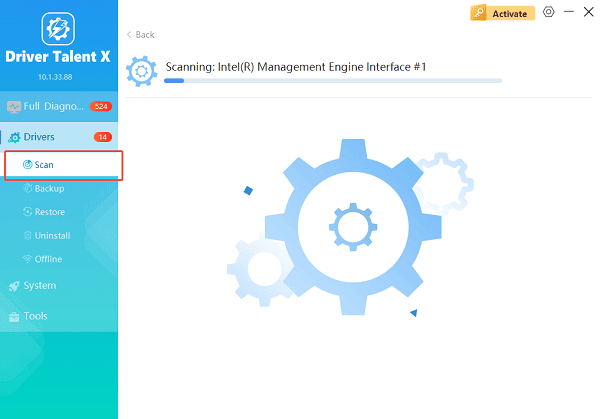
Launch the application and go to "Drivers" > "Scan", click "Scan".
Driver Talent X will check your USB controllers, mouse drivers, and system components for outdated or corrupted drivers.
Update All Related Drivers:
After the scan is complete, the software will display a list of all drivers that need attention. Select the necessary drivers and click the "Repair Now" button.
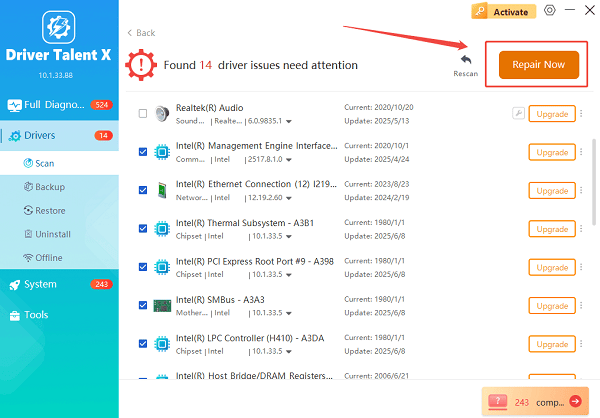
Driver Talent X will download the latest, certified versions specific to your mouse and Windows version, crucial for minimizing latency.
Reboot Your Computer:
Restart your computer to apply the changes.
This method ensures driver compatibility with Windows 11 and prevents issues caused by incorrect or outdated driver versions.
Download Logitech Mouse Software for Advanced Features
Many Logitech mouse require additional software to unlock advanced features such as button customization, macros, and DPI adjustment.
Choose the Correct Logitech Software:
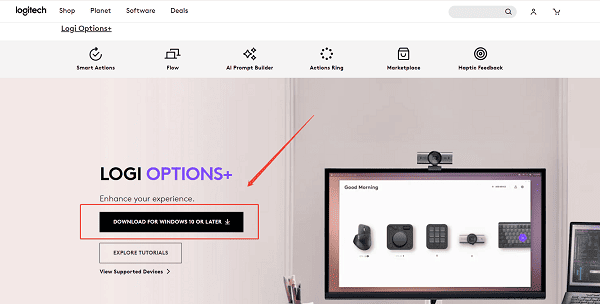
Logitech Options+: For most modern Logitech office and productivity mouse.
Logitech G HUB: For Logitech gaming mouse.
Logitech SetPoint: For older Logitech mouse models.
Installation Steps:
Download the correct Logitech software based on your mouse model.
Run the installer as administrator.
Follow on-screen instructions to complete the installation.
Connect your Logitech mouse directly to the PC when prompted.
Restart Windows after installation.
After installation, open the software to verify that your mouse is detected correctly.
Reinstall Logitech Mouse Driver via Device Manager
If the driver installation fails or the mouse is not working properly, reinstalling the driver manually can help.
Steps to Reinstall the Driver:
Press Win + X and select Device Manager.
Expand "Mice and other pointing device", right-click your Logitech mouse and select "Uninstall device".
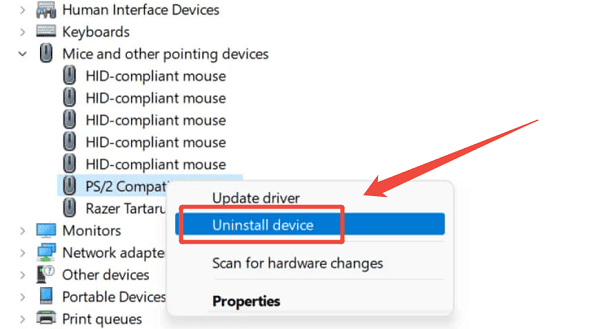
Check "Delete the driver software for this device" if available.
Restart your PC.
Windows will automatically reinstall the default driver.
You can then update the driver again using Driver Talent X for better compatibility.
Check USB Ports and Power Settings
Connection issues can prevent the Logitech driver from working correctly.
What to Do:
Plug the mouse into a different USB port.
Avoid using USB hubs during installation.
Open Device Manager > Universal Serial Bus controllers.
Disable USB power saving by unchecking "Allow the computer to turn off this device to save power".
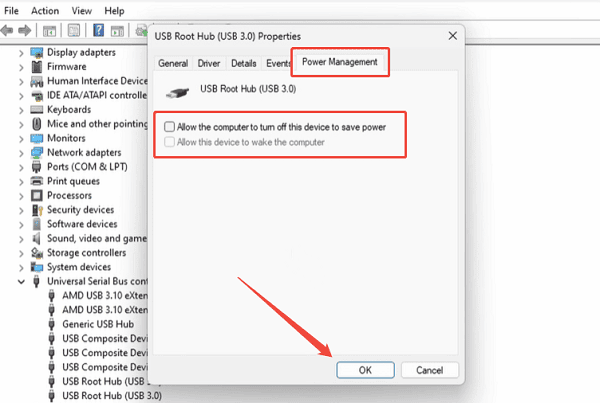
These steps help ensure stable communication between the mouse and Windows 11.
Update Windows 11 System Components
Outdated system components may conflict with Logitech drivers.
Steps
Open Settings > Windows Update.
Click "Check for updates".
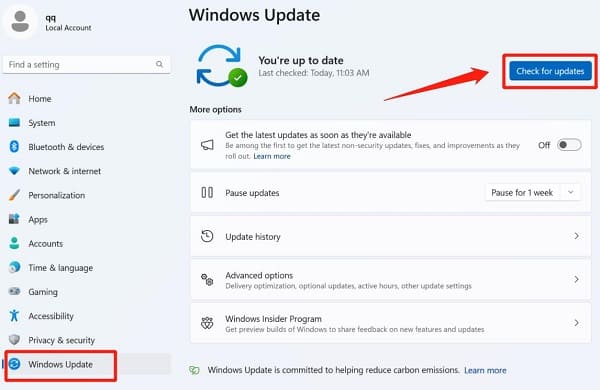
Install all available updates, including optional driver updates.
Restart your PC.
This ensures that Windows 11 supports the latest driver frameworks.
Common Logitech Mouse Driver Issues and Fixes
Mouse not detected: Update USB and chipset drivers using Driver Talent X.
Buttons not working: Install Logitech Options+ or G HUB.
Cursor lag or freezing: Disable USB power management and update drivers.
Software not opening: Reinstall Logitech software and run as administrator.
Final Thoughts
Installing the correct Logitech mouse driver on Windows 11 is essential for stable performance and full feature support. Starting with Driver Talent X provides a fast, safe, and accurate way to update your drivers without compatibility risks. If needed, combining this with Logitech's official software and manual troubleshooting ensures your mouse works smoothly across all tasks.
See also:
Solutions to Fix Monster Hunter Wilds Crashes
How to Fix Split Fiction Not Launching on Windows
[Fixed] Whoa! Cyberpunk 2077 Flatlined Error
Solutions for 'DirectX 12 Not Supported' Error on Windows 10









