
The NVIDIA installer failed error with code 0x80070005 usually indicates an access denied issue during driver installation. This error often prevents NVIDIA graphics drivers from installing correctly on Windows, leading to poor performance, display issues, or application crashes.
Common causes include insufficient permissions, corrupted driver files, Windows security restrictions, or leftover NVIDIA components. Before applying manual fixes, updating graphics drivers using Driver Talent X is strongly recommended, as it can automatically resolve most driver-related problems safely and efficiently.
Update NVIDIA Graphics Driver with Driver Talent X
Using Driver Talent X helps eliminate installation failures caused by corrupted or incompatible driver packages. It ensures you install the correct NVIDIA driver version for your hardware and operating system.
Download and Install:
Click the "Download" button to download the latest version compatible with Windows.
Run the installer, follow the setup instructions, and complete the installation.
Run Scan:
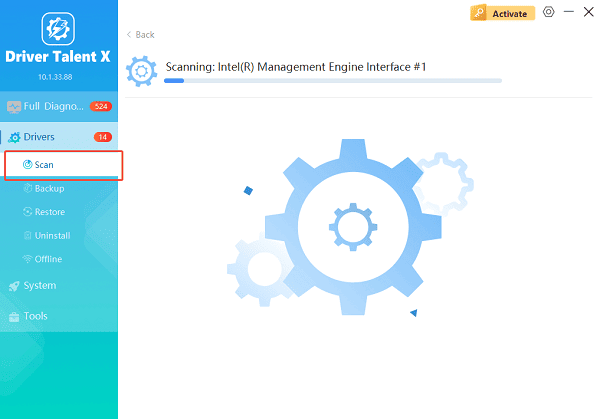
Open Driver Talent X from the desktop shortcut or Start menu, go to "Drivers" > "Scan", click "Scan".
Driver Talent X will detect outdated, missing, or corrupted drivers, including chipset, graphics, and system drivers.
Update All Drivers:
After the scan is complete, the software will display a list of all drivers that need attention. Select the necessary drivers and click the "Upgrade" or "Repair Now" button.
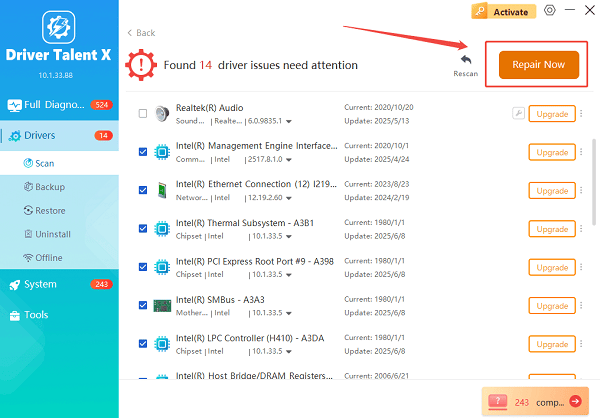
Driver Talent X will reliably download the latest driver and execute a clean installation, critical for performance enhancements and stability fixes.
Restart Your Computer:
Reboot the system to ensure the driver is applied properly.
In many cases, Driver Talent X resolves error code 0x80070005 without further troubleshooting.
Common Causes of NVIDIA Installer Error Code 0x80070005
Insufficient administrator permissions during installation
Corrupted or incomplete NVIDIA driver files
Windows Defender or third-party antivirus blocking the installer
Leftover NVIDIA components from previous installations
System file corruption or Windows update issues
Additional Ways to Fix NVIDIA Installer Failed Error
Method 1: Run NVIDIA Installer as Administrator
Right-click the NVIDIA installer file.
Select "Run as administrator".
Follow the installation prompts and complete the setup.
This grants the installer full system access and may bypass permission restrictions.
Method 2: Temporarily Disable Antivirus and Windows Defender
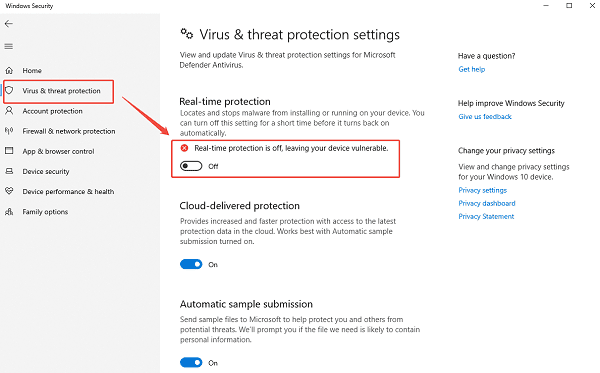
Open Windows Security.
Go to "Virus & threat protection".
Temporarily disable real-time protection.
Disable any third-party antivirus software.
Run the NVIDIA installer again.
Re-enable security software after installation.
Method 3: Clean Install NVIDIA Driver
Open Device Manager.
Expand "Display adapters", right-click the NVIDIA graphics card and select "Uninstall device".
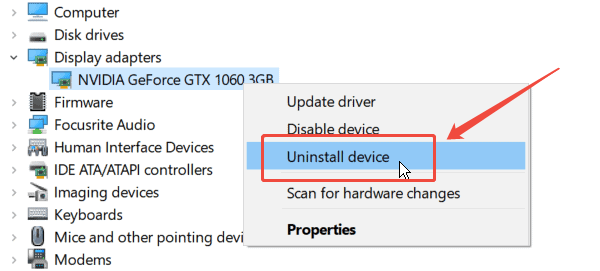
Check "Delete the driver software for this device" if possible.
Restart your PC.
Install the driver using Driver Talent X or the official NVIDIA installer.
This removes conflicting files from previous installations.
Method 4: Use NVIDIA Clean Installation Option
Launch the NVIDIA installer.
Choose Custom (Advanced) installation.
Select "Perform a clean installation".
Proceed with the installation process.
This resets NVIDIA settings and removes old profiles.
Method 5: Check Windows System File Integrity
Open Command Prompt as Administrator (Win + R > type "cmd" > right-click and choose "Run as administrator").
Enter the following command: sfc /scannow
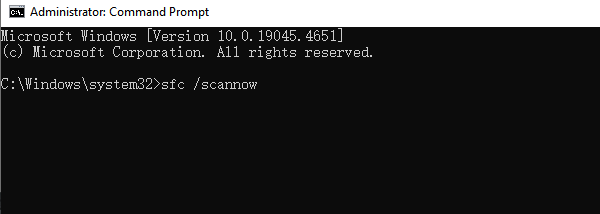
Wait for the scan to complete and repair system files.
Restart your computer and try installing the driver again.
Method 6: Ensure Windows Is Fully Updated
Go to Settings > Update & Security > Windows Update.
Click "Check for updates".
Install all pending updates.
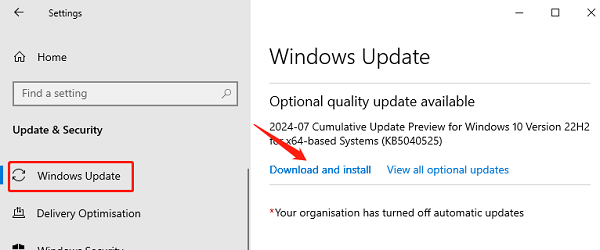
Restart your system and retry the NVIDIA driver installation.
How to Prevent NVIDIA Installer Errors in the Future
Keep graphics drivers updated regularly using Driver Talent X.
Avoid installing drivers from unverified sources.
Always run installers with administrator privileges.
Keep Windows and system components up to date.
Remove old driver files before upgrading graphics drivers.
Conclusion
The NVIDIA installer failed error with code 0x80070005 is commonly caused by permission issues, corrupted drivers, or system conflicts. Starting with a driver update using Driver Talent X is the most efficient way to resolve the issue. If needed, additional solutions such as clean installations, antivirus adjustments, and system file repairs can further ensure a successful NVIDIA driver installation and stable graphics performance.
See also:
How to Update Graphics Driver Intel on Windows PC
HP Drivers Download – Official and Safe Methods for Windows









