NVIDIA Studio Drivers are designed for creators who use applications such as Adobe Premiere Pro, Photoshop, Blender and other GPU-accelerated software. Compared with Game Ready Drivers, Studio Drivers focus more on stability, compatibility, and performance optimization for creative workflows.
If your system is experiencing crashes, poor rendering performance, or software incompatibility, installing or updating the NVIDIA Studio Driver is often the most effective solution. This guide explains how to download and install NVIDIA Studio Drivers on Windows 10/11, starting with a recommended driver update method using Driver Talent X, followed by multiple manual and advanced solutions.
Update NVIDIA Studio Driver Using Driver Talent X
Outdated, corrupted, or mismatched graphics drivers are the most common cause of performance and compatibility issues. Before trying other fixes, it is strongly recommended to update your NVIDIA Studio Driver using Driver Talent X, which automatically detects the correct driver version for your GPU and operating system.
Download and Install:
Click the "Download" button to download the Windows installer. Save the file locally.
Run the installer and follow the on-screen instructions. Choose the installation directory and complete the setup process.
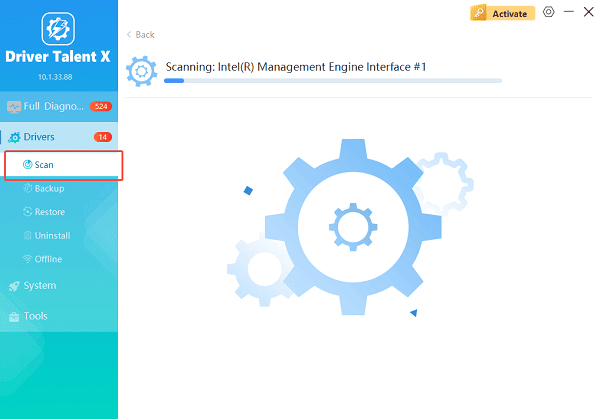
Scan Your System:
Open Driver Talent X from the desktop shortcut or the Start menu, go to "Drivers" > "Scan", click "Scan".
The tool will automatically detect your NVIDIA graphics card and identify outdated or missing drivers.
Update All Drivers:
After the scan is complete, the software will display a list of all drivers that need attention. Select the necessary drivers and click the "Upgrade" or "Repair Now" button.
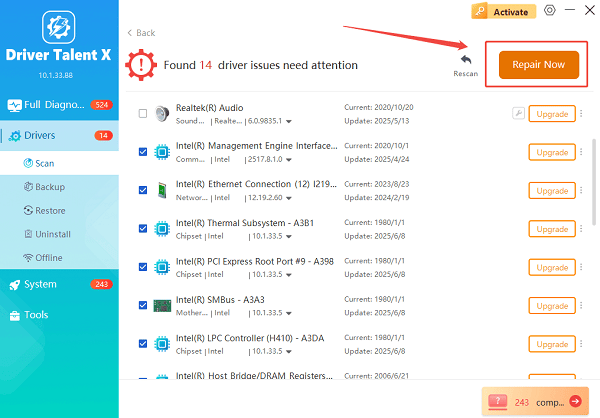
Driver Talent X will reliably download the latest driver and execute a clean installation, critical for performance enhancements and stability fixes.
Restart Your Computer:
Restart your computer after the update is finished to ensure the driver is properly loaded.
Using Driver Talent X helps avoid installing incorrect driver versions, prevents compatibility issues with creative software, and reduces the risk of installation failures.
What Is NVIDIA Studio Driver and Why You Need It
NVIDIA Studio Drivers are optimized specifically for content creation and professional workloads. They are tested extensively with major creative applications to ensure long-term stability.
Key benefits include:
Improved stability in video editing, 3D rendering, and graphic design software
Optimized GPU performance for creative tasks
Fewer crashes and rendering errors
Better compatibility with professional applications compared to Game Ready Drivers
If you primarily use your PC for design, video editing, animation, or AI workloads, Studio Drivers are the better choice.
Method 1: Download Driver from NVIDIA Official Website
If you prefer manual installation, you can download the Studio Driver directly from NVIDIA.
Manual Download Steps:
Open a web browser and go to NVIDIA's official driver download page.
Select your GPU series, GPU model, and operating system (Windows 10 or Windows 11).
Under Download Type, choose Studio Driver (SD) instead of Game Ready Driver.
Click Search, then download the latest available version.
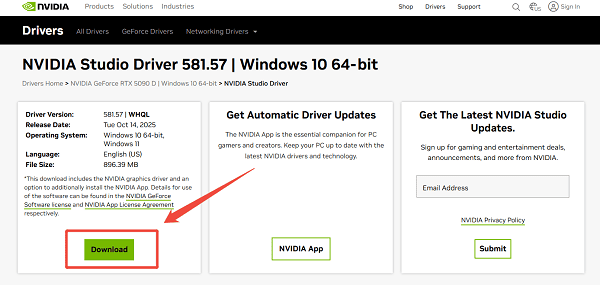
Run the downloaded installer and follow the on-screen instructions.
Restart your PC after installation.
Manual downloads work well, but selecting the wrong GPU model or OS version may lead to installation errors, which is why automated tools are often safer.
Method 2: Clean Install NVIDIA Studio Driver
If you are upgrading from a Game Ready Driver or experiencing driver conflicts, a clean installation is recommended.
Steps for a Clean Install:
Launch the NVIDIA installer.
Choose Custom (Advanced) during setup.
Check the option Perform a clean installation.
Proceed with the installation and wait until completion.
Restart your system.
A clean install removes old profiles and corrupted files that may interfere with the new Studio Driver.
Method 3: Switch to Studio Driver via NVIDIA App
If you already have NVIDIA software installed, you can switch driver types easily.
Open the NVIDIA app or NVIDIA Control Panel.
Navigate to the Drivers section.
Select "Studio Driver" as your preferred driver type.
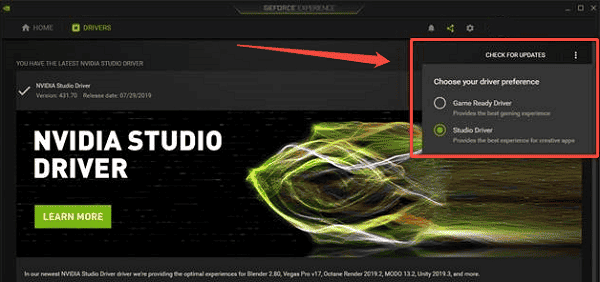
Download and install the latest Studio Driver.
Restart your computer.
This method is useful if you occasionally switch between gaming and creative work.
Method 4: Update Windows and System Components
Sometimes NVIDIA Studio Driver installation fails due to outdated system components.
Open Settings > Update & Security > Windows Update.
Click "Check for updates", install all pending updates, including optional updates.
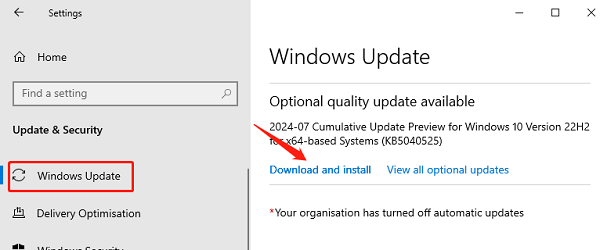
Reboot your PC and retry installing the Studio Driver.
Keeping Windows updated ensures compatibility with newer driver versions.
Common Problems After Installing NVIDIA Studio Driver and Fixes
Studio Driver Not Installing:
Use Driver Talent X to reinstall the driver automatically
Perform a clean installation
Disable antivirus software temporarily during installation
Creative Software Still Crashing:
Update the software to the latest version
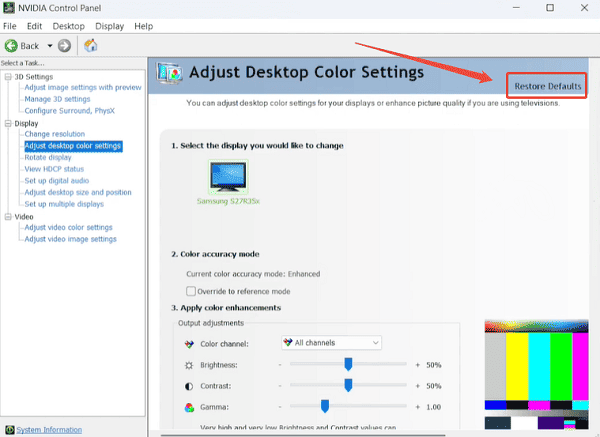
Reset NVIDIA Control Panel settings to default
Ensure your GPU meets the application's minimum requirements
Performance Lower Than Expected:
Verify that Studio Driver is selected, not Game Ready Driver
Enable GPU acceleration in the application settings
Update chipset and system drivers using Driver Talent X
Best Practices for NVIDIA Studio Driver on Windows
Always restart your PC after driver installation
Avoid mixing Studio and Game Ready drivers frequently
Keep other system drivers updated to prevent conflicts
Use stable Studio Driver versions instead of beta releases
Conclusion
NVIDIA Studio Drivers are essential for creators who value stability and optimized performance on Windows 10/11. Updating your driver using Driver Talent X is the safest and most efficient way to ensure compatibility and avoid installation errors.
If needed, manual downloads, clean installations, and system updates provide additional solutions for more complex situations. By following the methods in this guide, you can ensure your NVIDIA Studio Driver is correctly installed and your creative applications run smoothly and reliably.
See also:
How to Update Graphics Driver Intel on Windows PC
HP Drivers Download – Official and Safe Methods for Windows









