
Keeping your Dell drivers up to date on Windows 11 is essential for system stability, security, and performance. Outdated or incompatible drivers can lead to issues such as slow performance, hardware not being detected, Wi-Fi problems, audio failures, blue screen errors, or even system crashes. This guide explains how to update Dell drivers safely on Windows 11, covering official methods, automatic tools, and best practices to minimize risk.
Why Updating Dell Drivers on Windows 11 Matters
Drivers act as a bridge between Windows 11 and your hardware. When drivers are outdated or incompatible, Windows cannot communicate properly with components like the graphics card, network adapter, or audio device.
Updating drivers can help:
Improve system performance and responsiveness
Fix bugs and hardware malfunctions
Ensure compatibility with Windows 11 updates
Enhance security and system stability
However, updating drivers incorrectly can also cause problems, which is why following safe methods is critical.
Safety Checklist Before Updating Drivers
Before updating any Dell drivers on Windows 11, take these precautions:
Create a System Restore Point
This allows you to roll back if something goes wrong
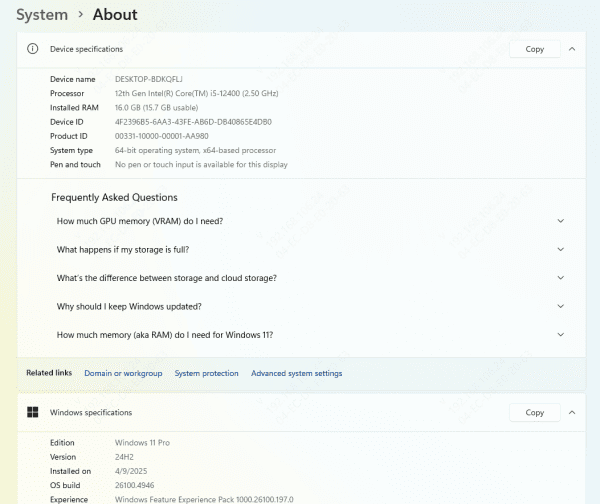
Confirm Your Dell Model or Service Tag
Installing drivers for the wrong model can cause serious issues
Check Your Windows 11 Version
Make sure the drivers support your specific Windows build
Avoid Unofficial Driver Websites
These often contain outdated or unsafe drivers
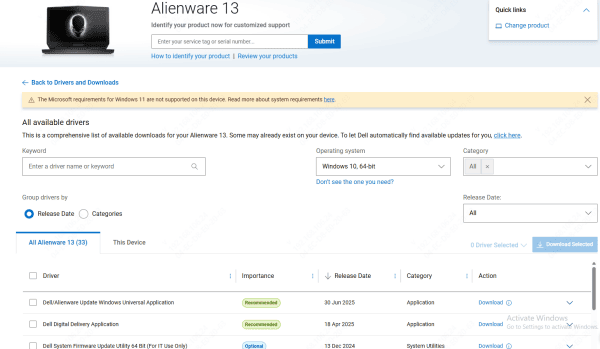
Method 1: Update Dell Drivers via the Official Dell Website
This is the most reliable manual method.
Visit Dell's official support page
Enter your Service Tag or select your Dell model manually
Choose Windows 11 as your operating system
Download the recommended drivers
Install drivers one by one and restart when prompted
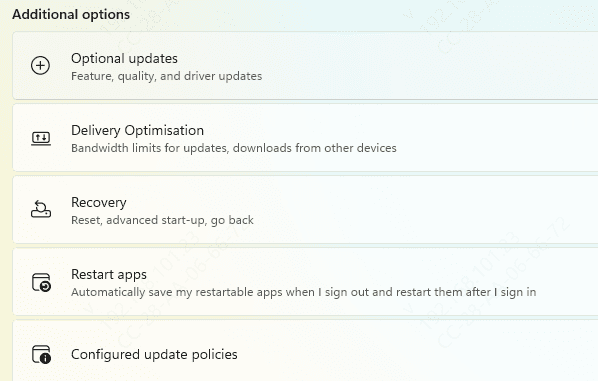
Method 2: Update Dell Drivers Using Windows Update
Windows 11 can automatically install some drivers.
Go to Settings → Windows Update
Click Advanced options
Select Optional updates
Install available driver updates
This method is useful for basic updates but not ideal for full driver management.
Method 3: Update Dell Drivers Automatically (Recommended for Most Users)
For users who want a safe, fast, and hassle-free solution, automatic driver update tools are often the best choice.
Step 1: Download and Install Driver Talent X
Download Driver Talent X from its official website
Run the installer and follow the on-screen instructions to complete the installation
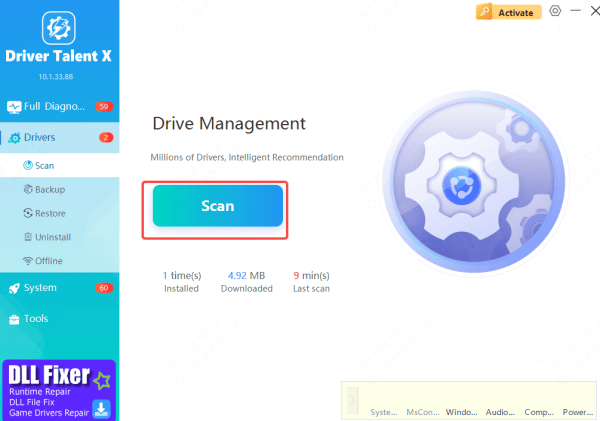
Step 2: Scan Your Dell System
Launch Driver Talent X after installation
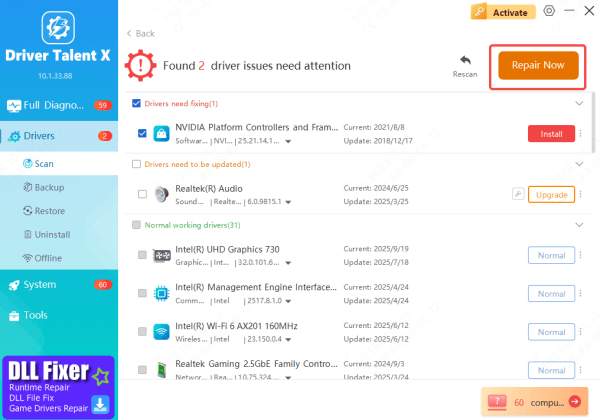
Go to Drivers > Scan and start a full system scan
The tool will detect outdated, missing, or incompatible Dell drivers, including chipset, graphics, network, and audio drivers
Step 3: Update or Repair Drivers
After the scan, review the list of driver issues
Click Repair Now or Update to automatically install the latest compatible drivers for Windows 11
Step 4: Restart Your PC
Restart your Dell computer to ensure all driver updates are applied correctly and the system runs smoothly
Driver Talent X matches drivers to your exact hardware and Windows 11 version, reducing the risk of installing incorrect or incompatible drivers—making it an ideal option for most Dell users
How to Fix Problems After Updating Dell Drivers
If something goes wrong after a driver update, don't panic.
Common Fixes: Restart your PC – Many issues resolve after reboot
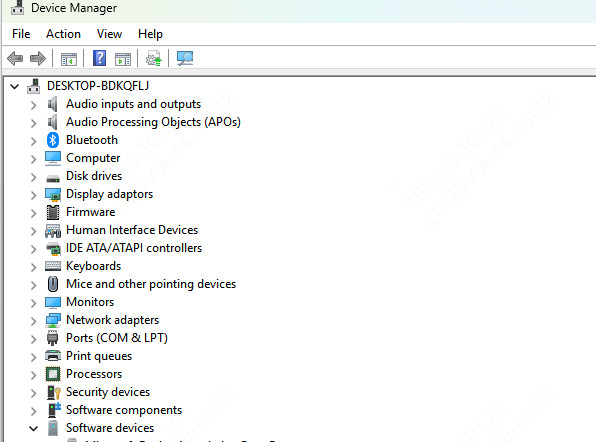
Roll Back the Driver: Device Manager → Device → Properties → Driver → Roll Back
Use System Restore: Restore your system to a previous working state
Reinstall the Driver: Uninstall the driver and install the correct version
Tips to Keep Dell Drivers Updated Long-Term
Update drivers only when necessary
Avoid beta or unofficial drivers
Use automatic tools for regular maintenance
Keep Windows 11 fully updated
Back up your system before major updates

Conclusion
Updating Dell drivers safely on Windows 11 doesn't have to be complicated. Whether you choose the official Dell website, Windows Update, or an automatic driver update tool, following the right steps ensures stability and performance. For most users, automatic driver updates offer the best balance of safety, accuracy, and convenience, while advanced users may prefer manual control. Whichever method you choose, keeping your drivers updated is one of the easiest ways to maintain a smooth and reliable Windows 11 experience.









