
Keeping your Lenovo display driver up to date is essential for smooth visuals, system stability, and overall performance. An outdated or corrupted display driver can cause problems such as screen flickering, low resolution, black or white screens, external monitor issues, or poor graphics performance. This guide explains all reliable ways to update the Lenovo display driver on Windows, from official tools to manual and automated methods.
Method 1: Update Display Driver via Lenovo Support Website
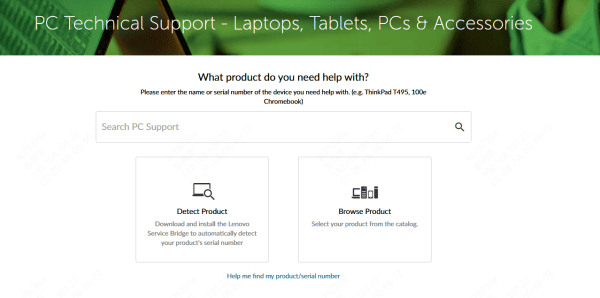
Open a web browser and go to Lenovo Support
Enter your product name, serial number, or machine type
Select your Lenovo laptop or desktop from the results
Click Drivers & Software
Choose your Windows version
Under Component, select Display and Video Graphics
Download the latest display driver
Run the installer and follow the on-screen instructions
Restart your computer after installation
Method 2: Update Display Driver Using Lenovo System Update or Lenovo Vantage
Lenovo offers official tools that automatically detect and install the correct drivers.
Using Lenovo Vantage:
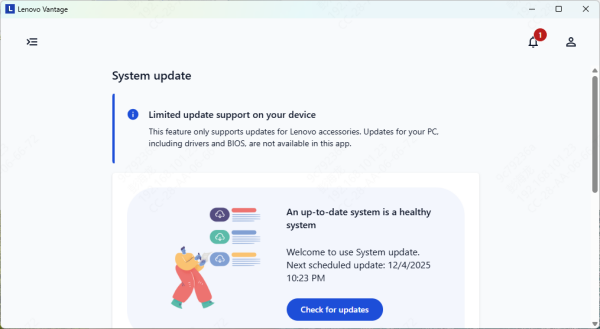
Open Lenovo Vantage (install it from Microsoft Store if needed)
Go to System Update
Click Check for Updates
Select the display/graphics driver
Click Install Selected Updates
Restart your PC when prompted
Using Lenovo System Update:
Download Lenovo System Update from Lenovo Support
Install and launch the tool
Run a scan
Install recommended display driver updates
Restart your system
Method 3: Automatically Update Lenovo Display Driver Using Driver Talent X
If you want a fast and hassle-free solution, an automated driver updater can save time and reduce errors.
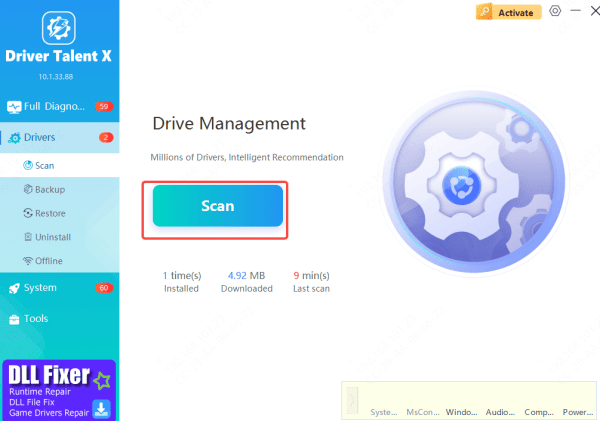
Download and install Driver Talent X
Launch the program and click Scan
The software will detect outdated, missing, or corrupted display drivers
Click Repair Now or Update to install the correct driver
Restart your Lenovo computer
This method is especially useful if display issues started after a Windows update or if multiple drivers are failing at once.
Method 4: Update Display Driver via Device Manager
This is a quick Windows-based method, though it may not always find the newest version.
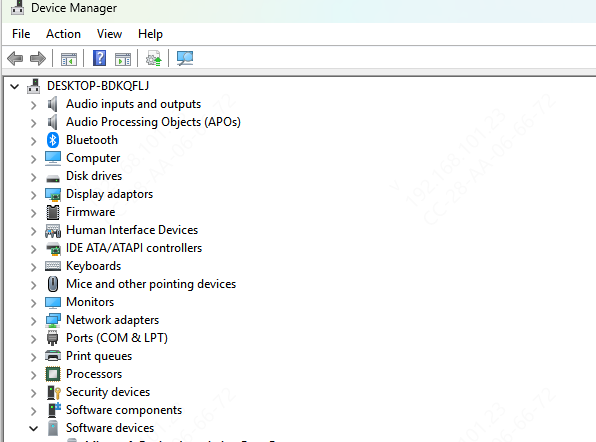
Press Win + X → select Device Manager
Expand Display adapters
Right-click your graphics device (Intel, NVIDIA, or AMD)
Select Update driver
Choose Search automatically for drivers
Follow the prompts and restart if required
Windows may install a generic driver instead of the latest Lenovo-optimized version
Common Issues After Updating Display Drivers
Black screen after update: Boot into Safe Mode and reinstall the driver
Low resolution: Ensure the correct driver (Intel/NVIDIA/AMD) is installed
External monitor not detected: Update USB-C, chipset, and display drivers
Flickering or tearing: Check refresh rate and roll back the driver if needed

Tips to Prevent Future Display Driver Problems
Avoid installing drivers from unofficial websites
Always restart after driver updates
Update Windows before updating drivers
Create a restore point before major driver changes
Use Lenovo tools or trusted driver utilities
Why Updating the Lenovo Display Driver Is Important
The display (graphics) driver controls how your screen, GPU, and Windows work together. Updating it helps to:
Fix screen flickering, distortion, or black/white screens
Improve resolution and refresh rate options
Ensure compatibility with Windows updates
Enhance gaming, video playback, and external monitor support
Prevent system crashes and display-related errors
Conclusion
Updating the Lenovo display driver is a crucial step in maintaining clear visuals, stable performance, and system compatibility. Whether you choose Lenovo's official tools, Device Manager, or an automated solution like Driver Talent X, keeping your graphics driver up to date can prevent many common display problems. If issues persist, reinstalling the driver or checking related system components can usually restore normal display functionality.









