
Graphics driver issues are a common cause of screen flickering, black screens, game crashes, low FPS, and system freezes on Windows PCs. When display problems occur, resetting the graphics driver is often one of the fastest and most effective solutions. Outdated or corrupted drivers usually need to be properly updated to fully restore performance and stability.
This guide explains when you should reset a graphics driver, how to do it correctly, and multiple proven solutions, starting with a detailed and reliable driver update method using Driver Talent X, which is recommended as a priority step.
Update Graphics Drivers Using Driver Talent X
Before attempting manual resets or advanced troubleshooting, updating your graphics driver with a professional driver management tool can resolve most display issues automatically. Driver Talent X detects faulty, missing, outdated, or incompatible drivers and installs the correct versions for your system.
Download and Install:
Click the "Download" button to download the installer to your Windows PC.
Run the setup file, follow the on-screen instructions, and complete the installation process.
Scan Your Computer:
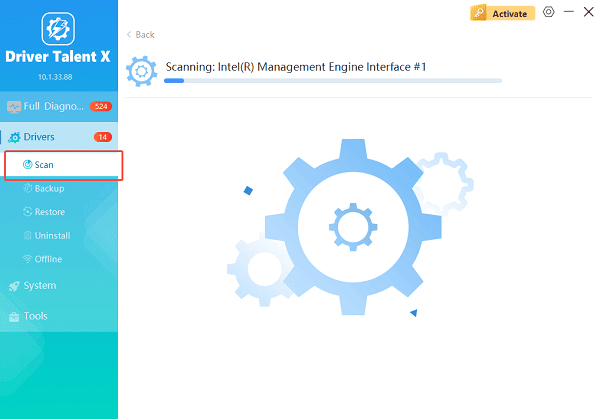
Launch the software and go to "Drivers" > "Scan", click "Scan".
Driver Talent X will detect outdated, missing, or corrupted drivers, including your graphics driver.
Update Windows Drivers:
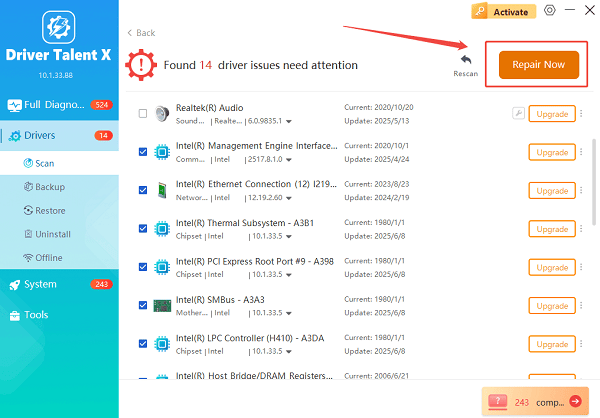
After the scan is complete, the software will display a list of all drivers that need attention. You will see the current version and the recommended latest version.
Click the "Upgrade" or "Repair Now" button to download and install the official driver automatically. Wait for Driver Talent X to download and install the correct versions.
Restart Your Computer:
Wait for the download and installation process to finish.
Restart your computer to apply the changes.
Updating drivers with Driver Talent X often fixes screen glitches, driver crashes, resolution problems, and performance drops without requiring further steps.
When Should You Reset the Graphics Driver on Windows?
Resetting the graphics driver is useful in the following situations:
The screen freezes or goes black temporarily
Display flickering or tearing occurs
Games crash after launching
External monitors stop working
GPU usage spikes abnormally
Driver updates fail or install incorrectly
A reset reloads the graphics driver without restarting the entire system, making it a quick troubleshooting method.
Method 1: Reset Graphics Driver Using Keyboard Shortcut
Windows provides a built-in shortcut to instantly reset the graphics driver.
Steps:
Press Windows + Ctrl + Shift + B at the same time.
The screen may flicker briefly or go black for a second.
A short beep may be heard, indicating the driver has been reset.
This method is safe and does not close open applications. It works best for temporary display glitches.
Method 2: Reset Graphics Driver via Device Manager
If shortcut resetting does not work, restarting the driver manually is more effective.
Steps:
Press Windows + X and select Device Manager.
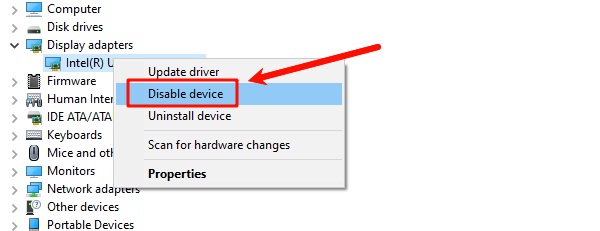
Expand "Display adapters", right-click your graphics card, select "Disable device" and confirm.
Wait 10 seconds.
Right-click the device again and choose "Enable device".
Restart your PC.
This forces Windows to reload the graphics driver completely.
Method 3: Uninstall and Reinstall the Graphics Driver
Corrupted driver files can cause repeated issues. Reinstalling ensures a clean setup.
Steps:
Open Device Manager.
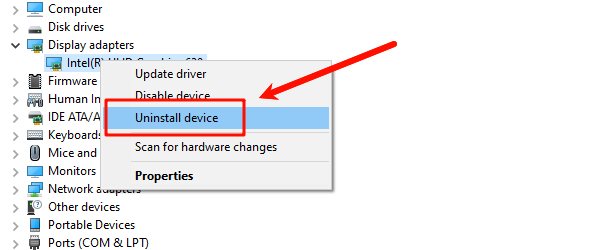
Expand "Display adapters", right-click the graphics card and select "Uninstall device".
Check the option to delete driver software if available.
Restart the computer.
Use Driver Talent X to reinstall the correct driver automatically.
This method is effective for persistent crashes or failed updates.
Method 4: Reset Graphics Settings in GPU Control Panel
Custom graphics settings may cause instability.
For NVIDIA:
Open NVIDIA Control Panel.
Go to "Manage 3D settings" > "Global Settings".
Click "Restore" to reset to default settings.
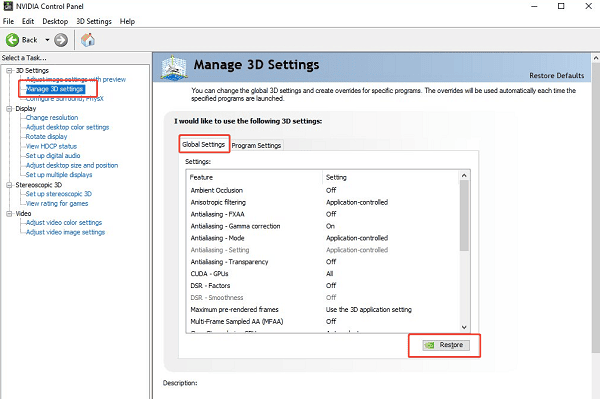
Apply changes.
For AMD:
Open AMD Adrenalin Software.
Navigate to Settings.
Choose "Reset Factory Defaults".
Restart the system.
Method 5: Check Windows System Files
System corruption can affect graphics drivers.
Steps:
Press Windows + S, type cmd.
Right-click Command Prompt and select "Run as administrator".
Enter the following command: sfc /scannow
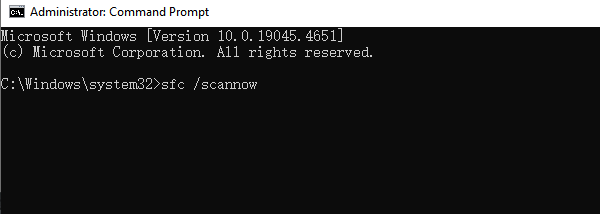
Wait for the scan to complete.
Restart the PC.
Method 6: Disable Fast Startup
Fast Startup can cause driver initialization issues.
Steps:
Open Control Panel.
Select Power Options.
Click "Choose what the power buttons do".
Click "Change settings that are currently unavailable".
Uncheck "Turn on fast startup (recommended)".
Save changes and restart.
Additional Tips to Prevent Graphics Driver Issues
Keep Windows fully updated
Avoid installing beta GPU drivers unless necessary
Do not force incompatible drivers
Monitor GPU temperature and power usage
Always restart after driver updates
Conclusion
Resetting the graphics driver on Windows is a fast and effective solution for many display and performance problems. However, driver-related issues are often caused by outdated or corrupted drivers, which is why updating them using Driver Talent X should always be your first step.
Combined with proper reset methods and system checks, you can restore stable graphics performance and prevent recurring issues. By following the solutions in this guide, you can confidently fix graphics driver problems and maintain a smooth, responsive Windows experience.
See also:
How to Update Graphics Driver Intel on Windows PC
HP Drivers Download – Official and Safe Methods for Windows









