
HyperX headsets (now under HP) like the Cloud II, Cloud Alpha, Cloud Stinger, Cloud 3 (wired/wireless), and others are popular for gaming, but the microphone suddenly stopping—no detection, no input, low volume, static, or muted—is one of the most reported issues. This usually happens on Windows 10/11 due to connection problems, settings, drivers, privacy blocks, or firmware glitches. The good news: most cases are fixed without buying a new headset.
Quick Hardware Checks
Fully insert the detachable boom mic — Many users (especially Cloud II/Alpha) report the mic only works when pushed in all the way (until flush or a slight click)
Check physical mute switch
Inline control box (on cable), USB dongle, or headset side button. Look for red LED (muted) or slider—toggle it multiple times. For Cloud II, the side mute on the USB sound card is often accidentally flipped
Try different ports/connections
Use rear USB 3.0+ ports (avoid front panel or hubs). For 3.5mm models (Cloud Alpha/Stinger), ensure green (headphones) and pink (mic) jacks are correct; use combo jack if laptop has one
Test on another device
Plug into phone, another PC, PS5/Xbox, or console
If it works elsewhere, it's a PC/software issue. If not, possible hardware fault (contact HP/HyperX support)
Wireless models
Check battery/charge. Re-pair dongle: power off headset, press reset pinhole on dongle with pin, hold headset power 10s to pair (LEDs blink then solid)
.png "use-usb-receiver")
Windows Sound Settings
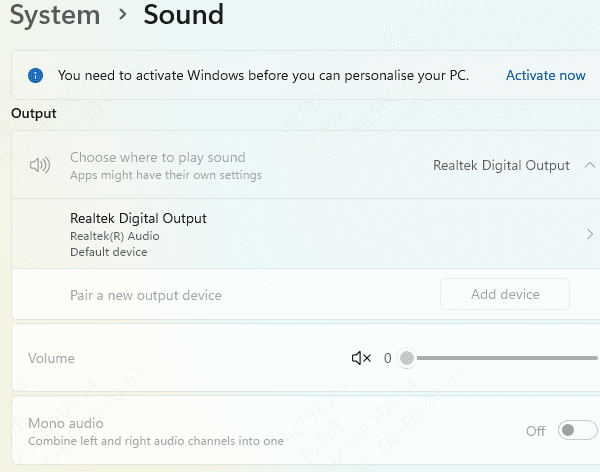
Right-click speaker icon (taskbar) → Open Sound settings (or Settings > System > Sound)
Under Input, select your HyperX mic (e.g., "Headset Microphone (HyperX Cloud II)" or "HyperX Virtual Surround Sound")
Speak → green bars should move. If not:
Click Device properties > Additional device properties (or right-click in old Sound panel)
Levels tab: Unmute (speaker icon not crossed), set volume 80–100. Boost +10dB if too quiet
Advanced tab: Disable "Enable audio enhancements" and "Allow applications to take exclusive control"
In Recording tab (Control Panel > Sound):
Right-click empty space → check Show Disabled Devices and Show Disconnected Devices.
Enable any hidden HyperX mic → right-click → Set as Default Device and Default Communication Device
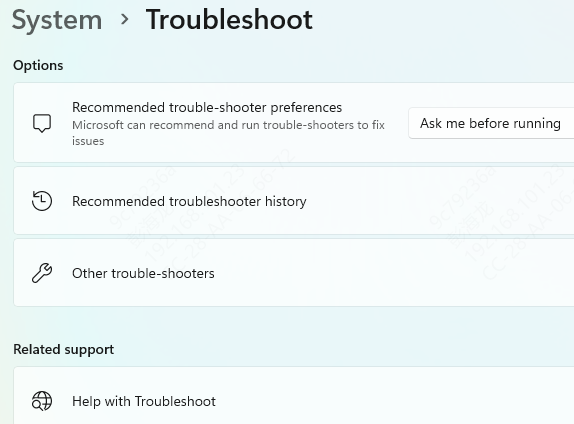
Run troubleshooter: Settings > Update & Security > Troubleshoot > Recording Audio → run it
Privacy & App Permissions
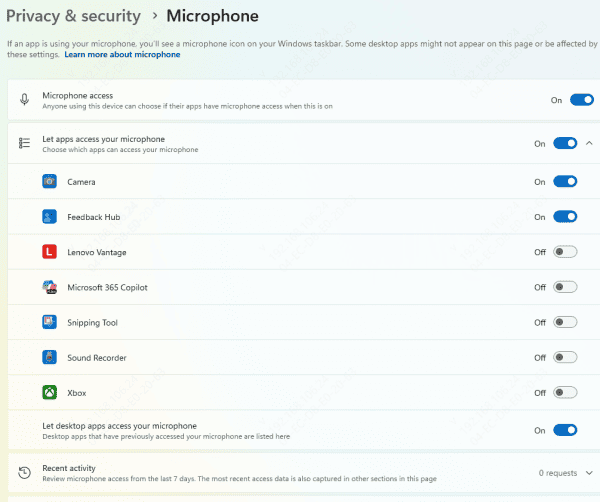
Settings > Privacy > Microphone
Turn ON: "Allow apps to access your microphone" and "Allow desktop apps to access your microphone"
Scroll down: Ensure Discord, Steam, Teams, etc., have permission
For Windows 11: Also check "Let apps access your microphone" under the main toggle
Update drivers
Outdated, corrupted, or incompatible sound card drivers are a common cause of audio issues. To avoid manual errors and save time, it's recommended to use Driver Talent X, which automatically detects and updates the correct drivers for your system.
Click the Download button to get the latest version of Driver Talent X, then install and launch the software
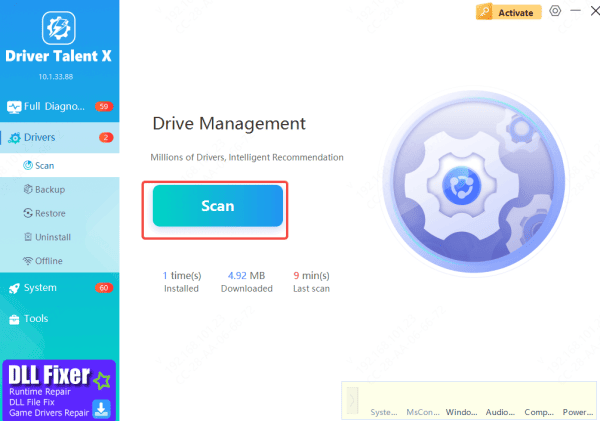
Click Scan to check your system for outdated or missing drivers
Once the scan is complete, locate your sound card driver in the results and click Download (or Update)
After the update finishes, restart your computer to ensure the new drivers take effect
Using Driver Talent X helps ensure stable audio performance while eliminating the risk of installing incorrect drivers.
HyperX NGENUITY
Download latest from hyperx
Check for firmware updates → re-pair device
If NGENUITY causes detection issues: Uninstall (use .exe, not Store version), reinstall, or skip if not needed—many users report better results without it
Firmware for Cloud II USB sound card: Older models benefit from updates
.png "download-from-official-website")
Advanced/Last-Resort Fixes
Disable conflicting mics: In Device Manager, disable laptop built-in mic or other USB mics
Clean boot: msconfig → Services → Hide Microsoft → Disable all → restart (test, then re-enable)
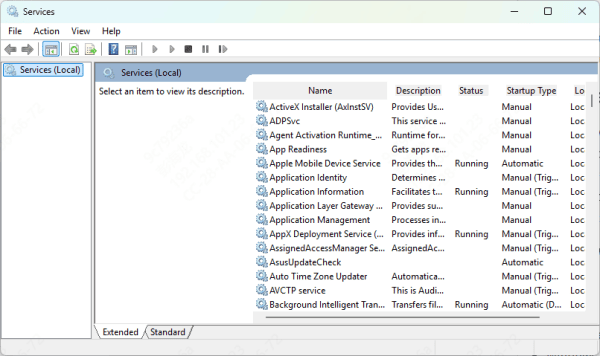
Reset audio services: Win + R → services.msc → Windows Audio → Restart (or set to Automatic)
SFC scan: Command Prompt (admin) → sfc /scannow
If static/distortion: Lower mic boost, use Equalizer APO + Peace (community fix for locked sliders)
Conclusion
Start with hardware (plug/mute) and Windows Sound/Privacy settings—these fix most HyperX headset mic problems in minutes.









