If your Lenovo laptop camera stops working on Windows 10, you may see a black screen, an error like "Camera not detected," or apps such as Zoom or Teams failing to access the camera. This issue is usually caused by privacy settings, outdated drivers, disabled camera services, or conflicts with third-party software. The following guide explains the most effective methods to diagnose and fix camera problems on Lenovo laptops running Windows 10.
Allow Camera Access in Windows 10
Windows 10 includes privacy controls that can block apps from using the camera.
Open Settings, select Privacy, and choose Camera
Enable Allow apps to access your camera
Scroll down and ensure the switch for apps like Zoom, Teams, and Camera is turned on allowing it to work properly in apps like Zoom, Teams, or the Windows Camera app
(1).png "change-access")
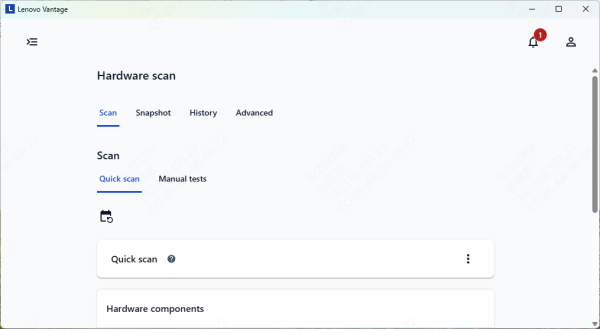
Enable the Camera in Lenovo Vantage
Lenovo Vantage can disable your camera for privacy reasons.
Launch Lenovo Vantage
Go to Hardware Settings and select Audio/Visual
Ensure Camera Privacy Mode is turned off
If disabled, toggle it back on and restart your laptop
Fix Camera Service Issues
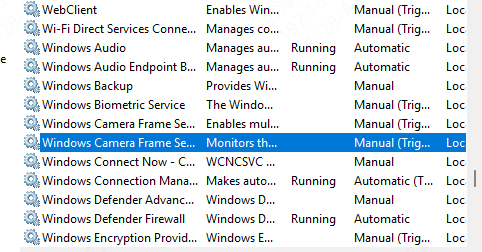
If the Windows camera service is disabled, the camera will not function.
Press Windows + R, type services.msc, and press Enter
Locate Windows Camera Frame Server
Ensure the service is running and set to Automatic
Restart the service if necessary
Reinstall Camera Drivers
Corrupted webcam drivers often cause camera detection failures
Right-click the Start menu and choose Device Manager
Expand the Cameras or Imaging Devices section
Right-click your Lenovo camera and choose Uninstall driver
.png "uninstall-driver")
Automatically Update Your Lenovo Camera Driver
If your Lenovo laptop camera is not working on Windows 10, the issue is often caused by outdated, missing, or corrupted drivers. Updating your camera driver can quickly resolve the problem. Driver Talent X offers an automated solution to detect, download, and install the correct driver without manual searching.
Download and Install Driver Talent X
Go to the Driver Talent X website and click the Download button to get the installer
Run the setup file and follow the on-screen instructions to install the program on your Lenovo laptop
Scan Your System for Driver Issues
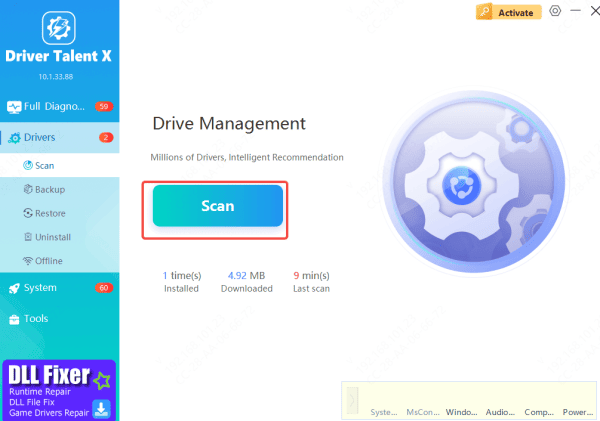
Open Driver Talent X and navigate to the Drivers section
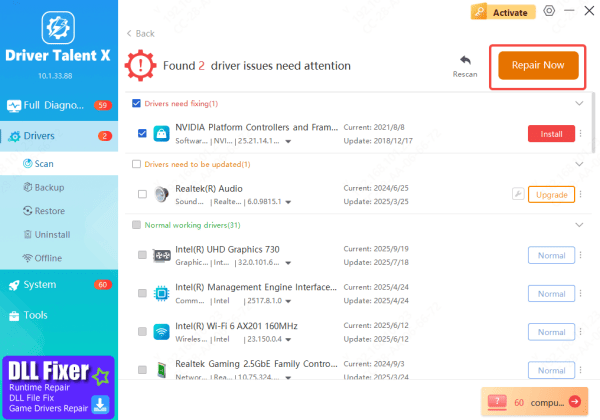
Click Scan to perform a comprehensive check of all system drivers, including those related to your camera and imaging devices
Update Camera Driver
Once the scan is complete, Driver Talent X will list all drivers that need attention. Locate your camera driver under Imaging Devices, then click Upgrade or Repair Now
The software will automatically download and install the correct Windows 10 driver for your Lenovo laptop
Restart Your Laptop
After the driver installation finishes, restart your Lenovo laptop
This ensures the new camera driver is fully applied and restores your camera's functionality
Check for Windows Updates
Windows updates often include essential driver and compatibility fixes.
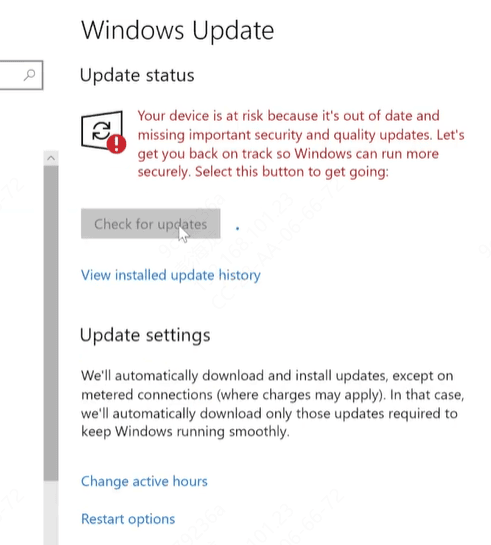
Go to Settings and choose Update & Security
Click Check for updates and install all available updates
Reboot your computer to apply changes
Identify and Close Conflicting Applications
Certain programs running in the background can prevent your camera from functioning properly. To resolve this:
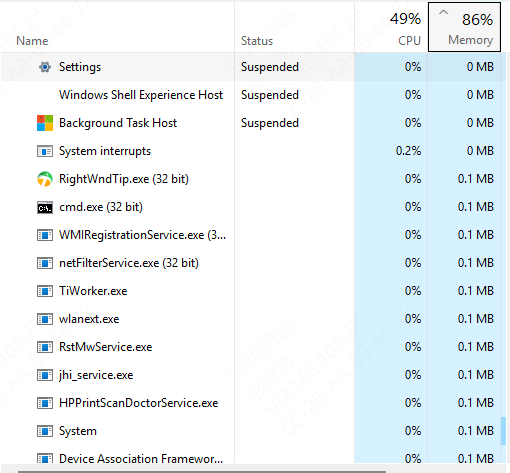
Press Ctrl + Shift + Esc to open the Task Manager
Look for applications that might be using the camera, such as Zoom, Microsoft Teams, or OBS
Select these apps and click End Task to close them, then try launching your camera again
Conclusion
Camera issues on Lenovo laptops running Windows 10 can stem from a variety of causes, including disabled privacy settings, outdated or corrupted drivers, conflicting applications. By following the methods outlined—enabling camera access in Windows and Lenovo Vantage, updating or reinstalling drivers using tools like Driver Talent X, checking for Windows updates, closing conflicting apps, verifying camera services—you can systematically identify and resolve the problem.









