
A white screen on your laptop can be alarming and disruptive. While your laptop may appear to be powered on—fans running, lights on—the display shows only white. This issue can impact work, gaming, or general use. White screens are often caused by a combination of hardware and software issues, including faulty display connections, corrupted graphics drivers, BIOS misconfigurations, or internal hardware failure. This comprehensive guide walks you through all possible solutions to fix a laptop white screen and prevent future occurrences.
Check Basic Connections and Power
Before diving into software fixes, always start with the basics:
Power Source: Ensure your laptop battery is charged and the power adapter is working properly. Try using a different power outlet
External Monitors: If using an external monitor, check that cables (HDMI, DisplayPort, VGA) are secure and undamaged
Internal Connections: For laptops with removable panels, inspect the display cable connecting the motherboard to the screen for loose connections
A white screen caused by poor connections may disappear after reseating cables or swapping out faulty cords
.png "check-cable")
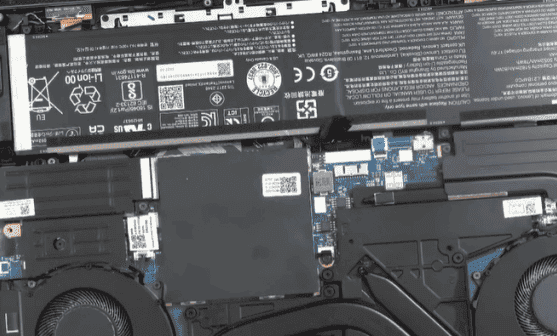
Perform a Hard Reset
Residual power or temporary hardware glitches can trigger white screens:
Removable Battery: Power off the laptop, remove the battery, unplug the charger, and hold the power button for 15–20 seconds
Non-removable Battery: Power off the laptop, press and hold the Novo or power button for 10–15 seconds
Restart: Reinsert the battery or reconnect the power and turn on the laptop
This step helps discharge residual electricity and reset internal components
Boot Into Safe Mode
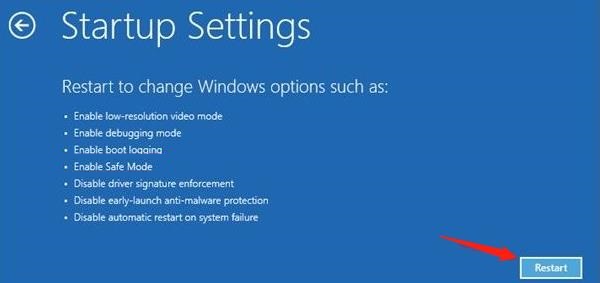
Safe Mode disables unnecessary drivers and software, helping isolate software-related causes:
Restart your laptop and repeatedly press F8 (or use Shift + Restart for Windows 10/11 recovery options)
Select Safe Mode with Networking
Observe whether the white screen persists
If the screen works in Safe Mode: Likely a driver or software conflict
If the screen remains white: Likely a hardware or firmware problem
Update Drivers
Graphics driver corruption is a common cause of white screens:
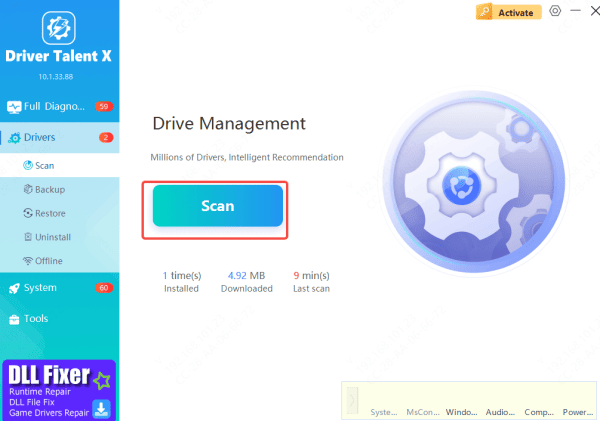
Download and Install Driver Talent X: Install the program on your Lenovo ThinkPad and launch it
Run a Full System Scan: Click the "Scan" button to allow the software to detect any driver issues affecting your system
Apply Recommended Fixes: Once the scan completes, select the drivers that need attention and click "Repair Now" or "Update"
Restart Your Laptop: Reboot your laptop to ensure all driver updates are properly applied
Verify BIOS/UEFI Settings
Sometimes BIOS settings can disable or misconfigure your display:
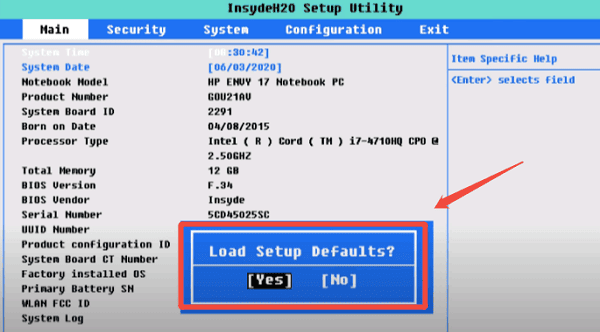
Enter BIOS/UEFI by pressing F2, F1, or Del during startup
Look for options such as Internal Display, Integrated Graphics, or Primary Display and ensure they are enabled
Reset BIOS to default settings if unsure
Updating BIOS can also resolve compatibility issues with graphics hardware
Test With an External Monitor
Testing with an external monitor can help determine if the problem lies with the laptop screen or GPU:
Connect an external monitor via HDMI, DisplayPort, or VGA
If the external display works normally, the internal screen or connecting cable may be defective
If the external monitor also shows a white screen, the GPU or system firmware may be the culprit
wap the cable or try a different external display to further isolate the issue
.png "use-external-monitor")
System Restore or Reinstall Windows
Software corruption can also trigger a white screen:
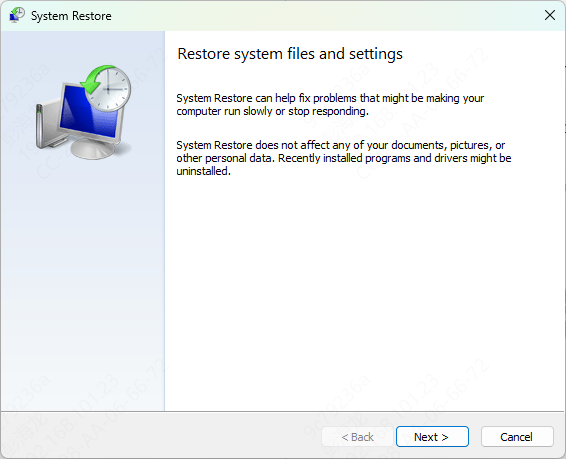
System Restore: Roll back your laptop to a previous restore point before the issue occurred
Clean Install: If restore doesn't help, reinstall Windows to eliminate software-related causes
Tip: Backup your data before reinstalling the OS to prevent data loss
Inspect Hardware Components
If software fixes fail, the white screen may be caused by internal hardware issues:
LCD Panel: The display panel itself may be damaged and require replacement
Motherboard/GPU: Faulty graphics hardware can cause white or blank screens
Professional Repair: Consult an authorized repair service or Lenovo technician for internal component replacements
Preventive Tips for the Future
Keep your graphics drivers, chipset drivers, and BIOS up to date
Avoid sudden power-offs and use a reliable power source
Regularly check and clean internal connections if you are comfortable opening your laptop
Use automated driver tools like Driver Talent X to ensure all system components remain stable and compatible
Conclusion
A white screen on a laptop can stem from software conflicts, driver corruption, BIOS misconfigurations, or hardware failure. Start with basic checks—power, cables, and hard resets—then move on to Safe Mode, driver updates, and BIOS verification. If the issue persists, test external monitors and inspect internal hardware. Keeping your system drivers and firmware up to date can prevent many white screen issues and ensure smoother operation in the future.









