
If your Lenovo IdeaPad keyboard is not working, you might experience unresponsive keys, lagging input, or certain keys failing to register. This issue can occur suddenly or after Windows updates. Common causes include outdated or corrupted drivers, software conflicts, incorrect settings, disabled keyboard functions, or hardware problems. This guide walks you through all the effective methods to troubleshoot and fix keyboard issues on Lenovo IdeaPad laptops.
Preliminary Checks
Before diving into software solutions, check for basic issues:
Ensure the keyboard is clean and free from dust, debris, or stuck keys
Disconnect any external keyboards or USB devices that might interfere
Restart your laptop to see if the keyboard starts functioning again
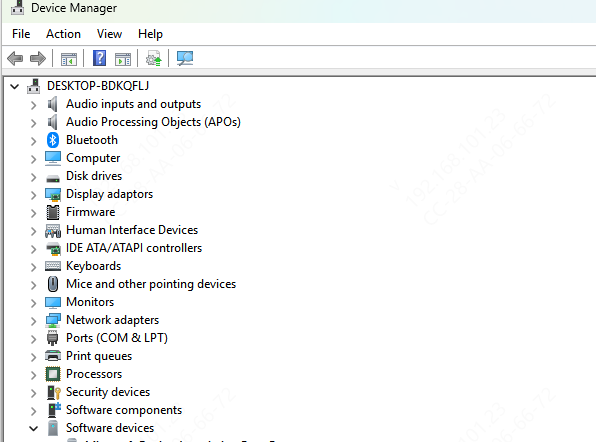
Enable the Keyboard in Device Manager
Sometimes the keyboard may be disabled in Windows:
Press Win + X and select Device Manager
Expand Keyboards and locate your Lenovo keyboard
If it shows as disabled, right-click and select Enable device
Automated Driver Update with Driver Talent X
Manually troubleshooting and updating keyboard, chipset, and ACPI drivers can be complicated. Driver Talent X simplifies the process by automatically detecting and installing the correct drivers that are fully compatible with your Lenovo IdeaPad and Windows version.
Download and Install Driver Talent X
Click the Download button to obtain the Driver Talent X installation file
Once the file finishes downloading, open it and follow the on-screen instructions to complete the installation process
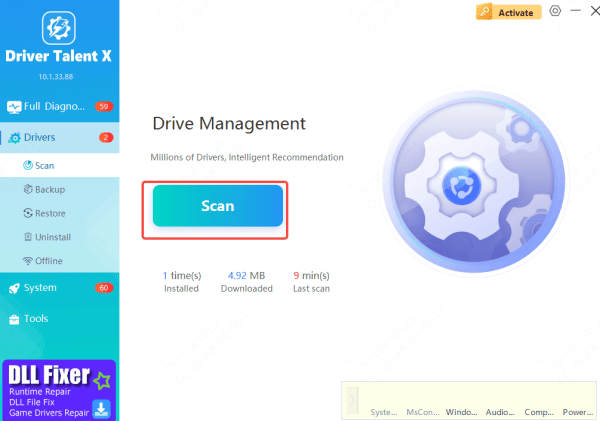
Run Scan
Launch Driver Talent X, go to Drivers → Scan, and click Scan
The software will perform a thorough check of your system, focusing on input, chipset, and ACPI drivers that affect keyboard functionality
Driver Updates
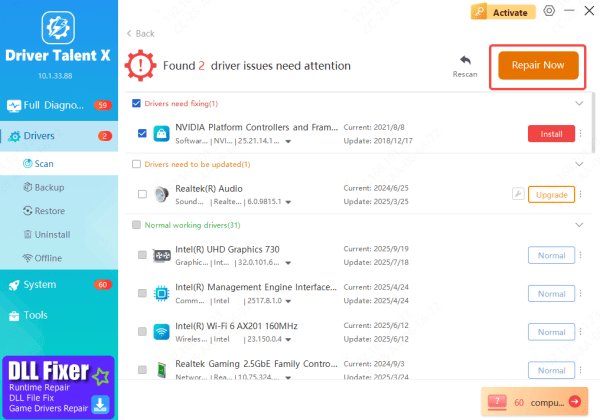
Once the scan finishes, a list of outdated, missing, or corrupted drivers will appear
Select the keyboard-related drivers and click Repair Now. Driver Talent X will automatically download and install the latest certified versions
Restart
After installation, restart your Lenovo IdeaPad
Upon reboot, the updated drivers will load, and your built-in keyboard should be fully functional again
Check Windows Settings
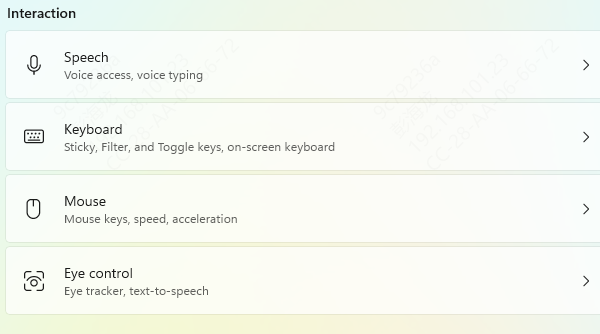
Ease of Access Settings: Go to Settings > Accessibility > Keyboard and ensure Filter Keys is turned off
Language and Region Settings: Check that your keyboard layout matches your physical keyboard under Settings > Time & Language > Language
Check BIOS/UEFI Keyboard Functionality
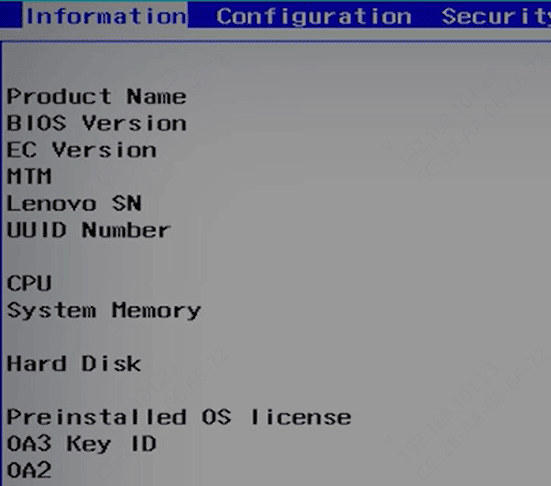
If the keyboard doesn't work in Windows, test it in BIOS
Restart the laptop and press F1 or F2 repeatedly to enter BIOS/UEFI setup
Try typing in BIOS menus to see if the keyboard responds.
If it works, the issue is likely software-related
If not, hardware repair may be required
Perform System Restore or Windows Update
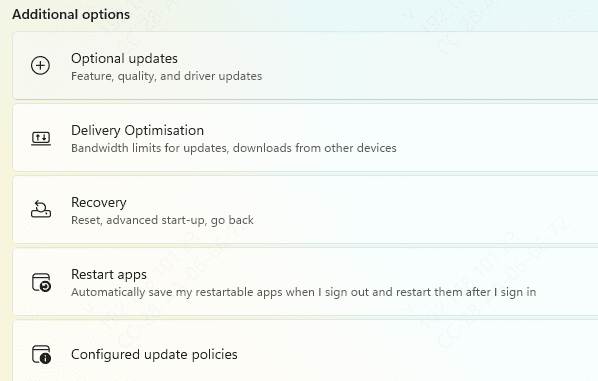
If the keyboard stopped working after a recent update, perform a System Restore to revert Windows to an earlier state
Ensure your system is fully updated via Settings > Update & Security > Windows Update, as updates can fix driver compatibility issues
Hardware Solutions
Clean the Keyboard: Use compressed air or a soft brush to remove dust and debris
Replace the Keyboard: If cleaning and software fixes fail, the keyboard may be physically damaged and require replacement. Contact Lenovo support or a certified technician for assistance
Conclusion
Fixing a Lenovo IdeaPad keyboard not working involves checking settings, updating or reinstalling drivers, running troubleshooters, and performing hardware checks if necessary. Using tools like Driver Talent X simplifies driver updates, while BIOS checks and system restore help isolate software issues. Regularly updating drivers, maintaining your system, and cleaning your keyboard can prevent most keyboard problems and ensure your Lenovo IdeaPad continues to function reliably.









