
If your Lenovo laptop camera isn't working on Windows 11, you're not alone. Many Lenovo users encounter issues such as a black screen, camera not detected, privacy errors, or apps like Zoom and Teams failing to access the camera. This guide will walk you through every effective fix—from basic settings to advanced driver and BIOS solutions.
Basic Checks Before Troubleshooting
Before applying advanced fixes, check these simple but crucial items:
Make sure the camera lens shutter is open
Ensure the camera isn't covered by stickers or dust
Restart your laptop
Try another app like Zoom, Camera, Teams, or Google Meet
If the issue persists, continue with the steps below
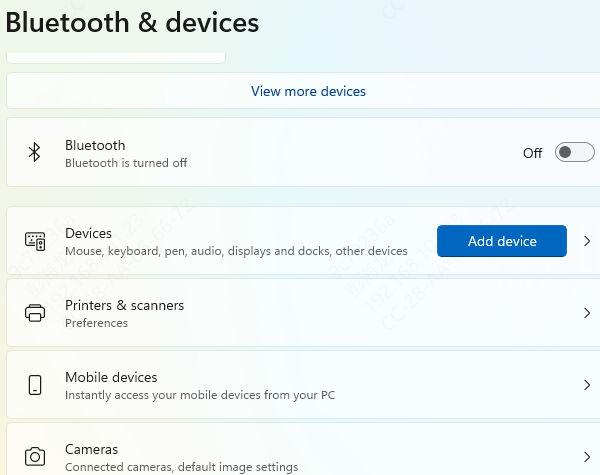
Enable the Camera in Windows Settings
Windows 11 can disable the camera accidentally.
Open Settings
Go to Bluetooth & devices
Click Cameras
Select your laptop camera
Ensure Camera access = On
Enable Camera Privacy Switch / Function Key on Lenovo
Many Lenovo laptops include a camera privacy feature that blocks the camera entirely.
Press Fn + F8 (Lenovo camera toggle key)
Check for a physical privacy shutter above the webcam
Look for an LED indicator—if it's orange/red, privacy mode may be active
Toggle the key and retry using your camera
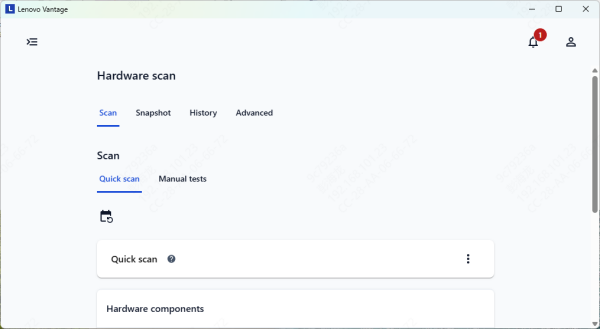
Check Lenovo Vantage Camera Privacy Settings
Lenovo Vantage has a built-in camera blocker called Privacy Mode.
Open Lenovo Vantage
Go to Device Settings → Display & Camera
Turn Camera Privacy Mode = Off
If the camera is blocked here, it will not work in any app
Update Camera and System Drivers
Driver issues are the most common reason for webcam failure on Windows 11. Updating the camera, chipset, and USB drivers ensures the camera module communicates correctly with the system.
Automatic Driver Update (Recommended)
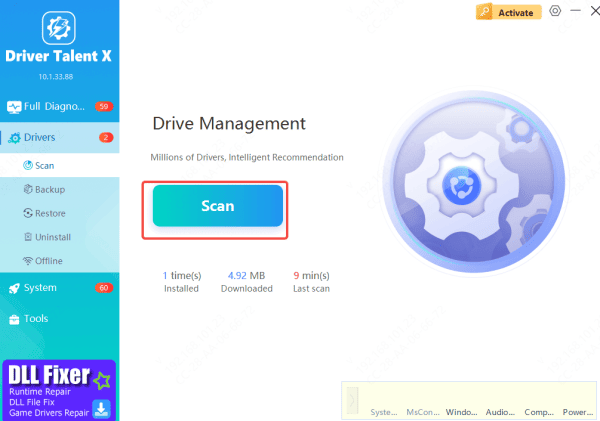
Use Driver Talent X to scan and update all camera-related drivers with one click.
Download and install the driver update tool
Open the program and run Scan
Update all outdated or corrupted drivers
Restart your Lenovo laptop
This resolves most compatibility and detection problems.
Manual Driver Update
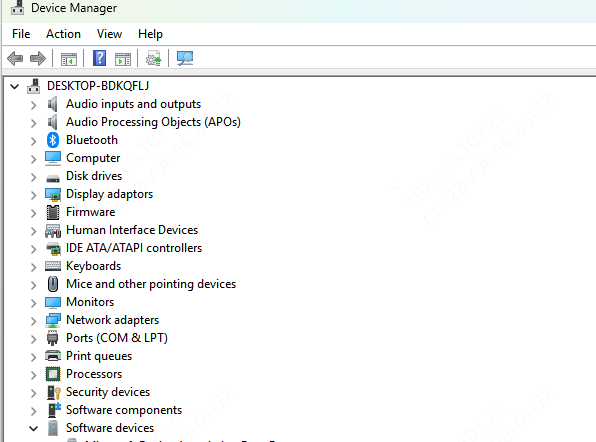
Press Win + X → Device Manager
Expand Cameras
Right-click your camera → Update driver
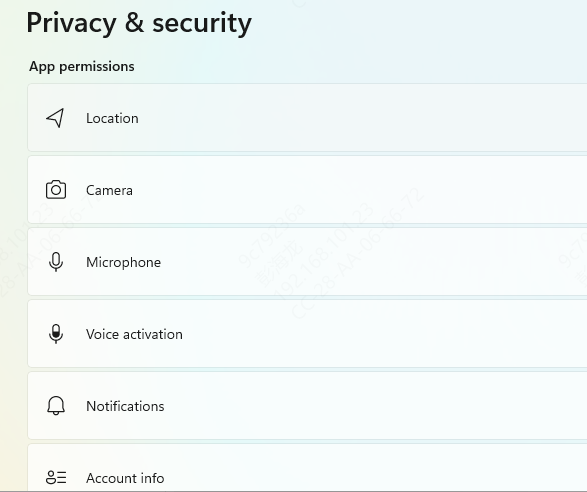
Check Windows Privacy Permissions
Windows 11 may block apps from using the camera.
Settings → Privacy & security
Click Camera
Enable:
Camera access
Let apps access your camera
Enable camera for apps like Teams, Zoom, Chrome, etc
Run the Windows Troubleshooter
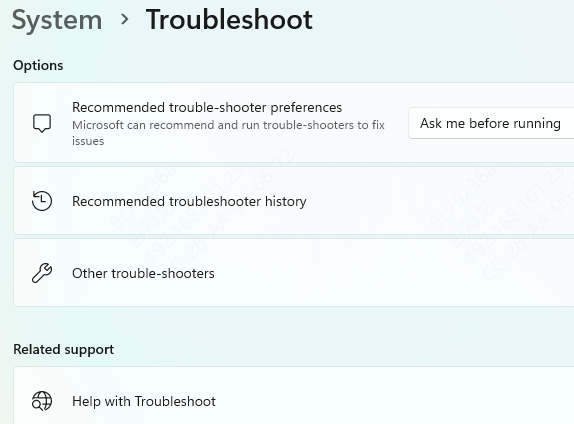
Windows can detect and repair internal camera issues.
Settings → System → Troubleshoot
Click Other troubleshooters
Run Camera
Follow the on-screen fixes
Reinstall or Reset the Windows Camera App
If your camera works in Zoom but not the Windows Camera app, reset the app.
Settings → Apps → Installed Apps
Find Camera
Click Advanced options
Choose Repair, then Reset
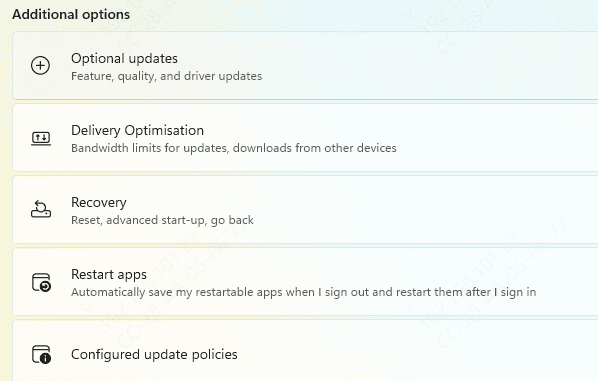
Check for Windows Updates
An outdated Windows version may break camera functionality.
Settings → Windows Update
Click Check for updates
Install all updates and restart
If the camera stopped working after an update, uninstall the latest patch.
Enable Camera in BIOS/UEFI
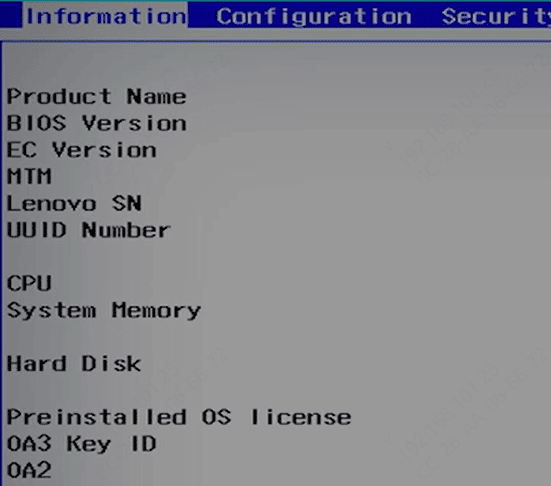
Some Lenovo models allow disabling the camera at BIOS level.
Restart your laptop
Press F2, F1, or Del to enter BIOS
Go to Security or I/O settings
Check Internal Camera
Set it to Enabled
Save and exit
If disabled here, Windows cannot detect the camera.
Hardware-Related Checks
If none of the software fixes work, the issue may be hardware-related.
Possible hardware problems:
Loose camera ribbon cable
Damaged camera module
Motherboard connector failure
Use an external USB webcam to verify
If that works, contact Lenovo support for hardware service.
Causes of Camera Not Working
Several factors may cause the Lenovo laptop camera to stop functioning on Windows 11:
The camera is disabled in Windows settings
Lenovo Privacy Mode is turned on
Camera lens physical shutter is closed
Outdated, missing, or corrupted camera drivers
Privacy permissions blocking apps from accessing the camera
Conflicts from Windows updates
BIOS-level camera restrictions
Hardware failure in the camera module or cable
Conclusion
A non-working camera on a Lenovo laptop running Windows 11 is usually caused by simple issues such as privacy settings, disabled drivers, or outdated system files. By checking the privacy controls, updating drivers, adjusting BIOS settings, and using built-in Windows troubleshooters, most camera issues can be resolved quickly. If the problem continues after all steps, the camera hardware may require professional repair.









