Seeing a "No Signal" message on your Lenovo Legion monitor can be worrying, especially when everything appears to be connected correctly. This issue usually occurs because of loose cables, driver errors, firmware glitches, or hardware-related faults. This guide provides all effective troubleshooting steps to help you restore display output and get your Lenovo Legion monitor working again.
Check All Cable Connections
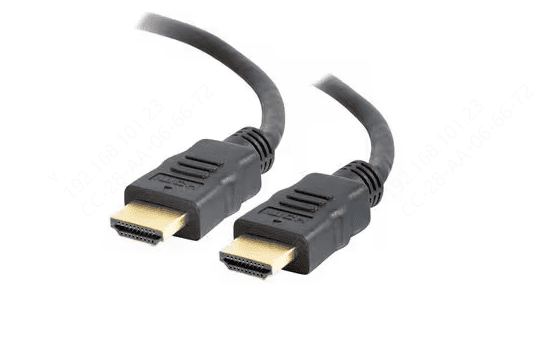
Loose or damaged cables are the number one cause of "No Signal."
Ensure HDMI, DisplayPort, or USB-C cables are firmly inserted on both ends
Inspect the cables for bent pins, exposed wires, or damaged connectors
Try using another cable to rule out cable failure
Verify the monitor's power cable is securely connected and the power indicator is on
If the monitor cannot receive a stable signal through the cable, it will display "No Signal" even if the computer is working properly.
Update Drivers
Driver-related issues are one of the most common causes of "No Signal" problems on Lenovo Legion monitors. If your GPU, USB-C, chipset, or display drivers are outdated or corrupted, your monitor may fail to receive a video signal. Updating these components ensures stable communication between your PC and the monitor. Using an automated tool like Driver Talent X makes the process easier and helps ensure all display-related drivers are updated correctly.
Download and Install
Click the Download button to get the installer
Run the setup file and follow the on-screen instructions to install the program on your computer
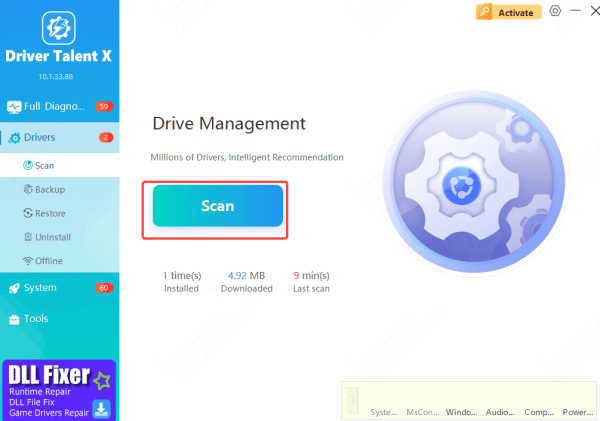
Run a Full Driver Scan
Open Driver Talent X and click Scan
The tool will inspect all components that affect video output, including: Graphics drivers (NVIDIA, AMD, Intel), USB-C / DisplayPort controllers, Chipset drivers, and other display-related system components
Apply All Required Updates
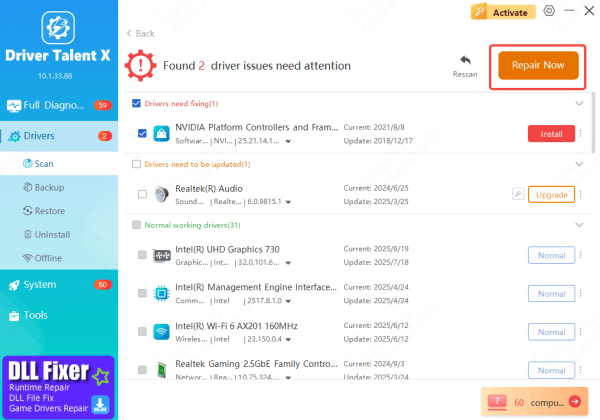
After the scan, Driver Talent X will list outdated, missing, or malfunctioning drivers that may be causing the "No Signal" issue
Click Repair Now or Update to download and install the correct versions optimized for your system
Restart Your PC
When updates are complete, reboot your computer
A restart ensures Windows loads the new drivers properly and often restores signal output to your Lenovo Legion monitor
Update Lenovo Legion Monitor Firmware
Some Legion monitors receive firmware updates that improve stability and fix signal detection issues.
Visit the Lenovo Support website
Search for your specific Legion monitor model
Download the latest firmware package
Follow the included instructions to complete the update
Firmware updates can resolve flickering, no-signal problems, and compatibility issues with GPUs.
.png "download-firmware")
Adjust Windows Display Settings
If Windows recognizes the monitor but shows no output:
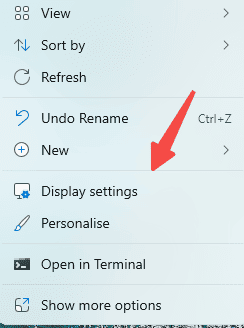
Right-click your desktop → Display settings
Click Detect
Ensure the display mode is Extend, Duplicate, or Second screen only
Try lowering the monitor's resolution or refresh rate
Setting a refresh rate higher than your monitor supports (e.g., 240Hz on a 165Hz monitor) can cause a no-signal screen.
Power Cycle and Reset the Monitor
Temporary glitches can interrupt the video signal.
Turn off your PC
Unplug the monitor from power
Wait 10–15 seconds
Plug it back in and power it on
Reset the monitor to factory settings through the OSD menu
This refreshes the internal circuits and often restores normal detection.
Conclusion
A "No Signal" message on your Lenovo Legion monitor can be frustrating, but in most cases, the issue can be resolved with a few targeted troubleshooting steps. By checking your cables, updating system drivers, adjusting display settings, refreshing the monitor's power, and installing the latest firmware, you can eliminate the most common causes of signal loss. Following the methods in this guide will help restore stable display output and ensure your Lenovo Legion monitor continues working reliably. If the problem persists after all fixes, the issue may be hardware-related, and contacting Lenovo support is the best next step.









