
If your Lenovo microphone is not working, it can be frustrating—especially during online meetings, video calls, gaming, or voice recording. Common symptoms include the microphone not detecting sound, apps saying "No microphone found," very low input volume, or the mic not appearing in system settings at all. This guide walks you through all effective solutions step by step to help restore your Lenovo microphone.
Check Basic Microphone Settings
Before moving to advanced fixes, verify that your microphone is enabled and selected correctly.
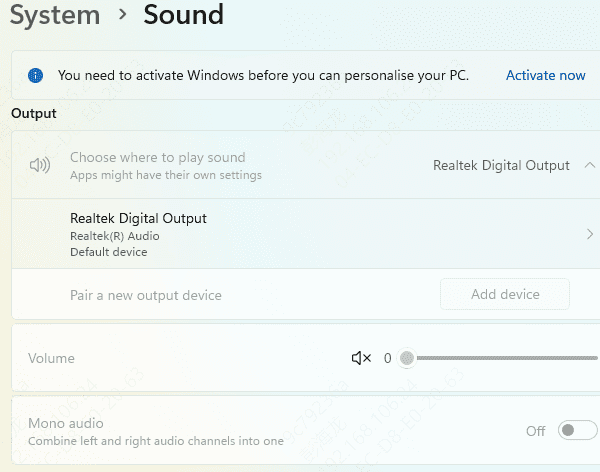
Right-click the speaker icon in the taskbar and select Sound settings
Scroll down to Input
Make sure the correct microphone (Internal Mic, Array Microphone, or External Mic) is selected
Click Device properties and ensure:
The microphone is enabled
Input volume is turned up
Speak into the microphone and check if the input level moves
Allow Microphone Access in Windows Privacy Settings
Windows may block microphone access for privacy reasons.
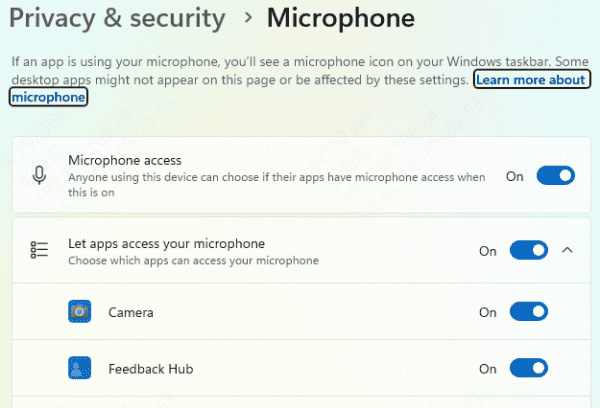
Open Settings → Privacy & security → Microphone
Turn on:
Microphone access
Let apps access your microphone
Scroll down and confirm the affected apps (Zoom, Teams, Skype, browser, etc.) have permission enabled
Restart the app after changing settings
Run Windows Troubleshooter
Windows includes a built-in tool that can automatically detect and fix microphone issues.
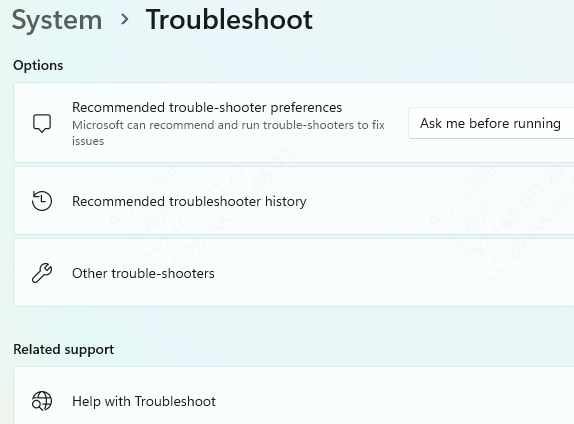
Go to Settings → System → Troubleshoot → Other troubleshooters
Find Recording Audio
Click Run
Follow the on-screen instructions
This can fix common configuration problems automatically.
Update Drivers Automatically with Driver Talent X
Outdated, missing, or corrupted audio drivers are one of the most common reasons Lenovo microphones stop working—especially after Windows updates. Using an automated driver tool helps avoid incorrect driver versions and saves time.
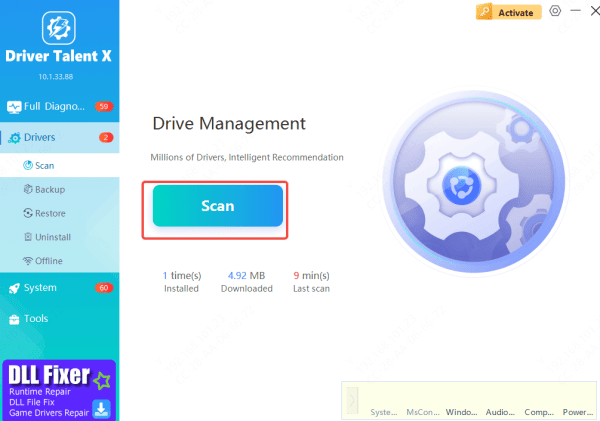
Download and install Driver Talent X
Open the program and go to Drivers → Scan
Click Repair Now or Update for recommended fixes
Restart your Lenovo laptop after installation
Reinstall the Microphone Driver Manually
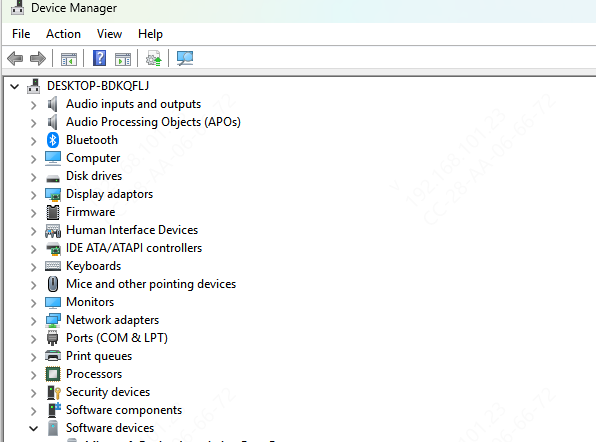
Right-click Start → Device Manager
Expand Audio inputs and outputs
Right-click your microphone → Uninstall device
Restart your laptop
Windows will automatically reinstall the correct drivers.
Check Lenovo Vantage Microphone Settings
Some Lenovo laptops allow hardware-level microphone controls.
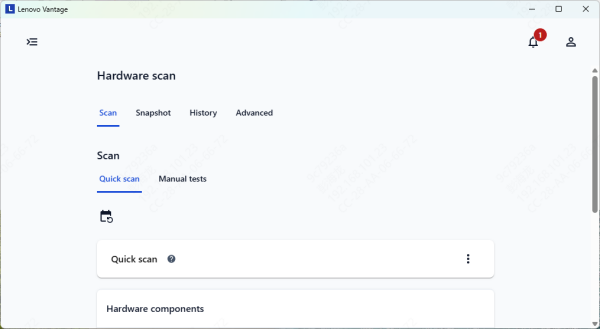
Open Lenovo Vantage
Go to Device Settings → Audio / Input
Ensure:
Microphone is enabled
No privacy or mute option is turned on
Update Windows
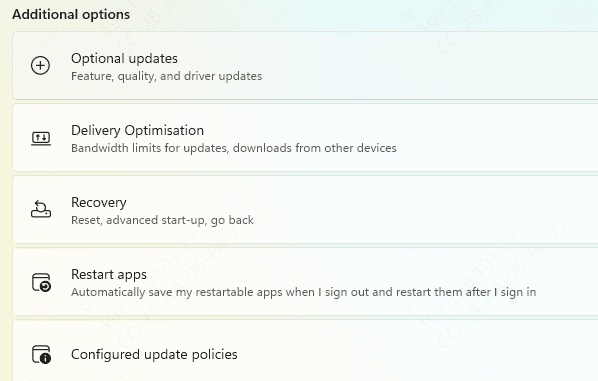
Go to Settings → Windows Update
Click Check for updates
Install all available updates
Restart your system
Advanced Steps If Needed
Run system scans: Admin Command Prompt > sfc /scannow > DISM /Online /Cleanup-Image /RestoreHealth
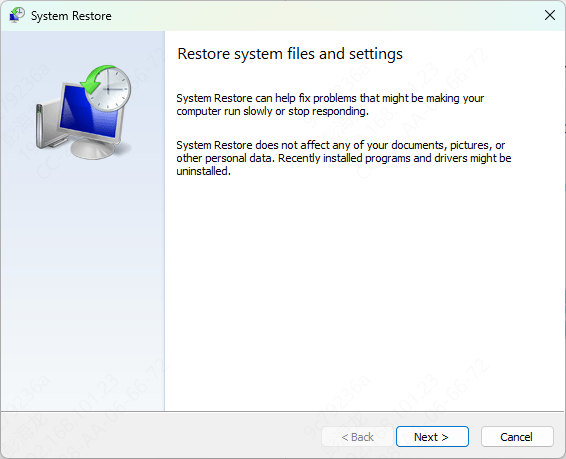
Boot into Safe Mode (hold Shift during restart) to test—rules out third-party apps
Roll back recent Windows updates via Settings > Windows Update > Update history
If in Windows S Mode: Switch to full Windows 11 (Settings > System > Activation)
Conclusion
A Lenovo microphone not working is usually caused by driver issues, privacy restrictions, incorrect settings, or Windows updates. In most cases, checking input settings, enabling microphone permissions, and updating audio drivers will quickly resolve the problem. For a fast and reliable fix—especially after system updates—using an automated driver updater like Driver Talent X can save time and prevent compatibility issues.









