
The Lenovo Yoga series is known for its sleek design, 2-in-1 flexibility, and reliable performance. However, touchpad issues can sometimes occur—such as the touchpad not responding, lagging, freezing, or disappearing from settings. These problems are usually caused by disabled touchpad options, incorrect settings, outdated drivers, Windows updates, or hardware faults. This guide walks you through every working method to fix the touchpad on your Lenovo Yoga laptop.
Check Lenovo Touchpad Shortcut Keys (Fn Hotkeys)
Many Lenovo Yoga laptops include a touchpad toggle shortcut.
Common Keys: Fn + F6, Fn + F8, Fn + F5 (depends on model)
Look for a touchpad icon with a line through it. Press the key combination to re-enable the touchpad
Make Sure the Touchpad Is Enabled in Settings
Your touchpad may simply be turned off in Windows.
Open Settings → Bluetooth & devices (or "Devices")
Click Touchpad
Ensure the Touchpad toggle is ON
Check sensitivity and gesture settings
If the toggle is missing, the driver may be corrupted. Continue to the next steps.
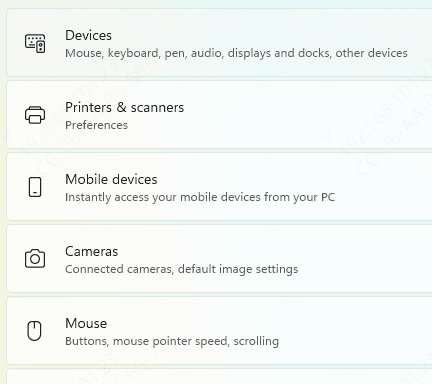
Update Driver
Manually troubleshooting and updating touchpad, input, and chipset drivers on a Lenovo Yoga can be complicated. Using a specialized driver utility like Driver Talent X automates the process, ensuring that all necessary drivers are fully compatible with your Lenovo hardware and Windows version, often resolving touchpad issues immediately.
Download and Install Driver Talent X
Click the Download button to get the Driver Talent X installer
Once downloaded, run the installer and follow the on-screen instructions to complete the setup
Run a Scan
Launch Driver Talent X and go to Drivers → Scan
Click Scan to allow the software to perform a deep analysis of your system, focusing on touchpad, input, and controller drivers
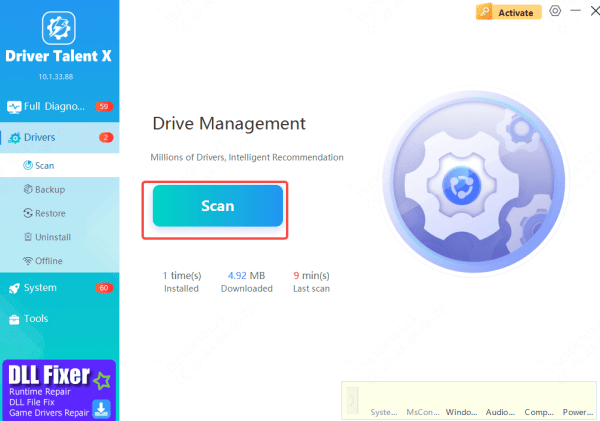
Update Drivers
After scanning, the software will display a list of drivers that require updates or repairs
Select all relevant drivers, including touchpad and chipset drivers, and click Repair Now
Driver Talent X will download and install the latest certified versions specifically compatible with your Lenovo Yoga
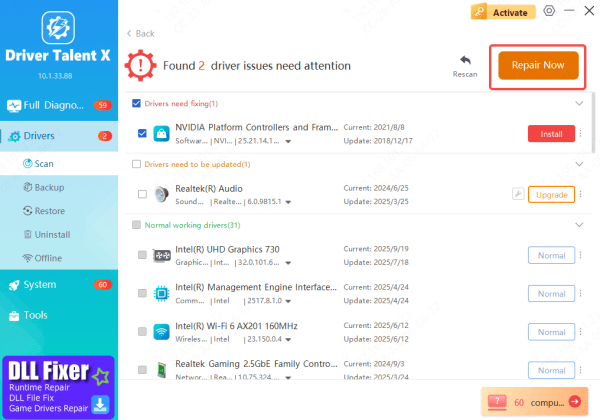
Restart PC
Once the installation is complete, restart your laptop
After reboot, the updated drivers should load correctly, restoring full touchpad functionality
Reinstall the Lenovo Touchpad Driver
If updating the touchpad driver doesn't solve the problem, reinstalling it can often fix deeper driver corruption or conflicts.
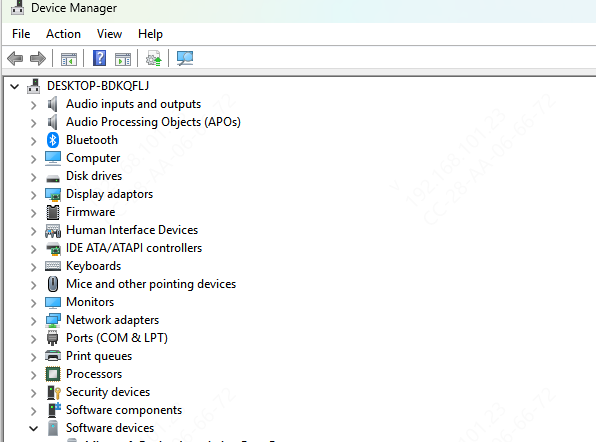
Open Device Manager
Press Win + X and select Device Manager
Locate Your Touchpad Device
Expand Mice and other pointing devices and find your Lenovo touchpad
Right-click the touchpad and select Uninstall device.
Check Delete the driver software for this device to remove all existing driver files
Restart Your Laptop
After restarting, Windows will automatically reinstall a generic touchpad driver.
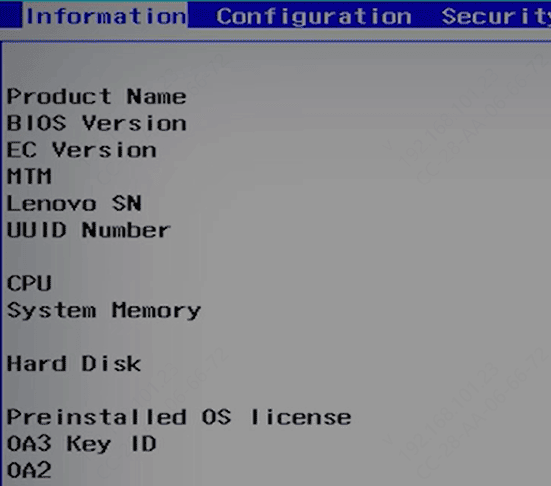
Check Touchpad Settings in BIOS
If the touchpad is disabled at BIOS level, Windows cannot detect it.
Shut down your Lenovo Yoga
Press the Novo Button, F1, or F2 repeatedly to enter BIOS
Navigate to Configuration or Advanced
Ensure Internal Pointing Device or Trackpad is Enabled
Save changes → Exit BIOS
Check Windows Updates
Touchpad issues sometimes occur after or before Windows updates.
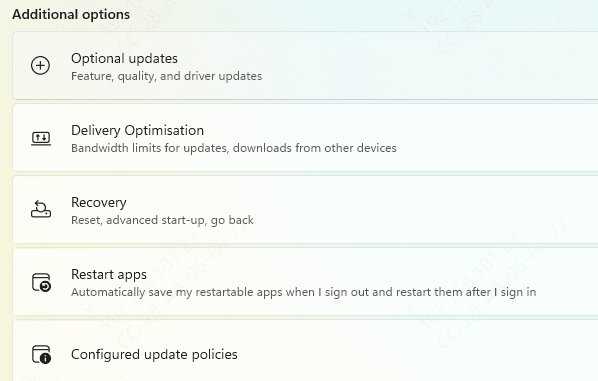
Go to Settings → Windows Update
Click Check for updates
Install available updates and restart your laptop
Conclusion
Touchpad issues on a Lenovo Yoga laptop can be caused by disabled settings, outdated or corrupted drivers, BIOS configurations, or Windows update conflicts. By ensuring the touchpad is enabled in settings, using shortcut keys, updating or reinstalling drivers with tools like Driver Talent X, checking BIOS/UEFI settings, and keeping Windows up to date, you can effectively restore full touchpad functionality and maintain smooth, responsive performance.









