
Sound problems on a Lenovo laptop can be frustrating—especially when your audio suddenly stops working after a Windows update, driver installation, or system change. The good news is that Lenovo audio driver issues are usually fixable with the right troubleshooting steps. This guide covers all effective solutions, from basic checks to advanced driver fixes, to help you restore sound on your Lenovo laptop quickly.
Method 1: Check Basic Audio Settings
Sometimes the issue is caused by incorrect settings rather than drivers
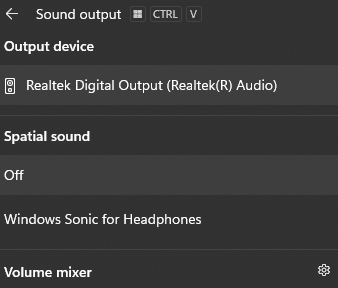
Click the speaker icon in the taskbar and make sure the volume is not muted
Right-click the speaker icon → Sound settings
Under Output, confirm the correct speaker or headphone device is selected
Plug in headphones and unplug them again to force device detection
If sound still doesn't work, move on to driver-related fixes
Method 2: Restart Windows Audio Services
Audio services may stop running due to system errors
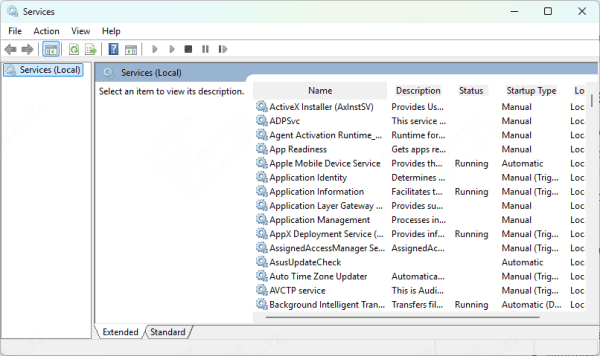
Press Win + R, type services.msc, and press Enter
Locate Windows Audio
Right-click it and choose Restart
Also restart Windows Audio Endpoint Builder
After restarting the services, test your audio again
Method 3: Update Lenovo Audio Drivers
Outdated or corrupted drivers are the most common cause of audio issues
Option 1: Update Using Driver Talent X (Recommended)
Driver Talent X automatically finds and installs the correct Lenovo-compatible audio drivers
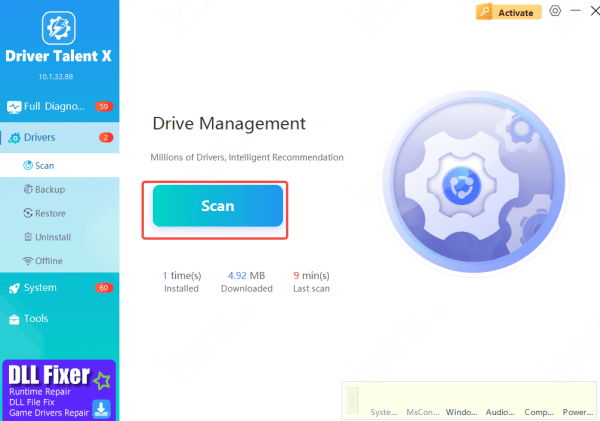
Download and install Driver Talent X
Launch the software and click Scan
It will detect audio, chipset, and controller driver issues
Click Update to install the correct audio driver
Restart your laptop after installation
This method is fast and reduces the risk of installing incompatible drivers
Option 2: Update Audio Driver via Device Manager
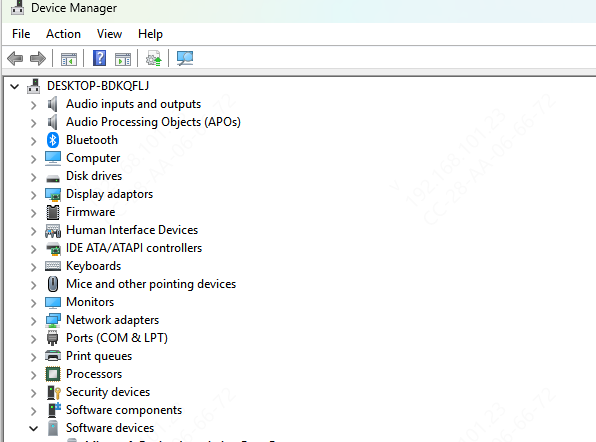
Right-click Start → Device Manager
Expand Sound, video and game controllers
Right-click your audio device (Realtek, Dolby, or Intel Audio)
Select Update driver → Search automatically for drivers
If Windows doesn't find an update, try the next method
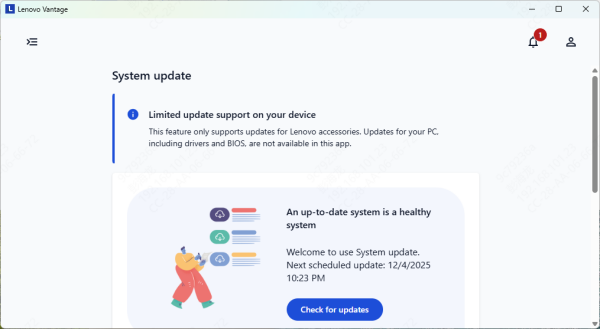
Option 3: Update Drivers Using Lenovo Vantage
Lenovo Vantage provides official, model-specific drivers
Open Microsoft Store and install Lenovo Vantage
Launch the app and go to System Update
Download and install available Audio, Chipset, or BIOS updates
Restart your PC
Option 4: Download Audio Drivers from Lenovo Support
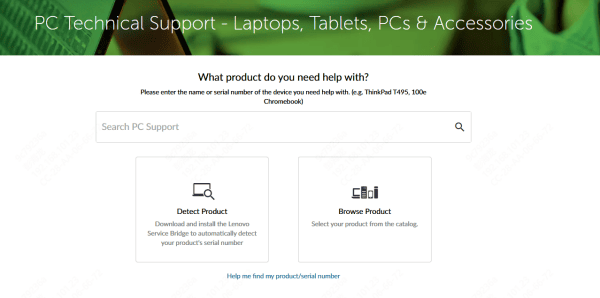
Visit Lenovo's official support website
Enter your laptop model number
Go to Drivers & Software
Download the latest Audio Driver for your Windows version
Install the driver and restart your laptop
Method 4: Run Windows Audio Troubleshooter
Windows has a built-in troubleshooter that can detect audio issues
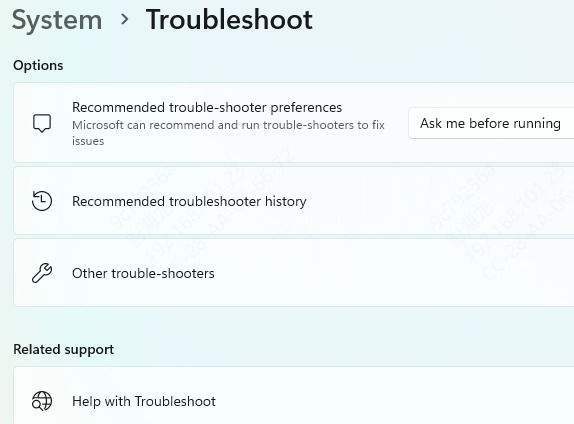
Go to Settings → System → Troubleshoot → Other troubleshooters
Find Playing Audio
Click Run and follow the instructions
This can fix common configuration problems automatically
Method 5: Check BIOS Audio Settings
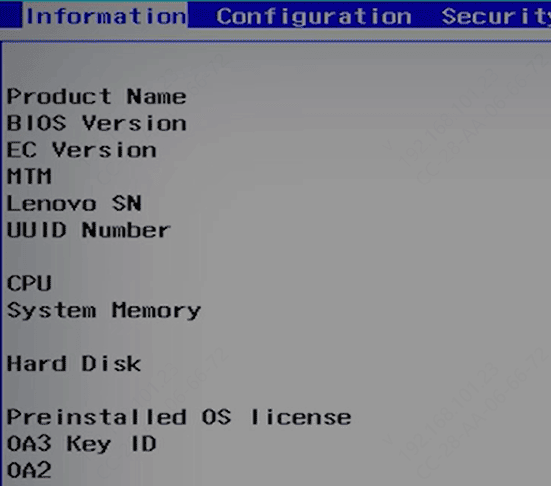
Audio may be disabled in BIOS
Restart your Lenovo laptop
Press F1, F2, or Fn + F2 during startup
Enter BIOS settings
Ensure Audio / Sound Controller is enabled
Save changes and exit
Method 6: Check for Windows Updates
Some audio issues are fixed through system updates
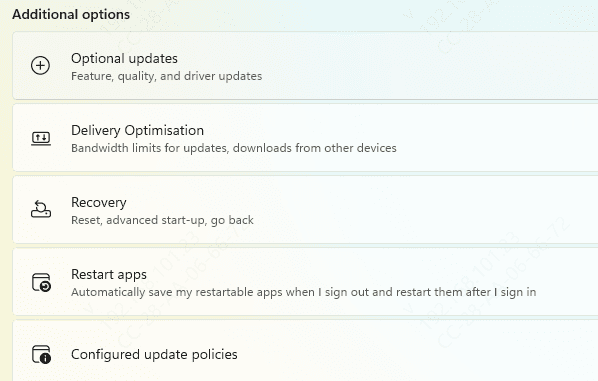
Go to Settings → Windows Update
Click Check for updates
Install all available updates
Restart your PC
Common Symptoms of Lenovo Audio Driver Problems
No sound from speakers or headphones
Audio device missing from Sound settings
Red X or warning icon on the volume icon
"No audio output device is installed" error
Sound works intermittently or sounds distorted
Audio stopped working after Windows update
Conclusion
Lenovo audio drivers not working can be caused by outdated drivers, Windows updates, incorrect settings, or system conflicts—but most issues are easy to fix with the right steps. If you want the fastest and safest solution, using a reliable driver updater like Driver Talent X ensures you get the correct Lenovo-compatible audio drivers without guesswork. With these methods, your sound should be back to normal in no time.









