
The Logitech Zone Vibe 100 is an excellent headset known for its crisp sound quality and comfortable design, but like any device, it may encounter occasional issues. Audio or microphone problems can occur for various reasons, whether it's connectivity, settings, or software-related. This guide will walk you through simple troubleshooting steps to get your Logitech Zone Vibe 100 working properly again.
Check the Basics
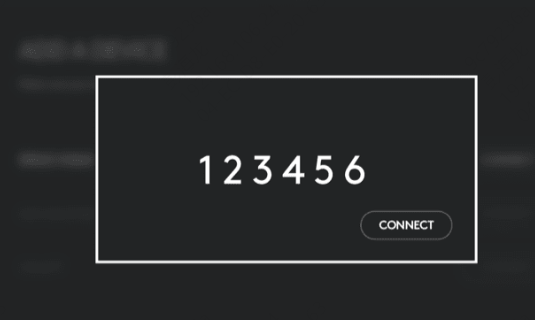
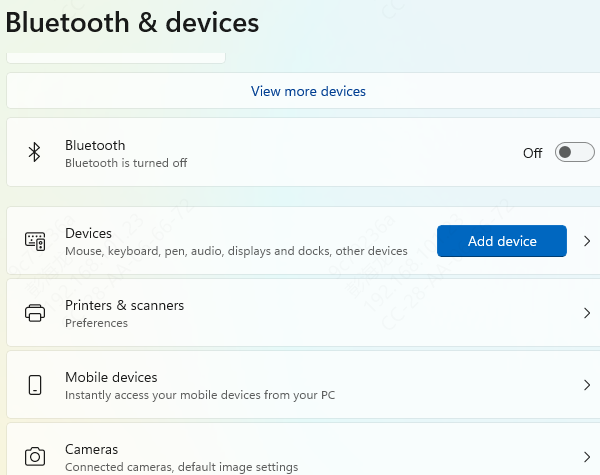
Ensure your Zone Vibe 100 is paired with your computer or mobile device
Check your Bluetooth settings and reconnect the headset if necessary
Check Audio Settings
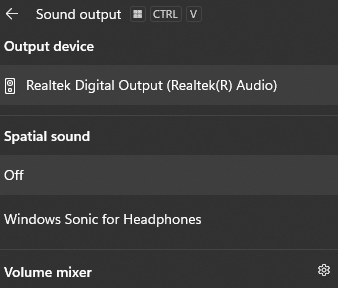
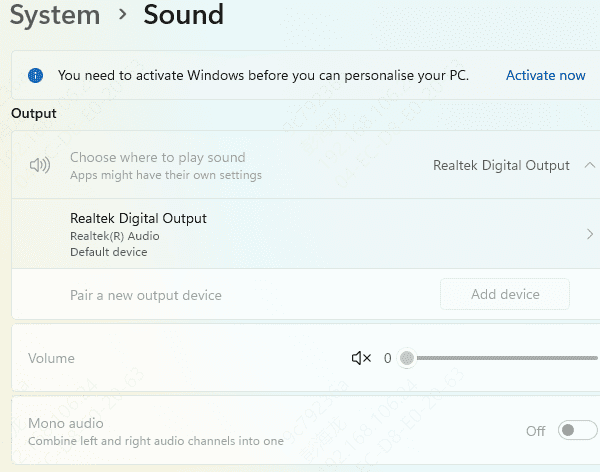
Right-click the sound icon in the taskbar and select Open Sound Settings
Under Output, ensure the Zone Vibe 100 is selected as the default output device
Under Input, make sure the Zone Vibe 100 is selected as the default microphone
Ensure the Zone Vibe 100 is selected for both Input and Output
Update Audio Drivers
Outdated or corrupted drivers are a common cause of audio problems. To update your drivers:
Using Device Manager
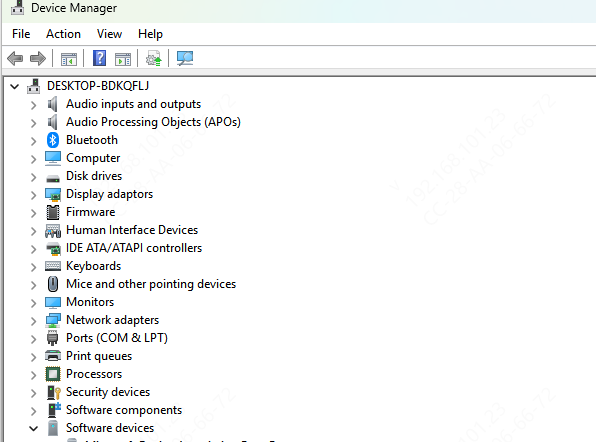
Press Windows + X and choose Device Manager
Expand Sound, video and game controllers and right-click on your audio driver
Select Update Driver and follow the on-screen instructions
Using Driver Talent X (Recommended)
Download and install Driver Talent X from the official website
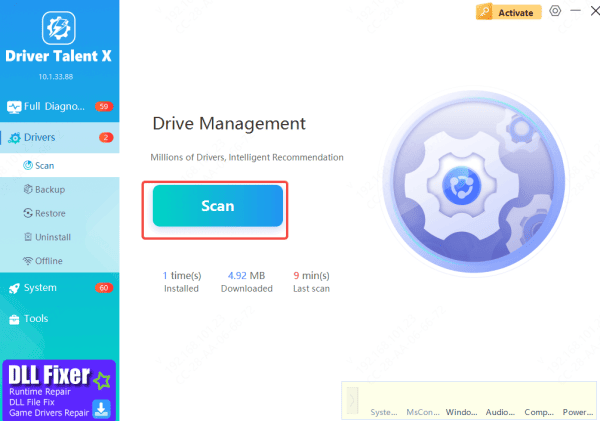
Open Driver Talent X and go to Drivers → Scan
The software will automatically scan your system for outdated or missing drivers, including the Logitech Zone Vibe 100's drivers
Click Repair Now to update or fix any driver issues
Restart your computer after the update is complete and check if the audio works
Troubleshoot Audio Issues
Sometimes, wireless interference can disrupt audio signals
Ensure there are no other devices nearby that may interfere with the connection
Try turning off other Bluetooth devices temporarily
Troubleshoot Microphone Issues
Check Microphone Settings
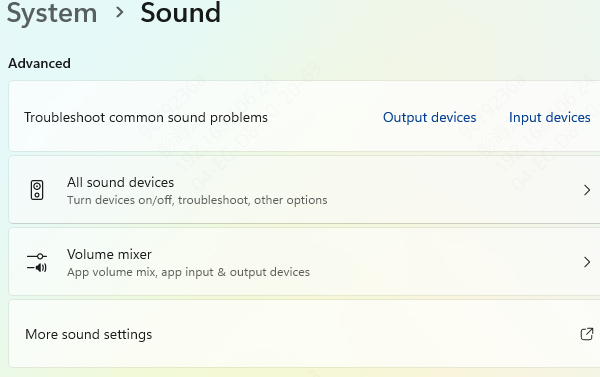
Ensure the microphone is enabled: In Windows, go to Sound Settings and make sure the Zone Vibe 100 is selected under Input Devices
Adjust microphone sensitivity: In the sound settings, adjust the microphone sensitivity to ensure it picks up sound correctly
Ensure the Microphone Is Not Muted
Check the physical mute button on the headset if there is one
Make sure that the microphone isn't muted in the software you're using (Zoom, Skype, etc.)
Update the Logitech Zone Vibe 100 Firmware
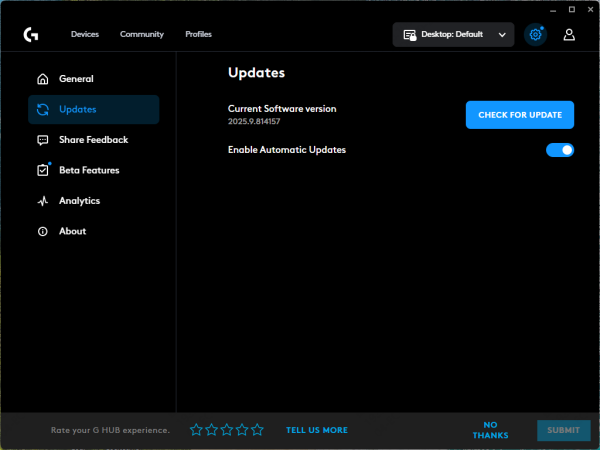
Firmware updates can resolve various issues, including audio or microphone problems. Here's how to update your Zone Vibe 100's firmware using Logitech G Hub:
Open Logitech G Hub software
Ensure your Logitech Zone Vibe 100 is connected
Check if a firmware update is available. If there is, follow the on-screen instructions to update it
Once the update is complete, reboot your system and test the headset's audio and microphone
Reset the Logitech Zone Vibe 100 (Factory Reset)
If none of the previous steps work, performing a factory reset may help resolve persistent issues. To reset the headset:
Press and hold the power button for 10-15 seconds (or follow the reset instructions in the manual)
Re-pair the headset with your device and check if the problem is resolved
.png "factory-reset")
Conclusion
By following this guide, you should be able to troubleshoot and resolve most audio and microphone issues with your Logitech Zone Vibe 100. If the problem persists, consider reaching out to Logitech Support for further assistance. With the right steps, you'll have your headset back to its optimal performance, ensuring you get the best sound and microphone quality for work, gaming, or communication.









